Ops in the Loop: Using Real-Time Form Data to Trigger Playbooks, Notifications, and Automations


Operations teams used to live in spreadsheets that were always a week out of date.
A form would collect leads, issues, or requests. Then someone would export a CSV, clean it up, forward it to a team, and maybe log it in another system. By the time anything happened, the moment of intent was gone.
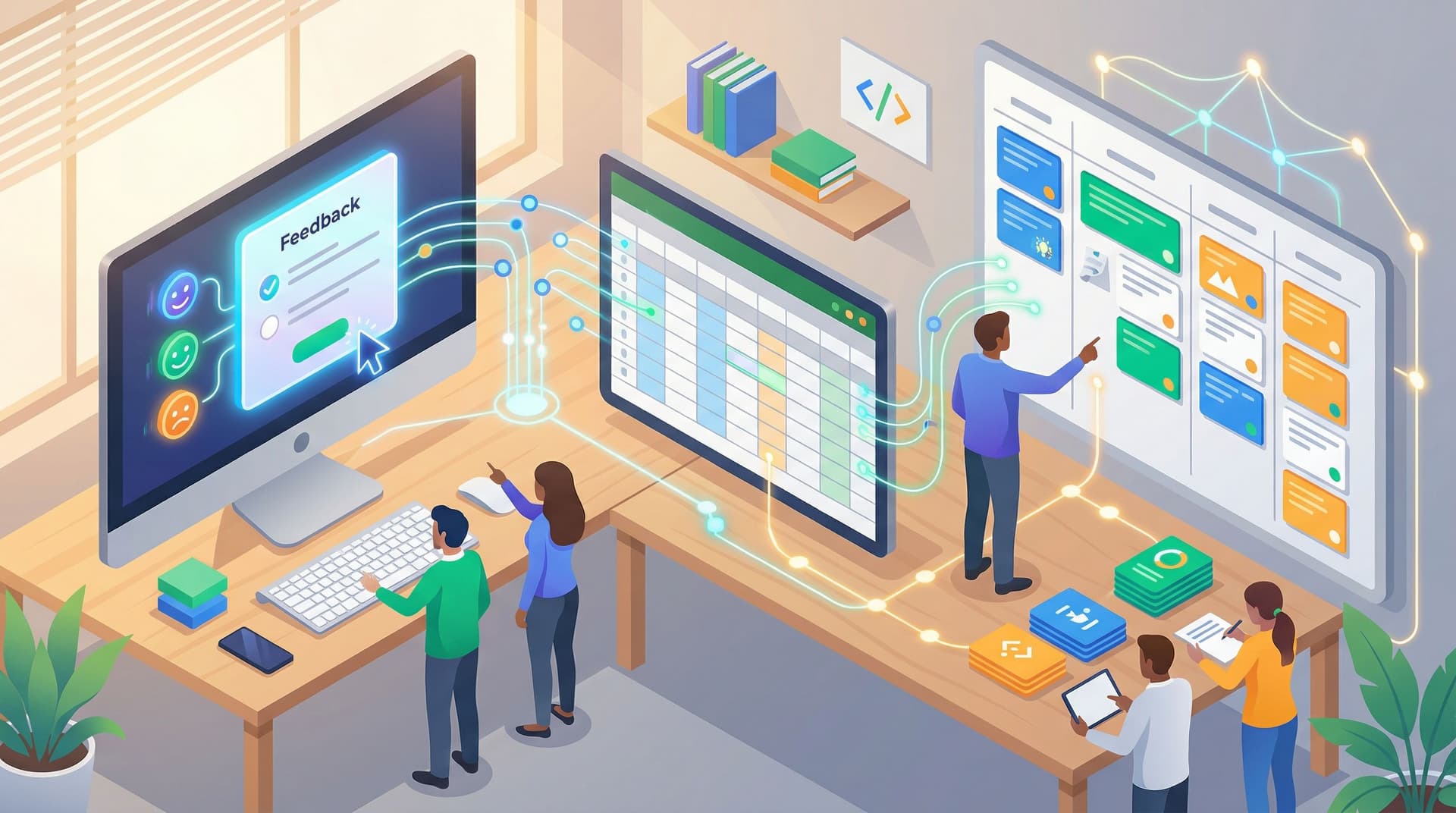
With tools like Ezpa.ge streaming responses directly into Google Sheets in real time, you don’t have to work that way anymore. Your forms can be more than intake—they can be triggers that fire playbooks, alerts, and automations the second someone hits Submit.
This post is about putting ops in the loop: turning form submissions into live signals that drive action, not just reports.
We’ll walk through:
- What “ops in the loop” actually means
- High-impact use cases across support, sales, product, and field ops
- How to wire up real-time automations using Ezpa.ge + Google Sheets + common tools
- Practical patterns for routing, prioritization, and error-proofing
What It Means to Put Ops in the Loop
Most teams already use forms to collect information. Far fewer use forms to coordinate action.
Putting ops in the loop means:
- Every important submission automatically goes somewhere useful (Slack, email, CRM, ticketing system).
- The right person or team is notified immediately, with enough context to act.
- Standard playbooks are triggered consistently, instead of relying on someone remembering “what we usually do.”
- The data stays live—no manual exports, no stale copies, no mystery spreadsheets.
In other words, your form isn’t just the front door to a spreadsheet. It’s the first step in a workflow.
If you’ve already read about using micro-forms to collect continuous feedback in posts like Beyond NPS: Micro-Form Strategies for Continuous Product Feedback Without Annoying Users, this is the natural next step: once feedback flows in continuously, what should happen next?
Why Real-Time Form-Driven Ops Matters
Hooking ops into your forms pays off in a few concrete ways.
1. Faster response times
When a high-intent lead, urgent support issue, or safety incident comes in, minutes matter.
- Sales: A lead who just requested a demo is far more likely to respond if you reach out within an hour, not two days later.
- Support: A “production is down” message needs to page someone now, not after a weekly triage meeting.
- Field ops: A broken device, missing inventory, or safety hazard should trigger a workflow the moment it’s reported.
Real-time syncing + alerts means you can move from “we’ll get to it” to “we’re on it”—and users feel the difference.
2. Less manual coordination
Without automations, ops teams become human routers:
- Copying submissions into different tools
- Tagging owners in Slack
- Updating statuses across sheets and CRMs
That’s slow, error-prone, and ultimately unsustainable. Automating these handoffs lets ops focus on improving the system instead of babysitting it.
If you’re already using Google Sheets as your operational source of truth (as we covered in Offline Teams, Online Forms: Operational Playbooks for Making Google Sheets Your Single Source of Truth), real-time form triggers are the missing link between “data arrives” and “work gets done.”
3. More consistent playbooks
You probably have rules in people’s heads:
- “If the customer is Enterprise, escalate to Tier 2.”
- “If the score is 9–10, invite them to the referral program.”
- “If the incident is safety-related, notify the on-call manager.”
Encoding these rules as automations tied to form fields means:
- Fewer exceptions slipping through the cracks
- Easier onboarding for new team members
- Clearer visibility into what actually happens after a submission
4. Better feedback loops
When actions are triggered from form data and logged back into the same sheet, you get a closed loop:
- User submits form
- Automation triggers playbook
- Team takes action
- Status and outcome are recorded
That loop is the foundation for more advanced work: prioritization models, A/B tests, and continuous optimization.
Common Workflows Where Ops Should Be in the Loop
Let’s ground this with concrete scenarios where real-time form-driven ops shines.
1. Lead capture and qualification
Form type: Demo request, pricing inquiry, event signup
Goal: Route high-intent leads to the right rep quickly.
Patterns you can implement:
-
Auto-routing by territory or segment
- Use form fields like country, company size, or industry.
- Google Sheets formula or Apps Script assigns an owner.
- A workflow tool (Zapier, Make, n8n) creates a CRM record and pings the owner in Slack.
-
Instant lead scoring
- Use a hidden score column in Sheets that calculates a score based on answers.
- If
Score >= 80, send a high-priority notification to a “Hot Leads” channel.
-
Personalized follow-up sequences
- Trigger different email sequences depending on use case selected in the form.
2. Support intake and escalation
Form type: Bug report, issue escalation, feature request
Goal: Make sure urgent issues are handled fast, and non-urgent ones are tracked cleanly.
Patterns:
-
Severity-based routing
- If
Impact = "Production down", send a PagerDuty or Opsgenie alert. - If
Impact = "Minor", create a standard ticket and add to the backlog.
- If
-
Auto-tagging and triage views
- Use Sheets filters and color-coding to create live triage views for support leads.
- Automations can add labels or components in tools like Jira, Linear, or GitHub.
-
User-friendly follow-up
- Automatically send a confirmation email with a ticket ID and next-step expectations.
3. Product feedback and research
Form type: Micro-surveys, feature feedback, beta opt-in
Goal: Turn feedback into structured signals and follow-up actions.
Patterns:
-
Segmented research panels
- If a respondent selects “Yes” to “Willing to join a research call?”, automatically add them to a research panel sheet and send a Calendly link.
-
Priority feedback routing
- If a micro-survey response indicates high frustration, notify the PM owning that area.
If you’re already using targeted micro-surveys as described in Micro-Surveys, Macro Insight: Using Tiny Forms Across Your Product to Unlock Continuous Feedback, wiring in ops automations ensures the most important responses don’t just sit in a tab.
4. Field operations and incident reporting
Form type: Site inspection, safety incident, quality check
Goal: Get real-world events into your systems immediately and trigger the right operational steps.
Patterns:
-
Geo-tagged incident routing
- Use location fields to route incidents to local managers.
- Maintain separate views in Sheets for each site or region.
-
Automated checklists
- When a specific incident type is reported, create a task list in your project tool with pre-defined steps.
The Core Building Blocks: Forms, Sheets, and Triggers
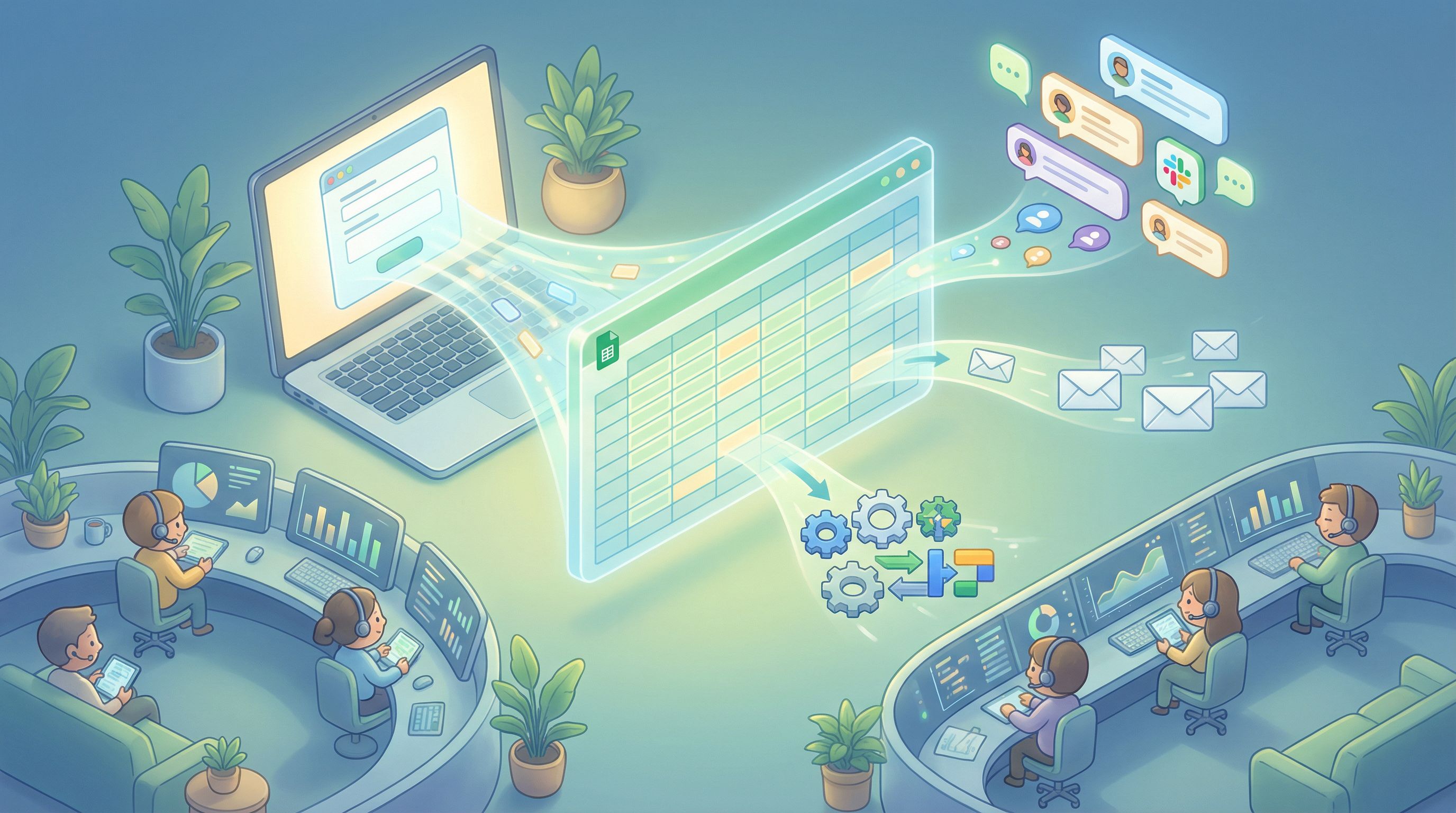
You don’t need a huge stack to put ops in the loop. At minimum, you need three things:
- A form builder with real-time syncing (Ezpa.ge)
- A live data hub (Google Sheets)
- A trigger engine (Apps Script, Zapier, Make, or similar)
Let’s break down how these pieces work together.
1. Design your form as a workflow interface
When you know a form is going to trigger automations, you design it differently:
-
Every field should map to a decision or action.
- If you ask for “Priority,” decide what “High” vs “Medium” actually does.
- If you ask for “Use case,” decide which playbook each use case should trigger.
-
Use structured fields where possible.
- Dropdowns, multiple choice, and checkboxes are easier to use in formulas and automations than long free-text answers.
-
Include hidden or internal-use fields.
- For example:
Source,Campaign, orForm Versionto help with analytics and routing.
- For example:
If you’re not sure how to structure questions so they’re automation-friendly, the patterns in From Survey to System: Designing Feedback Forms That Actually Change Your Roadmap translate directly to ops workflows too.
2. Treat Google Sheets as your real-time rules engine
Once Ezpa.ge is syncing submissions into Google Sheets, your sheet becomes more than storage. It’s a logic layer.
Useful techniques:
-
Derived columns
- Use formulas to calculate:
- Lead scores
- SLA deadlines (e.g.,
Submitted At + 2 hours) - Next action (e.g.,
"Escalate","Standard","Ignore")
- Use formulas to calculate:
-
Validation and enrichment
- Use functions or Apps Script to:
- Normalize phone numbers
- Look up account tiers from another sheet
- Flag missing or suspicious data
- Use functions or Apps Script to:
-
Status tracking
- Add
Status,Owner, andLast Updatedcolumns. - Ensure automations update these fields as they run.
- Add
If you want to go deeper on using Sheets as a live validation and rules engine, the techniques in Real-Time Guardrails: Using Google Sheets Logic to Auto-Clean and Validate Form Data pair perfectly with ops-in-the-loop workflows.
3. Use triggers to connect Sheets to your tools
There are three main ways to fire automations when new rows land in your sheet:
-
No-code workflow tools (Zapier, Make, Airtable Automations, etc.)
- Trigger: “New row in Google Sheets” or “New/updated row matching a filter.”
- Actions: Send Slack messages, create CRM records, open tickets, send emails.
-
Google Apps Script
- Use
onFormSubmitor time-based triggers. - Write custom logic in JavaScript to:
- Call webhooks
- Post to APIs
- Update other Sheets or Docs
- Use
-
Native integrations
- Some tools connect directly to Sheets (e.g., CRMs, analytics platforms).
- Use their “watch spreadsheet” or “import live” features as part of your workflow.
The pattern is always the same:
New or updated row → Check conditions → Run playbook → Update status
Designing Playbooks That Actually Work in Real Life
Automations are only as good as the playbooks behind them. Here’s how to design flows that work under real constraints.
1. Start with a single, narrow workflow
Instead of trying to automate everything, pick one:
- “Route high-intent demo requests to sales within 30 minutes.”
- “Escalate P1 incidents to on-call within 5 minutes.”
- “Notify PMs of high-frustration feedback within 1 hour.”
Then:
- Map the current manual steps.
- Identify which steps can be automated and which must stay human.
- Design the form and sheet fields to support those steps.
- Implement a basic automation, then iterate.
2. Make ownership explicit
Every automated flow should answer:
- Who owns this submission right now?
- What does “done” look like?
Use fields like:
Owner(email or name)Status(e.g., New → In Progress → Waiting on Customer → Done)SLA Breach Risk(Yes/No, based on timestamps)
Your automations should:
- Assign
Owneron creation, or flag if no owner is found. - Update
Statusas actions occur. - Optionally ping owners when deadlines are approaching.
3. Build in guardrails and fallbacks
Automations fail. People go on vacation. APIs change.
Protect yourself with:
-
Error channels
- A dedicated Slack channel or email list for “automation failed” alerts.
-
Fallback routing
- If no owner is found, assign to a default queue and notify ops.
-
Manual override
- Allow humans to change
StatusorOwnerto override automations when needed.
- Allow humans to change
4. Keep humans in the loop where judgment is needed
Not everything should be automated.
Use automation for:
- Data movement (forms → Sheets → tools)
- Notifications and reminders
- Standardized first steps
Keep humans for:
- Prioritization in ambiguous cases
- Complex troubleshooting
- Relationship-building follow-ups
Think of your automations as exoskeletons for your ops team—they carry the heavy, repetitive work so people can focus on the nuanced parts.

Example: From Form Submission to Slack Alert to CRM Record
Let’s walk through a concrete end-to-end example using Ezpa.ge, Google Sheets, and a workflow tool like Zapier.
Scenario: You want high-intent demo requests to reach sales within 30 minutes.
Step 1: Build the form in Ezpa.ge
Key fields:
- Name
- Work email
- Company
- Company size (dropdown: 1–10, 11–50, 51–200, 201–1000, 1000+)
- Country/Region
- Primary use case (dropdown)
- Urgency (dropdown: “Just exploring”, “Need a solution this month”, “Need a solution this week”)
Step 2: Sync to Google Sheets
Configure Ezpa.ge to sync every submission to a dedicated Google Sheet.
Add these extra columns in the sheet:
Lead Score(formula based on size + urgency)Owner(formula or VLOOKUP based on region or segment)Status(defaultNew)
Example Lead Score logic (simplified):
- Base score from company size
- +20 if urgency is “Need a solution this week”
- +10 if urgency is “Need a solution this month”
Step 3: Create a trigger in your workflow tool
In Zapier (or similar):
- Trigger: New row in Google Sheets where
Lead Score >= 80andStatus = "New". - Action 1: Send a Slack message to
#sales-leadswith key details and a link to the row. - Action 2: Create or update a record in your CRM.
- Action 3: Update
Statusin the sheet toNotified.
Step 4: Add a follow-up reminder
Create a second automation:
- Trigger: Every 30 minutes, find rows where
Status = "Notified"andLast Contactedis empty. - Action: DM the
Ownerin Slack with a reminder and a one-click button to mark as contacted.
Now you have a loop where:
- The form captures intent.
- Sheets scores and routes.
- Automations notify and create records.
- Humans follow up and update statuses.
No one has to manually export, sort, and forward leads. Ops is in the loop—but not stuck in the loop.
Measuring and Improving Your Ops-in-the-Loop System
Once you’ve wired up a few workflows, treat them like any other product surface: measure, learn, iterate.
Metrics to track:
-
Time to first response
- From
Submitted Atto first human touch.
- From
-
SLA adherence
- % of submissions handled within your target window.
-
Escalation rates
- How often are issues escalated? Are thresholds right?
-
Automation coverage
- What % of submissions trigger a playbook vs. fall into a manual queue?
Use your Google Sheet as a lightweight dashboard, or connect it to a BI tool if you need more visualization. (If you haven’t yet, check out From Form to Funnel: Turning Raw Responses into a Live Google Sheets Dashboard for a deeper dive on that setup.)
As you learn, you can:
- Adjust thresholds (e.g., what counts as “high intent” or “P1”).
- Split playbooks by segment or region.
- Add new automations for recurring manual tasks you still see.
Wrapping Up
Putting ops in the loop is about turning forms from static intake into living workflows:
- Forms capture structured data that maps directly to decisions.
- Google Sheets acts as a real-time brain—scoring, routing, and validating.
- Automations connect that brain to the tools and people who need to act.
The payoff is faster response times, less manual coordination, and more consistent playbooks—without hiring an army of coordinators or building a custom backend.
You don’t have to automate everything at once. Start with one critical workflow, wire it up, and let your team feel what it’s like when the system moves as quickly as your users do.
Your Next Step
Pick one form that already matters to your ops team:
- A demo request or partner inquiry form
- A support or incident intake form
- A micro-survey that surfaces high-frustration feedback
Then:
- Connect it to Google Sheets through Ezpa.ge if you haven’t yet.
- Add the columns you need for routing and status (
Lead Score,Owner,Status). - Set up a single automation: a Slack alert, an email, or a ticket creation when certain conditions are met.
Once you see that first submission automatically trigger real work—without anyone exporting a CSV—you’ll never want to go back.
Ezpa.ge already gives you the building blocks: responsive forms, custom URLs, and real-time Google Sheets syncing. The rest is just deciding which workflows you want to bring to life.
Start with one. Put ops in the loop. Then keep going.