AI Triage in Forms: Letting Models Draft Next Steps While Humans Own Final Decisions


AI is getting very good at reading what people type—and very bad at understanding what it means for your business without help.
That tension shows up everywhere you use forms:
- A support form where some tickets need a same‑day human response, and others could be handled with a help article.
- A sales inquiry form where a few submissions are high‑intent, high‑fit leads—and most are not.
- A feedback form where certain comments should trigger an immediate follow‑up or escalation.
If every submission is treated the same, your team drowns in noise. If you try to fully automate responses, you risk off‑brand, unsafe, or simply wrong outcomes.
AI triage is the middle path: let models draft the next step, but keep humans firmly in charge of final decisions.
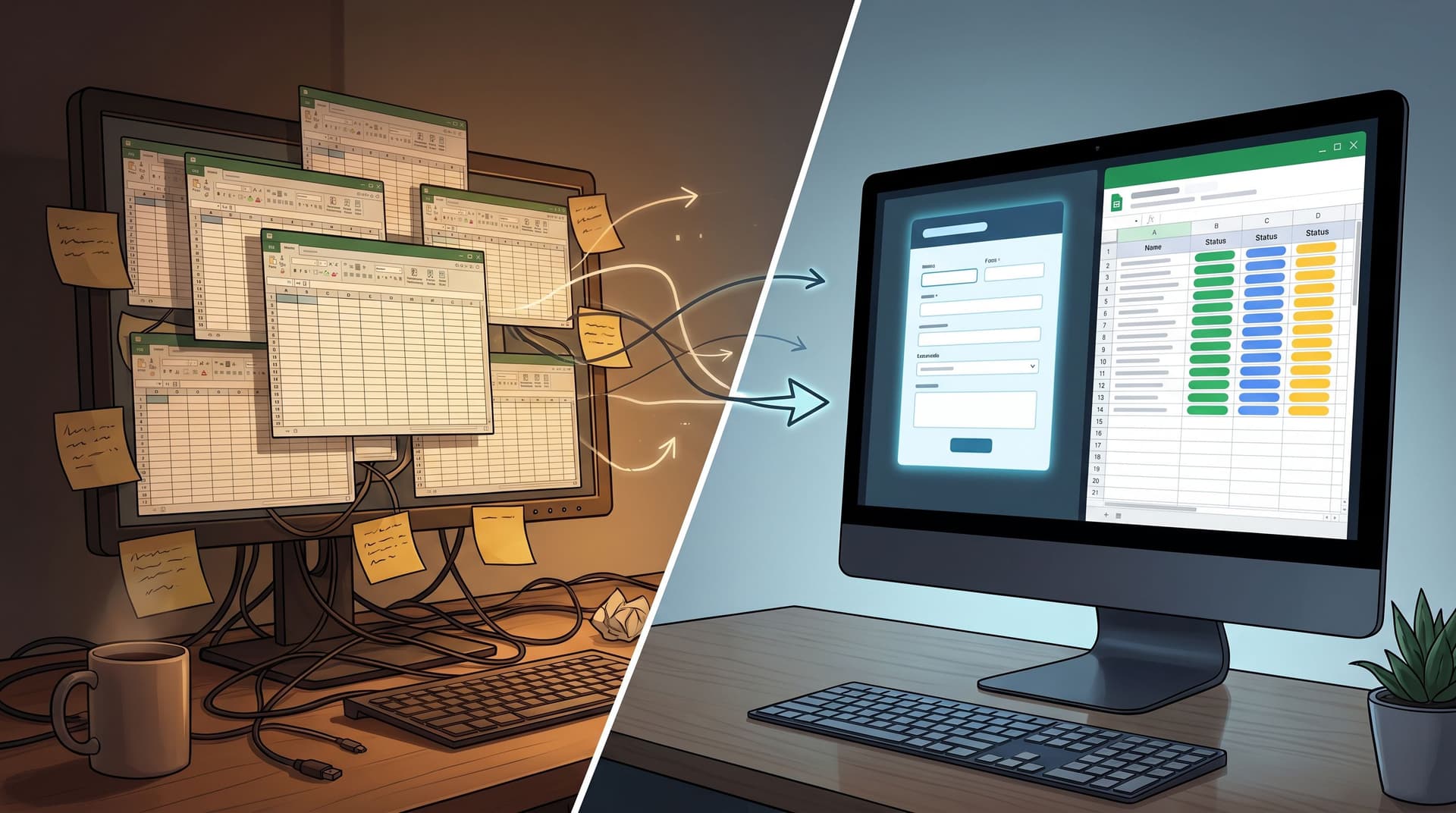
When you pair this approach with tools like Ezpa.ge—where forms stream into Google Sheets in real time—you can turn simple submissions into structured, AI‑assisted workflows without losing control.
Why AI Triage Belongs in Your Forms
Most teams already do some form of triage. A CX lead skims the inbox and tags urgent tickets. A sales manager eyeballs form responses and forwards the best ones. A PM reads survey comments and pastes the important ones into Slack.
That manual triage has three big problems:
- It doesn’t scale. As volume grows, quality drops or response times slip.
- It’s inconsistent. Different people make different calls on what’s urgent, what’s a fit, or what needs escalation.
- It’s invisible. The logic lives in people’s heads, not in a system anyone can inspect or improve.
AI triage flips that pattern by using models to:
- Classify submissions into buckets (priority, sentiment, topic, fit, risk).
- Propose next steps (send this email, route to this team, schedule this follow‑up).
- Draft responses or internal notes that humans can quickly review and edit.
Humans still:
- Decide which automations are allowed to run without them.
- Review edge cases, sensitive topics, and high‑impact decisions.
- Continuously refine prompts, categories, and guardrails.
The result is a workflow where:
- Low‑risk, high‑volume work gets faster. Think: “reset password” or “wrong pricing page” support tickets.
- High‑risk or high‑value work gets more attention. The right people see the right submissions sooner.
- Your forms become more than inboxes. They become structured entry points into live playbooks—especially when everything lands in a central Sheet.
If you’ve already built operational flows with Ezpa.ge and Google Sheets—like the capacity tracking patterns in Form UX for Events: Waitlists, RSVPs, and Real-Time Capacity Management in Google Sheets—AI triage is a natural next layer.
The Core Pattern: Draft, Don’t Decide
The most important mindset shift is simple:
Let AI draft the next step; let humans decide what actually happens.
Think of AI as an over‑eager junior teammate:
- It reads every submission.
- It suggests what to do next.
- It drafts messages, tags, and summaries.
- It never hits “send” or “approve” without a human saying yes—unless you’ve explicitly allowed it for certain cases.
This pattern gives you the best of both worlds:
- Speed: Models can read 1,000 submissions in seconds and flag the 50 that matter most.
- Consistency: The same logic is applied every time, and you can update it centrally.
- Control: Humans still own the outcomes, especially where brand, compliance, or relationships are on the line.
Where AI Triage Shines in Form Workflows
Let’s look at some common form types and how AI triage changes the game.
1. Support and Product Feedback Forms
Support queues and feedback forms are perfect candidates because they’re:
- Text‑heavy
- Repetitive
- Time‑sensitive
With AI triage, each new submission can automatically get:
- Topic classification: billing, bug, feature request, onboarding, account access, etc.
- Urgency score: low, medium, high, critical.
- Sentiment: positive, neutral, negative, very negative.
- Suggested response type: send help article, escalate to engineering, schedule call, follow up with apology.
From there, your team can:
- Auto‑assign tickets based on topic and urgency.
- Trigger alerts when sentiment + urgency cross a threshold.
- Use AI‑drafted replies as a starting point—review, personalize, and send.
This is exactly the kind of flow that pairs well with the playbooks described in Form UX for Product-Led Support: Turning ‘Contact Us’ Into Guided Self-Service Flows. AI simply becomes another layer of guidance.
2. Sales, Partnerships, and Creator Intakes
Any form where someone is raising their hand—demo requests, partnership pitches, sponsorship intakes—benefits from AI triage.
You can have models:
- Score fit based on company size, industry, role, budget, and self‑reported needs.
- Identify intent signals in free‑text answers (e.g., “we need to launch in 30 days” vs. “just exploring”).
- Draft a short internal summary: why this lead matters, what they care about, and suggested next steps.
Humans then:
- Approve or adjust the score.
- Decide whether this is a priority outreach or nurture.
- Personalize the first reply using the AI summary.
If you’re running a creator business, this can sit on top of the workflows from Forms for Creator Businesses: Sponsorship Intakes, Collab Pitches, and Media Kits in One URL. AI helps you separate serious opportunities from noise without losing the nuance.
3. Internal Requests and Ops Forms
Think of forms like:
- “Request a report”
- “Ask ops for help”
- “Submit a legal review”
AI triage can:
- Classify the request type and complexity.
- Suggest an owner or team based on the content.
- Propose a due date based on urgency language.
- Draft a checklist or task description for your project tool.
Your team then reviews and confirms before anything is committed.
Designing AI-Triage-Ready Forms
You don’t need to rebuild everything to start. But a few design choices make AI triage dramatically more effective.
1. Capture the Right Signals Up Front
AI is powerful, but it’s not magic. You still need good inputs.
Consider adding or refining fields like:
- “What best describes your request?” (dropdown with clear options)
- “How urgent is this?” (with definitions for each level)
- “What outcome are you hoping for?” (short text)
- “Anything else we should know?” (optional long text)
These give your model structure to work with while still leaving room for nuance.
2. Make Free-Text Fields Work Harder
Instead of a single generic “Describe your issue” box, guide people:
- Prompt with examples: “For example: what you were trying to do, what you expected, what happened instead.”
- Use helper text to discourage sensitive data where you don’t need it.
- Break long stories into 2–3 smaller questions when it helps clarity.
Better structure means better AI summaries and fewer follow‑up emails.
3. Standardize Across Forms Where It Matters
If you want AI triage to work across multiple forms (support, sales, feedback), standardize key fields:
- Use the same labels for urgency, company size, or product area.
- Reuse answer options instead of inventing new ones for each form.
- Keep IDs and column names consistent in Sheets.
This makes it far easier to maintain a single set of triage prompts and formulas, instead of one‑off logic per form. If you’ve already consolidated forms into a “Form OS” as described in From Spreadsheet Chaos to Form OS: How to Turn Rogue Sheets into a Unified Intake System, you’re already halfway there.
How to Wire Up AI Triage with Ezpa.ge + Sheets
Let’s get concrete. Here’s a simple pattern you can implement without a data science team.
Step 1: Stream Form Data into a Central Sheet
With Ezpa.ge, you can:
- Connect your form to Google Sheets.
- Map each field to a column.
- Confirm that new submissions append as new rows.
Make sure you have columns for:
- Raw inputs (e.g., “Issue description,” “Goals,” “Context”).
- Metadata (e.g., timestamp, form name, channel).
Step 2: Add Columns for AI Outputs
Create new columns for the AI to fill, such as:
AI TopicAI UrgencyAI SentimentAI Suggested OwnerAI Next StepAI Draft Reply
These columns will hold model outputs that humans can read and adjust.
Step 3: Use an AI Connector or Script
You have a few options to call models from your Sheet:
- A no‑code connector or add‑on that lets you call an AI model from a cell formula.
- A custom Apps Script that sends row data to an API and writes back the response.
- A lightweight integration platform (like Zapier or Make) that watches for new rows and updates your Sheet.
The pattern is the same:
- Watch for new or updated rows.
- Send selected fields (and any relevant context or instructions) to the model.
- Parse the response into your AI output columns.
Step 4: Give the Model Clear, Bounded Instructions
Prompt quality matters. Your instructions to the model should:
- Define the possible values for classifications (e.g., urgency can only be
low,medium,high,critical). - Explain your business context briefly (who you serve, what the form is for).
- Include examples of good outputs.
- Explicitly say what the model must not do (e.g., “Do not promise refunds or discounts”).
Think of this as writing a mini playbook for that over‑eager junior teammate.
Step 5: Build Human Review into the Workflow
AI triage only works if humans can easily review and override.
A few practical patterns:
- Review views: Create filtered views in Sheets for “AI Urgency = high or critical” or “AI Next Step = manual follow‑up.”
- Ownership columns: Add
OwnerandOwner Statuscolumns so humans can mark items as reviewed, in progress, or done. - Audit trail: Keep a simple log of changes when humans override AI outputs, so you can later improve prompts or thresholds.
Once you trust the system for certain low‑risk cases, you can selectively allow automations to run without manual review (e.g., sending a help article when the AI confidently classifies a basic billing question).

Guardrails: Keeping Humans in Charge
AI triage is only as safe as the guardrails you set. A few principles to bake into your system from day one:
1. Separate Drafts from Actions
Never let a model:
- Approve refunds or discounts.
- Change account settings.
- Commit to legal terms.
- Escalate or close critical incidents.
Instead, let it draft:
- Suggested responses.
- Internal notes.
- Priority levels and owners.
Humans then confirm.
2. Treat AI Outputs as Suggestions, Not Truth
Encourage your team to:
- Skim the original submission, not just the AI summary.
- Adjust classifications when they disagree.
- Flag obviously wrong or biased outputs.
Over time, use that feedback to refine your prompts and categories.
3. Be Transparent Where It Matters
You don’t have to announce every internal automation. But when AI is shaping user‑facing communication, consider:
- Letting people know that messages are assisted by AI and reviewed by humans.
- Making it easy for someone to ask for a human directly.
- Avoiding overly robotic language or generic replies.
4. Start Narrow, Then Expand
Instead of trying to triage everything at once:
- Pick one form and one use case (e.g., “support tickets about billing”).
- Define clear categories and next steps.
- Run AI triage in “shadow mode” first—drafts only, no automations.
- Once you trust it, add more topics or forms.
This reduces risk and helps your team build intuition about where AI is genuinely helpful.
Measuring Whether AI Triage Is Working
AI triage isn’t a philosophical exercise; it should make your operations meaningfully better.
Track metrics like:
- Time to first human touch: How quickly does a person respond to high‑priority submissions now vs. before?
- Queue distribution: Are your most experienced teammates spending more time on complex, high‑impact work?
- Response quality: Are CSAT, NPS, or post‑interaction ratings holding steady or improving?
- Manual effort: How many submissions can a person review per hour with AI summaries vs. without?
You can also set up simple experiments:
- For a week, handle support tickets with AI summaries; another week, without. Compare resolution time and satisfaction.
- For sales forms, compare conversion rates for leads that went through AI triage vs. a control group.
Because Ezpa.ge pipes everything into Sheets, you can run these comparisons without new tooling—just thoughtful filters, pivot tables, and a recurring review ritual, like the ones described in Ops Analytics, Not Dashboards: Turning Form + Google Sheets Data into Weekly Decision Rituals.
Bringing It All Together
AI triage doesn’t replace your team. It changes what they spend their time on.
Instead of:
- Manually scanning every submission.
- Copy‑pasting boilerplate replies.
- Debating who should own what.
Your team can:
- Focus on edge cases, relationships, and strategy.
- Make faster, more consistent decisions based on structured AI suggestions.
- Treat forms as living workflows instead of static inboxes.
When your forms live on Ezpa.ge, with themes, custom URLs, and live syncing into Google Sheets, you already have the plumbing. AI triage is just another layer in that system—one that turns raw text into prioritized, routed, and partially drafted work.
Start small. Keep humans in charge. Let models do what they’re good at: reading everything, all the time, and proposing the next move.
Next Step: Try AI Triage on a Single Form
You don’t need a full AI strategy to get value here. You just need one form and one clear outcome.
Here’s a simple way to start this week:
- Pick one form that generates meaningful volume—support, sales, or feedback.
- Clarify 3–5 categories you wish you could see at a glance (e.g., topic, urgency, sentiment, fit).
- Connect the form to a Sheet with Ezpa.ge if you haven’t already.
- Add AI output columns and wire up a basic model integration.
- Run in draft mode for a few days—let AI suggest, but not act.
- Review with your team: what did the AI get right, what needs tightening, and where did it save the most time?
Once you’ve seen AI triage work on a single form, it becomes much easier to imagine—and implement—the next few.
If you’re ready to experiment with this pattern, start by making sure your forms are clean, on‑brand, and Sheet‑connected. Ezpa.ge gives you that foundation with responsive themes, custom URLs, and real‑time Google Sheets syncing—everything you need to let AI draft the next step while your team stays firmly in control of the decisions that matter.