Form UX for Events: Waitlists, RSVPs, and Real-Time Capacity Management in Google Sheets


When an event goes well, it looks effortless from the outside: the room is full but not overcrowded, check-in is smooth, and nobody is awkwardly turned away at the door. Behind that effortlessness is usually one unglamorous reality:
Forms and spreadsheets.
If you’re running workshops, community meetups, creator events, conferences, or even internal offsites, the difference between a stressful event and a confident one often comes down to three things:
- How you collect RSVPs
- How you manage waitlists
- How you track capacity in real time
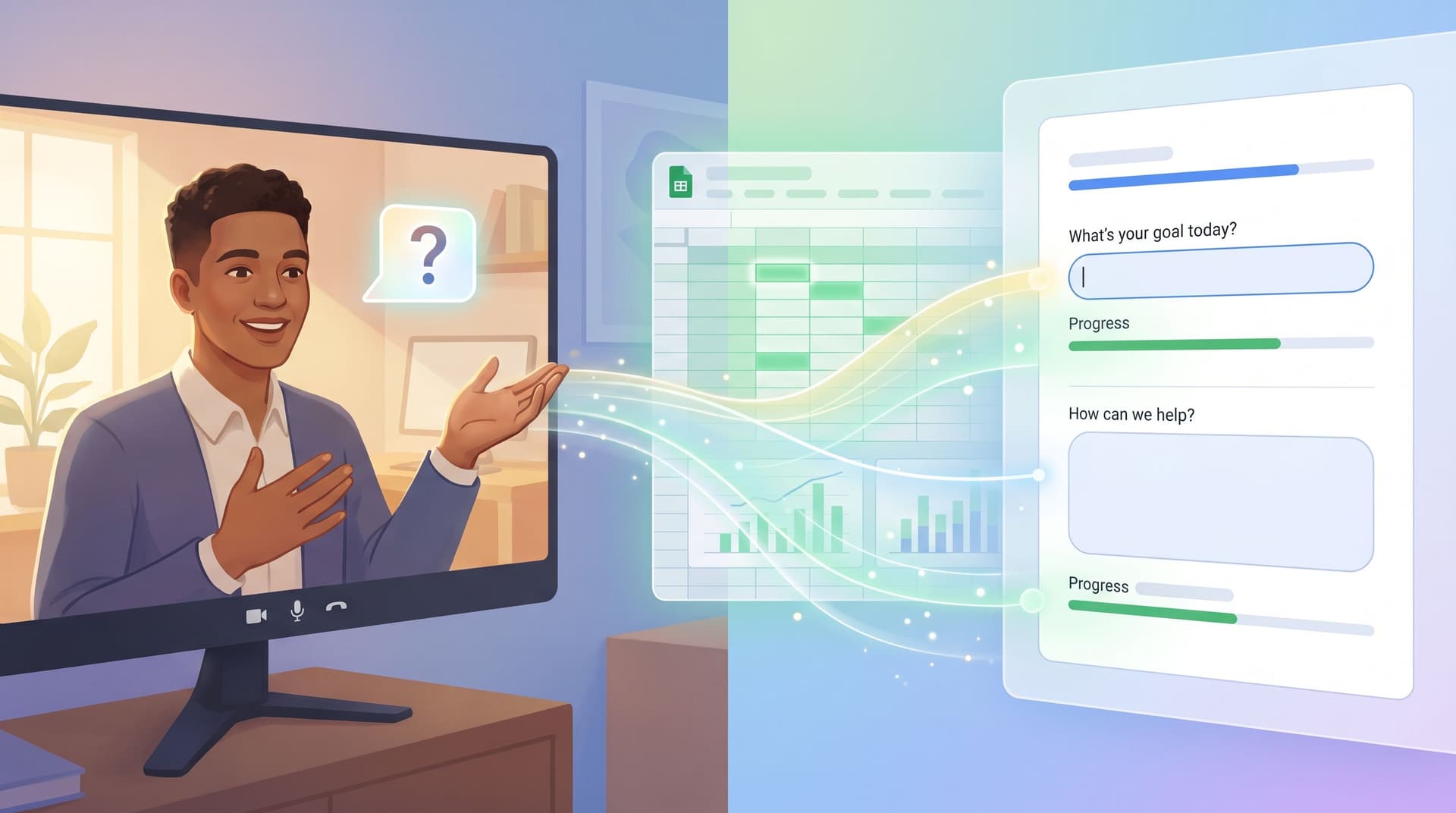
This is where tools like Ezpa.ge—paired with Google Sheets—shine. You get beautiful, branded forms on the front, and a live operational dashboard on the back.
In this post, we’ll walk through how to design event forms that feel great to fill out, while giving your team the live capacity picture you need to make smart decisions.
Why Event Form UX Matters More Than You Think
Event forms are not just a logistics tool. They’re:
- The first impression of your event experience – Before someone sees your venue or speaker lineup, they see your RSVP form.
- A trust test – If the form feels confusing, janky, or overcomplicated, people quietly wonder if the event will be the same.
- Your operational source of truth – This is where you decide who gets in, who gets waitlisted, and when to open a second session.
If you’ve read our piece on forms as first meetings, you know that every form is a conversation. For events, that conversation has stakes: people are investing time, sometimes money, and often social capital to show up.
A well-designed RSVP + waitlist system helps you:
- Fill events to the right capacity (not half-empty, not oversold)
- Reduce no-shows with smart confirmations and reminders
- Avoid awkward “sorry, we’re full” moments at the door
- Make fast, data-backed calls—like when to promote more spots or add another date
The Core Building Blocks: RSVPs, Waitlists, Capacity
Before you touch a form builder, get clear on three concepts:
- RSVPs – People who have an actual seat at a specific event instance.
- Waitlists – People who want to attend if a spot opens up (or if you add another date).
- Capacity – The maximum number of attendees you’re comfortable hosting for that specific event.
Your form UX should make it obvious which of these someone is getting, without making them do mental math.
A simple mental model
Think in terms of states:
- Open – Event has space; people can RSVP and instantly get a spot.
- Waitlist – Event is full; new signups are added to a queue.
- Closed – Event is over or no longer accepting interest.
Ezpa.ge + Google Sheets lets you wire this up so your forms stay simple, while your backend logic handles the complexity.
Designing an RSVP Flow That Feels Like a Promise
Your RSVP form is a promise: “If you give us your information, here’s what you can expect.” The UX should reflect that.
1. Start with the essentials
Ask only for what you truly need to run a great event and follow up afterward. Typically:
- Name
- Company / role (if relevant)
- Session time or location (if multiple options)
- Accessibility or dietary needs (if applicable)
Everything else should earn its place. If you’re unsure, leave it out or move it to a follow-up form.
For more on trimming forms without losing signal, our post on secure-by-default patterns has practical examples of collecting less while still getting what you need.
2. Use microcopy to set expectations
Small bits of text do a lot of heavy lifting:
- Above the form:
- “Spots are limited to 40 attendees. You’ll receive a confirmation email within a few minutes.”
- Near the submit button:
- “If we’re full, you’ll be added to the waitlist and notified automatically.”
Clear expectations reduce anxious refreshes and support tickets.
3. Theme and URL as trust signals
If your event is for a high-intent audience—customers, partners, VIPs—your form design needs to match that level of care.
With Ezpa.ge, you can:
- Use a custom URL like
events.yourbrand.com/product-lab-julyinstead of a generic link - Match colors and typography to your event landing page
- Keep forms responsive across mobile and desktop
If you want to go deeper on how form aesthetics shape trust, you’ll like Signals in the Theme.

Building a Smart Waitlist That Actually Works for You
A waitlist is not just a consolation prize. Done well, it’s a:
- Demand signal (should we add another session?)
- Segment (who’s engaged enough to sign up early?)
- Safety net (so a few cancellations don’t wreck your event)
1. Decide when to switch to waitlist
You have two main options:
- Hard capacity – Once you hit 100 RSVPs, everyone else goes to waitlist.
- Soft buffer – You allow, say, 110 RSVPs for a 100-seat room to account for no-shows, then waitlist.
In Google Sheets, you can track this with a simple formula:
- Column A: Timestamp
- Column B: Status (
"RSVP"or"Waitlist") - Column C: Name
- Column D: Email
Use a formula like this in a helper cell to count confirmed RSVPs:
=COUNTIF(B:B, "RSVP")
Once that number reaches your threshold, you switch your form logic so new submissions are tagged as Waitlist.
With Ezpa.ge’s live Google Sheets syncing, you can:
- Watch that count in real time
- Use Filters or conditional formatting to highlight when you’re close to capacity
- Quickly decide when to toggle the form from RSVP to waitlist mode
2. Keep the waitlist form almost identical
Don’t make people fill out a totally different form just because they’re late to the party. Instead:
- Reuse the same fields as your RSVP form
- Change the framing copy to:
- “We’re currently at capacity, but we’d love to have you if a spot opens up.”
- “You’ll hear from us at least 24 hours before the event if we can confirm your spot.”
- Make the button label honest:
- “Join waitlist” instead of “Save my seat”
3. Communicate clearly after submission
Your thank-you state matters as much as the form itself.
For confirmed RSVPs:
- “You’re in! Check your email for details and calendar invite.”
- Include key info: date, time, location, cancellation policy.
For waitlisted attendees:
- “You’re on the waitlist. We’ll email you if a spot opens up. If we add a second session, you’ll be the first to know.”
- Optionally, let them indicate flexibility:
- “I can attend a morning session instead” (checkbox)
This is where Ezpa.ge’s ability to theme thank-you views and route data to Sheets gives you a lot of control without code.
Wiring Google Sheets for Real-Time Capacity Management
Once your forms are flowing into Google Sheets, you can treat the Sheet as your event command center.
Here’s a practical setup that works for most teams.
1. Structure your Sheet by event
Create a tab per event (or per event date), with columns like:
TimestampStatus(RSVP / Waitlist / Canceled / No-show)NameEmailSession(if multiple times)Source(optional: which campaign, channel, or partner)Notes(dietary needs, accessibility, etc.)
If you’re running a recurring series, you can also keep one master tab with an Event ID column and build filters or pivot tables on top.
2. Use formulas to track capacity at a glance
Add a small “dashboard” area at the top of your Sheet:
- Total RSVPs
=COUNTIF(B:B, "RSVP")
- Total Waitlist
=COUNTIF(B:B, "Waitlist")
- Capacity Remaining
- Suppose your capacity is in cell
F2and total RSVPs inF3: =F2 - F3
- Suppose your capacity is in cell
Then add conditional formatting to highlight when:
- Capacity remaining ≤ 10 (yellow)
- Capacity remaining ≤ 0 (red)
Now anyone on your team can open the Sheet and see, at a glance, whether you should:
- Push more promotion
- Slow down promotion
- Switch to waitlist
- Add another session
3. Segment by session or ticket type
If your event has multiple sessions (e.g., 9am and 1pm) or ticket types (e.g., general vs. VIP), you can:
- Add a
Sessioncolumn - Use
COUNTIFSto track capacity per session
Example:
=COUNTIFS(B:B, "RSVP", E:E, "9am Session")
This lets you:
- Cap each session separately
- See which time slots are most popular
- Offer waitlisted folks alternative times
4. Build simple views for check-in
On event day, you don’t want to scroll through raw data. You want clean views.
Options inside Google Sheets:
- Filter View: Show only
Status = RSVPfor a given session. - Sort by Name: So check-in staff can quickly scan.
- Add a
Checked Incolumn: Staff can markYesas people arrive.
Later, you can use this data to:
- Compare RSVPs vs. actual attendance
- Adjust your soft buffer for future events
- Identify segments with higher no-show rates
If you’re already thinking about how this fits into your broader ops stack, our post on From Spreadsheet Chaos to Form OS walks through turning forms + Sheets into a unified intake system.

Handling Edge Cases Without Breaking Trust
Events rarely go exactly to plan. Your form system should help you navigate the weird edges gracefully.
1. Overbooking and no-shows
If you’re consistently seeing 20–30% no-shows, you might be tempted to aggressively overbook. A better pattern:
- Keep a modest overage (e.g., 10–15%) baked into your capacity logic.
- Use your waitlist as a live buffer:
- As people cancel, promote waitlisted attendees.
- Send “last chance” confirmations to waitlisted folks 24 hours before.
You can track this in Sheets by:
- Updating
StatusfromRSVP→Canceledwhen someone emails you - Changing a waitlisted row to
RSVPwhen you promote them
2. Cancellations and transfers
Make it easy—and socially acceptable—for people to cancel. That’s how you protect capacity for people who can attend.
Options:
- Include a “Can’t make it?” link in confirmation emails that goes to a tiny Ezpa.ge form:
- “I need to cancel my spot” (checkbox)
- When that form syncs to Sheets, use a simple workflow:
- Filter by
Cancellationsubmissions - Match emails to your RSVP list
- Update their
StatustoCanceled
- Filter by
If you allow transfers (e.g., “someone else from my team will attend”), add a field:
- “Who will attend instead?” (name + email)
Then treat that as a new RSVP row and mark the original as Transferred.
3. Multiple events, one waitlist
Sometimes you want one central waitlist for a broader program—say, a monthly workshop series.
You can:
- Create a single “Interest / Waitlist” form
- Ask which dates or cities they’re interested in
- Use Google Sheets filters to segment by:
- City
- Date range
- Topic
As you schedule new events, you already have a warm list of people to invite first.
Bringing It All Together with Ezpa.ge + Sheets
Let’s translate all of this into a concrete pattern you can set up this week.
Step 1: Create your RSVP form in Ezpa.ge
- Add essential fields only.
- Style it to match your event branding.
- Set a clear, branded custom URL.
Step 2: Connect to Google Sheets
- Enable real-time syncing so each submission becomes a new row.
- Set up your columns for
Status,Session,Checked In, and any other fields you need.
Step 3: Build your capacity dashboard
At the top of your Sheet:
- Add capacity numbers per session.
- Use
COUNTIF/COUNTIFSfor RSVPs and waitlists. - Add conditional formatting to warn you as you approach capacity.
Step 4: Duplicate your form for waitlist mode
- Keep fields the same.
- Adjust the copy to explain the waitlist.
- Change the submit button label.
- Still sync to the same Sheet, but pre-fill
StatuswithWaitlist.
Now you can switch links or embed the appropriate form as capacity changes, without rebuilding your data model.
Step 5: Prepare for day-of operations
- Create a filter view for each session showing only confirmed RSVPs.
- Add a
Checked Incolumn. - Share the Sheet (view + edit where appropriate) with your on-site team.
After the event, you’ll have:
- Clean attendance data
- A list of engaged waitlisted folks for future invites
- Real numbers to refine your capacity assumptions next time
Quick Recap
We’ve covered a lot, so here’s the condensed version:
- Treat your RSVP form as a promise. Keep fields focused, copy clear, and aesthetics aligned with your brand.
- Use waitlists strategically, not as an afterthought. They’re demand signals, not just overflow.
- Let Google Sheets be your live control room. Simple formulas and filters can tell you exactly when to promote, pause, or expand.
- Plan for edge cases. Cancellations, transfers, and multi-event programs are easier when they’re baked into your form + Sheet design.
- Lean on Ezpa.ge to keep it all coherent. Beautiful, responsive forms on the front; a stable Sheets backbone on the back.
If you’re already using forms for sales, support, or creator workflows, you’ll find that event operations are just another flavor of the same pattern—structured, branded conversations powered by a reliable Sheets spine. Posts like Form UX for Product-Led Support show how similar these patterns can be across teams.
Ready to Run Your Next Event on Forms + Sheets?
You don’t need a custom event platform to run polished, capacity-aware events.
You need:
- A form that feels like a great first interaction
- A waitlist flow that respects people’s time
- A Google Sheet that tells you, at a glance, what to do next
Ezpa.ge was built for exactly this kind of work:
- Custom themes so your event forms look like part of your brand, not a bolt-on
- Custom URLs so your RSVP links are easy to share and trust
- Real-time Google Sheets syncing so your ops view is always current
Spin up a simple RSVP + waitlist system for your next event. Start with one form, one Sheet, and a clear capacity number. Once you feel how much calmer event planning becomes with live data and clean UX, you’ll never go back to juggling DMs and static spreadsheets.
Your next event doesn’t have to be bigger. It just has to be better run.
Start with the form.