Real-Time Guardrails: Using Google Sheets Logic to Auto-Clean and Validate Form Data


If your forms are already syncing live to Google Sheets, you’re sitting on something powerful: a real-time rules engine that can clean, validate, and enrich data the moment it arrives.
Most teams never fully use it.
They export once a week, fix issues by hand, complain about “bad leads” or “messy survey data,” and keep shipping forms that quietly generate more chaos.
This post is about doing the opposite: turning your Ezpa.ge + Google Sheets setup into real-time guardrails that:
- Catch junk data before it hits your CRM
- Normalize formats so reports “just work”
- Flag high-intent or risky submissions instantly
- Reduce the manual cleanup your team secretly dreads
You don’t need a dedicated data engineer or a custom backend. You just need a few smart Sheets formulas and a clear structure.
Why Real-Time Guardrails Matter
Form data problems usually show up late:
- Sales complains that phone numbers don’t dial.
- Ops discovers that half the addresses are missing ZIP codes.
- Product realizes NPS scores were typed as words (“ten”) instead of numbers.
By then, the damage is done. Leads are cold, reports are wrong, and someone is spending a Friday afternoon fixing CSVs.
Real-time guardrails flip that script. When you combine Ezpa.ge’s real-time Google Sheets syncing with simple logic in Sheets, you:
-
Move validation closer to the moment of capture.
- Inline form validation handles the obvious stuff (required fields, basic patterns).
- Sheet-level logic catches what slips through and applies richer rules.
-
Create a single source of truth.
- The synced Sheet becomes the canonical, cleaned dataset.
- Downstream tools (CRM, analytics, dashboards) pull from the cleaned layer, not the raw responses.
-
Turn forms into systems, not one-offs.
If you’re already thinking in systems—like in Design Once, Reuse Everywhere: Building a Scalable Form System for Your Entire Team—guardrails are the data side of that same mindset. -
Increase trust in your numbers.
When stakeholders know the data is cleaned and validated automatically, they’re more willing to act on it quickly.
The Core Idea: Raw Sheet vs. Clean Sheet
Before you start writing formulas, you need a mental model.
The simplest and most robust pattern is:
- Raw Sheet – direct sync from Ezpa.ge (no formulas, no edits)
- Clean Sheet – formulas that reference the Raw Sheet, apply logic, and output a clean table
Think of it like this:
Form Responses(Raw): Every row is exactly what the user submitted.Clean Data(Processed): Every row is what your systems wish the user had submitted.
Why this separation works so well:
- You never break the Ezpa.ge → Sheets sync by editing synced columns.
- You can iterate on cleaning logic without touching historical raw data.
- If something goes wrong, you still have the untouched source.
A minimal structure might look like:
Form Responses 1– default Ezpa.ge sync sheetClean Data– your formula-driven sheetLookups– optional, for mapping countries, regions, or other reference lists

Step 1: Normalize the Basics (Names, Emails, Phones)
Start with the fields that show up in almost every form.
Names
Common issues:
- ALL CAPS or all lowercase
- Extra spaces before/after
Example formula (in Clean Data!B2):
=PROPER(TRIM('Form Responses 1'!B2))
This:
- Removes leading/trailing spaces (
TRIM) - Capitalizes each word (
PROPER)
Apply the formula down the column for all rows.
Emails
You can’t guarantee an email is real, but you can:
- Strip spaces
- Lowercase it
- Do a basic validity check
Cleaned email:
=LOWER(TRIM('Form Responses 1'!C2))
Validity flag (TRUE/FALSE):
=REGEXMATCH(LOWER(TRIM('Form Responses 1'!C2)), "^[A-Z0-9._%+-]+@[A-Z0-9.-]+\.[A-Z]{2,}$")
…and wrap it with IFERROR if you want to avoid error values:
=IFERROR(
  REGEXMATCH(LOWER(TRIM('Form Responses 1'!C2)), "^[A-Z0-9._%+-]+@[A-Z0-9.-]+\.[A-Z]{2,}$"),
  FALSE
)
Phone Numbers
Phone numbers are notoriously messy. A simple first pass is to:
- Strip non-digits
- Enforce length rules (e.g., 10 digits for US numbers)
Digits-only version:
=REGEXREPLACE('Form Responses 1'!D2, "[^0-9]", "")
Validity check (US-style 10-digit):
=LEN(REGEXREPLACE('Form Responses 1'!D2, "[^0-9]", "")) = 10
Formatted number (e.g., (123) 456-7890):
=IF(
  LEN(REGEXREPLACE('Form Responses 1'!D2, "[^0-9]", "")) = 10,
  TEXT(VALUE(REGEXREPLACE('Form Responses 1'!D2, "[^0-9]", "")), "(000) 000-0000"),
  ""
)
If you’re working with multiple countries, combine this with patterns from your Lookups sheet and the ideas in Global-Ready Forms: Designing for Time Zones, Languages, and Local Input Patterns.
Step 2: Standardize Categorical Fields (Countries, Plans, Sources)
Once your basics are clean, move on to categorical data—fields where users pick from options, or type in variations of the same thing.
Common culprits:
- Country / region
- Plan / tier
- Lead source
- Product interest
Map Free-Text to Canonical Values
Create a Lookups sheet with columns like:
Raw Value– what users might type (US,U.S.A,United States,USA)Canonical Value– what you want in your systems (United States)
Then, use VLOOKUP or XLOOKUP to map.
Example (in Clean Data!E2):
=IFERROR(
  VLOOKUP(
    TRIM('Form Responses 1'!E2),
    Lookups!$A$2:$B$500,
    2,
    FALSE
  ),
  "Other"
)
This:
- Tries to map the raw value to a canonical one
- Falls back to
"Other"if it can’t find a match
You can use the same pattern for:
- Marketing campaign names
- Subscription tiers
- Support categories
Handle Multi-Select Fields
For fields where users can select multiple options (e.g., “Which products are you interested in?”), Ezpa.ge might sync values as comma-separated lists.
You can:
- Use
SPLITto break them into arrays - Use
REGEXMATCHto create boolean columns per option
Example: Has selected “Enterprise” in a multi-select field in F2:
=REGEXMATCH("," & LOWER('Form Responses 1'!F2) & ",", ",enterprise,")
This avoids partial matches (e.g., “enterprising”).
Step 3: Validate Numeric and Date Fields
Numeric and date fields are the backbone of reporting—and also where subtle errors ruin dashboards.
Numeric Fields (e.g., Budget, Team Size, NPS)
Convert to a number safely:
=IFERROR(VALUE('Form Responses 1'!G2), "")
Enforce a range (e.g., NPS 0–10):
=IF(
  AND(
    ISNUMBER(VALUE('Form Responses 1'!H2)),
    VALUE('Form Responses 1'!H2) >= 0,
    VALUE('Form Responses 1'!H2) <= 10
  ),
  VALUE('Form Responses 1'!H2),
  ""
)
You can also create a separate validity flag column:
=AND(
  ISNUMBER(VALUE('Form Responses 1'!H2)),
  VALUE('Form Responses 1'!H2) >= 0,
  VALUE('Form Responses 1'!H2) <= 10
)
Dates and Times
People type dates in all kinds of formats. Google Sheets is surprisingly good at parsing, but you should still:
- Force them into a consistent internal format
- Guard against invalid values
Normalized date:
=IF(
  ISDATE('Form Responses 1'!I2),
  DATEVALUE('Form Responses 1'!I2),
  ""
)
Then format the Clean Data column as YYYY-MM-DD for consistency.
Compute derived fields like “Days since signup”:
=IF(
  ISDATE('Form Responses 1'!I2),
  TODAY() - DATEVALUE('Form Responses 1'!I2),
  ""
)
This kind of derived field becomes powerful when combined with the workflows in Real-Time Form Optimization: Using Live Google Sheets Data to Iterate in a Single Day.
Step 4: Build Quality Flags and Scores
Once your columns are cleaned and normalized, you can start building meta-data about the data—flags and scores that tell you how trustworthy or valuable a row is.
Basic Quality Score
Define a simple scoring system, for example:
- +1 if email is valid
- +1 if phone is valid
- +1 if country is recognized (not
Other) - +1 if key numeric field is valid
Example (in Clean Data!Z2):
=
  IF(EmailValid2, 1, 0) +
  IF(PhoneValid2, 1, 0) +
  IF(CountryCanonical2 <> "Other", 1, 0) +
  IF(NPSValid2, 1, 0)
(Replace EmailValid2 etc. with the actual cell references.)
You now have a quick way to:
- Filter out low-quality rows before they hit your CRM
- Prioritize manual review for “medium” quality data
High-Intent or Risk Flags
You can also create boolean flags for:
- High-intent leads (e.g.,
Budget > X,Team Size > Y) - Potential abuse (e.g., disposable email domains, repeated submissions)
Disposable email domain check:
- Create a
DisposableDomainslist inLookups. - Extract the domain from the email:
=LOWER(REGEXEXTRACT(CleanEmail2, "@(.+)$"))
- Check if it’s in your list:
=IF(COUNTIF(Lookups!$D$2:$D$200, ExtractedDomain2) > 0, TRUE, FALSE)
You can then:
- Highlight these rows with conditional formatting
- Exclude them from certain reports
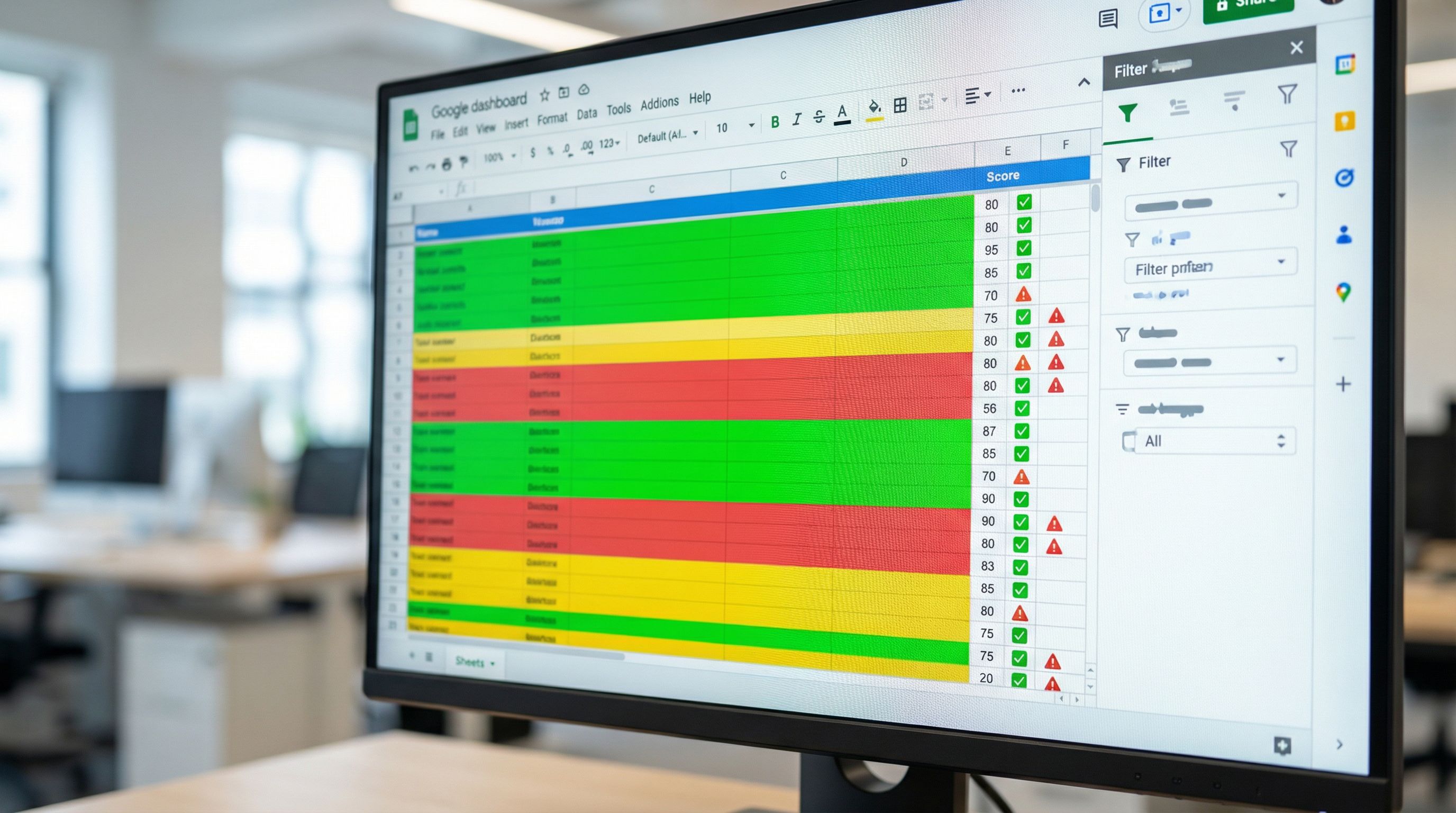
Step 5: Use Conditional Formatting for At-a-Glance Triage
Logic in cells is great; visual cues are better for humans.
Use Google Sheets’ conditional formatting to:
- Turn entire rows red when
QualityScore < 2 - Highlight email cells yellow when
EmailValid = FALSE - Shade high-intent leads green when
HighIntent = TRUE
A simple pattern:
-
Select the data range in
Clean Data(e.g.,A2:Z1000). -
Format → Conditional formatting.
-
Use a custom formula, such as:
-
For low-quality rows:
=$Z2 < 2 -
For high-intent leads:
=$AA2 = TRUE
-
These visual guardrails make it obvious where to focus attention during live reviews.
Step 6: Trigger Workflows from Clean Data
Once your Clean Data sheet is stable, it can safely power downstream workflows.
Examples of Real-Time Workflows
- Lead routing: Use tools like Zapier or Make to watch
Clean Dataand:- Send high-intent leads directly to Slack.
- Create CRM records only for rows with
QualityScore >= 3.
- Feedback loops: Push validated NPS scores into a dashboard, while ignoring invalid responses.
- Experimentation: Combine clean data with the tactics from Real-Time AB Testing with Google Sheets: Ship Form Experiments in a Single Afternoon to compare variants without worrying about data quality skewing results.
Because Ezpa.ge is already syncing to Sheets in real time, these workflows fire as soon as the cleaned row updates.
Step 7: Push Guardrails Upstream into the Form
After you’ve run with Sheet-level guardrails for a bit, patterns will emerge:
- Fields that are always messy
- Values that constantly map to
Other - Common ranges for numeric answers
Use those insights to harden the form itself:
- Add inline validation for fields that frequently fail.
- Tighten field types (e.g., use numeric inputs instead of free-text).
- Refine helper text and defaults, borrowing ideas from The Psychology of Defaults: How Pre-Filled Answers Shape Form Completion Rates.
The goal is a loop:
- Form sends data to Sheets.
- Sheets guardrails catch and label issues.
- You spot patterns and improve the form.
- Over time, less cleaning is needed.
Guardrails aren’t just a safety net; they’re a discovery tool for better form design.
Putting It All Together: A Simple Implementation Checklist
If you want a concrete starting point, here’s a minimal setup you can implement in an afternoon:
-
Create the structure
- Keep
Form Responses 1as your raw sync sheet. - Add
Clean DataandLookupssheets.
- Keep
-
Wire up basic cleaning
- Normalize names with
TRIM+PROPER. - Clean emails with
TRIM+LOWERand a regex validity flag. - Normalize phone numbers with
REGEXREPLACEand length checks.
- Normalize names with
-
Standardize key categories
- Build lookup tables for countries, plans, and lead sources.
- Use
VLOOKUPorXLOOKUPto map raw inputs to canonical values.
-
Validate numbers and dates
- Enforce ranges on critical metrics (NPS, budget, etc.).
- Normalize dates with
DATEVALUEand compute derived fields like “Days since signup.”
-
Add quality and intent signals
- Create a simple quality score column.
- Add boolean flags for high-intent and risky patterns.
-
Layer on visual cues
- Use conditional formatting to highlight low-quality rows and high-intent leads.
-
Connect downstream workflows
- Point your CRM, dashboards, and automation tools at
Clean Data, notForm Responses 1.
- Point your CRM, dashboards, and automation tools at
Summary
Real-time guardrails are about treating your Ezpa.ge + Google Sheets setup as more than a passive inbox.
By separating raw and clean data, and layering simple Sheets logic on top, you can:
- Normalize messy inputs into consistent, report-ready values
- Flag invalid or risky submissions the moment they arrive
- Prioritize high-intent leads automatically
- Reduce manual cleanup and boost trust in your numbers
Over time, those guardrails not only keep your data clean—they teach you how to design better forms, write clearer microcopy, and focus your team’s energy where it matters.
Ready to Build Your First Guardrails?
You don’t need to rebuild your stack or learn a new tool. If you’re already using Ezpa.ge with Google Sheets syncing, your infrastructure is in place.
Here’s a practical first move:
- Pick one high-impact form (lead capture, signup, or feedback).
- Add a
Clean Datasheet that:- Cleans names and emails
- Validates one numeric field
- Adds a simple quality score
- Use conditional formatting to highlight low-quality and high-intent rows.
Ship that small layer of guardrails, live with it for a week, and watch how much smoother your handoffs and reports become.
Then, expand the same pattern across the rest of your forms—and turn your entire form system into a reliable, real-time data engine.
If you’re not using Ezpa.ge yet, this is exactly the kind of workflow it’s built for: beautiful, responsive forms on the front, and powerful, sheet-driven logic on the back. Set up your first form, connect it to Google Sheets, and start building guardrails that work while you sleep.