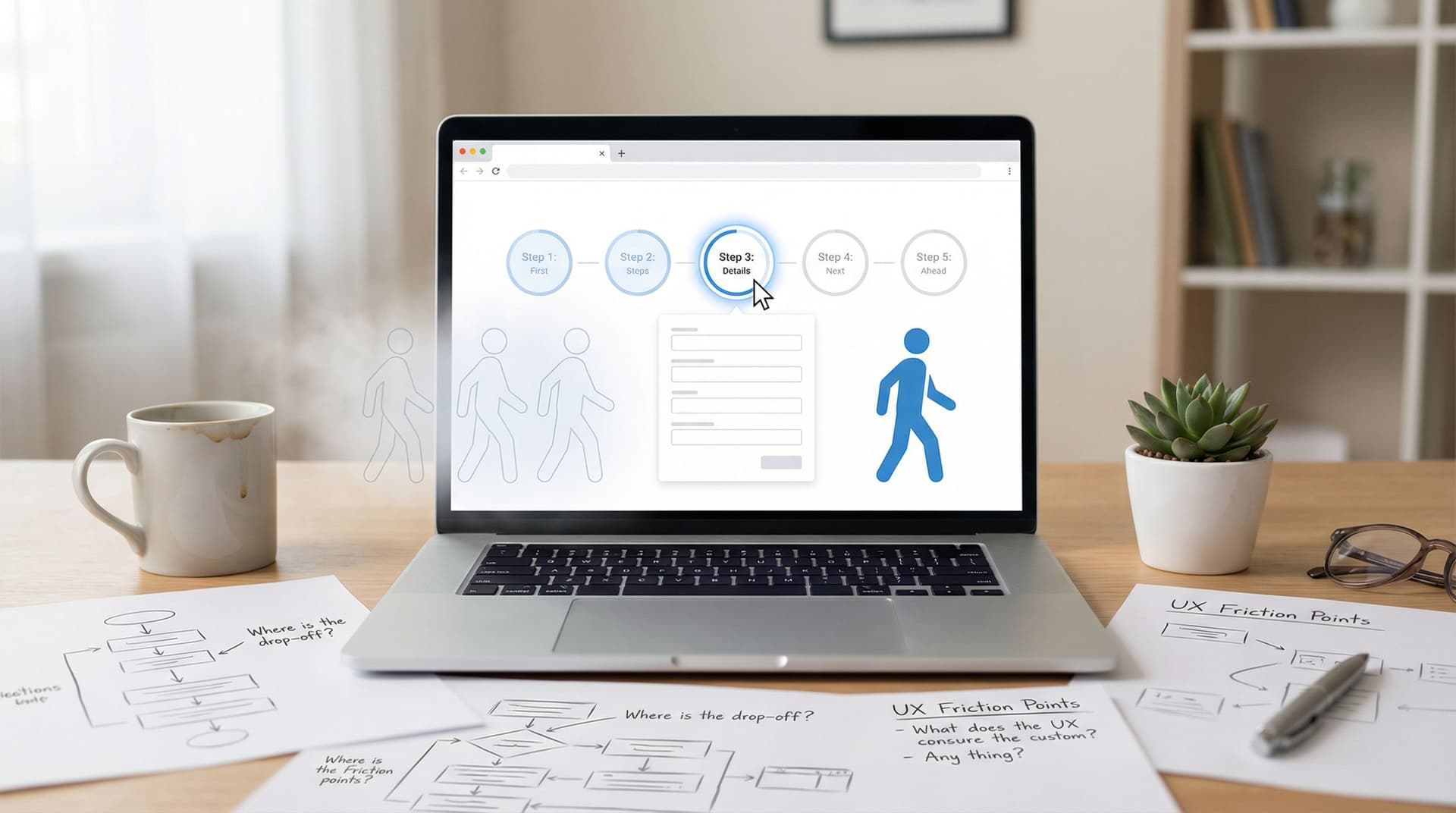
Real-Time Form Optimization: Using Live Google Sheets Data to Iterate in a Single Day


When most teams talk about “optimizing a form,” they’re secretly talking about a project they’ll get to next quarter.
But if your form is powered by real-time Google Sheets syncing—like every Ezpa.ge form can be—you don’t need a quarter. You can meaningfully improve completion rates, lead quality, and user happiness in a single day, just by watching live data and making targeted tweaks.
This post is about how to do exactly that.
We’ll walk through a one-day workflow that turns your form from a static page into a responsive system: you ship in the morning, watch real behavior over a few hours, iterate at lunch, and see the impact by the afternoon.
Why Same-Day Optimization Matters
If you’re already syncing responses straight into Google Sheets, you’re sitting on a superpower: instant feedback.
Instead of:
- Waiting weeks for “enough data”
- Exporting CSVs and sending them to someone who “does analytics”
- Debating changes based on opinions, not evidence
…you can:
- Spot drop-off patterns in hours, not weeks
- Fix confusing fields while people are actively using the form
- Turn your form into a living experiment instead of a static asset
The concrete benefits
1. Higher completion rates, faster
You don’t have to guess which fields cause abandonment. A few simple formulas in Sheets will tell you where people stop, so you can remove or reword those fields and see the impact the same day.
2. Better lead and response quality
When you see junk data (fake emails, nonsense answers, skipped required questions) streaming into your Sheet, you can immediately tighten validation, tweak helper text, or change question types.
3. Tighter feedback loop with your team
Marketing, product, and support can all watch the same live Sheet. That shared view makes it easier to agree on what’s working—and what needs to change.
If you want a broader view of how real-time sync becomes a growth engine, you’ll also like Real-Time Forms, Real-Time Strategy: Turning Google Sheets Sync into a Growth Engine.
The One-Day Optimization Loop: Overview
Here’s the workflow we’ll unpack:
- Set up your live Sheet to answer the right questions
- Define what “good” looks like (your same-day success metrics)
- Watch real users for 2–4 hours and log observations
- Make smart, low-risk changes in Ezpa.ge
- Measure the impact before the day ends
You can run this loop for:
- A new lead-gen form
- A feature feedback survey
- An event registration form
- A multi-step onboarding flow
The mechanics are the same. Let’s walk through each step.
Step 1: Turn Your Google Sheet into a Live Control Panel
Real-time data is only useful if it’s readable. Raw rows are not a strategy.
Before you start optimizing, spend 30–45 minutes turning your synced Sheet into a simple control panel.
Create a responses tab and a metrics tab
Most Ezpa.ge + Sheets setups look like this:
Form Responses– raw synced rows from your formMetrics– your derived stats and charts
In Form Responses, make sure you have:
- Timestamp
- Any metadata Ezpa.ge sends (e.g., page/step, device, referrer if available)
- Each form field as its own column
In Metrics, build a few essentials:
-
Total submissions
=COUNTA('Form Responses'!A2:A) -
Completion rate (if you know total visitors)
If you track form views in another tool (or via Ezpa.ge’s analytics), plug that number intoMetrics!B1and use:
=Metrics!A1 / Metrics!B1
whereA1is total submissions. -
Field completion/drop-off proxy
For each key field (especially earlier ones), use:
=COUNTIF('Form Responses'!C2:C, "<>" )
to see how many people reach and fill that field. -
Basic quality checks
- % of emails that contain
"@"
=COUNTIF('Form Responses'!D2:D, "*@*" ) / COUNTA('Form Responses'!D2:D) - % of responses with a critical field blank
- % of emails that contain
You don’t need a full dashboard yet—that’s what we cover in From Form to Funnel: Turning Raw Responses into a Live Google Sheets Dashboard. For a one-day loop, focus on visibility over perfection.

Step 2: Decide What “Winning Today” Means
If you try to fix everything at once, you’ll fix nothing.
Pick one primary outcome for your optimization day. Examples:
- “Increase completion rate from ~30% to 40%+.”
- “Reduce fake or throwaway emails by half.”
- “Get at least 20 high-quality responses to our open-ended feedback question.”
Then, define 2–3 supporting signals you’ll watch in the Sheet. For a lead form, that might be:
- % of visitors who start the form (if you track views)
- % who reach the second step
- % who submit
For a feedback form:
- Number of responses per hour
- Average length of open-ended answers (short vs. thoughtful)
- Distribution of satisfaction scores
Write these somewhere visible—top of your Metrics tab works well. This keeps your changes focused.
Step 3: Watch Live Data Like It’s a Usability Session
Now you let the form breathe.
Share your Ezpa.ge form link, drive some traffic (email, social, in-product prompts), and then watch your Sheet update in real time.
Plan for a 2–4 hour observation window where someone on your team is “on call” with the Sheet open.
What to look for in the first few hours
Use a simple log in your Metrics tab or a separate Notes tab. Every 15–30 minutes, jot down:
- Volume: How many new rows came in since you last checked?
- Quality: Are answers coherent, or do you see nonsense?
- Patterns: Do certain answers repeat (e.g., many people choosing the same reason for canceling)?
- Anomalies: Any obvious mistakes—like people typing full sentences into a “Name” field?
You’re trying to answer questions like:
- Are people dropping off after a particular field or step?
- Are certain optional fields almost never filled in?
- Are error-prone fields showing weird data patterns?
This is also a great moment to cross-reference with what you know about friction from The Silent Drop-Off: Diagnosing and Fixing Hidden Friction in Multi-Step Forms if you’re running a multi-step flow.
Quick techniques to reveal friction
A few low-effort tricks inside Sheets:
- Conditional formatting to highlight empty cells in critical columns.
- Filters to see responses where a specific field is blank or looks invalid.
- Pivot tables to group responses by a field like “How did you hear about us?” or “Role,” exposing patterns.
Remember: you don’t need 1,000 responses. Even 30–50 rows can reveal obvious issues you can fix the same day.
Step 4: Make Smart, Low-Risk Tweaks in Ezpa.ge
By midday, you should have a short list of issues. Now it’s time to iterate.
The goal isn’t a full redesign. It’s surgical changes that:
- Clarify confusing fields
- Remove unnecessary friction
- Guide people more smoothly to “Submit”
Here are high-impact changes you can safely ship in a single day.
1. Clarify or simplify problematic fields
If you see many blanks or odd answers in a field:
-
Shorten the label.
Long, abstract labels confuse people. Make them concrete:- “Describe your goals” → “What are you hoping to achieve in the next 3 months?”
-
Add helper text.
A single line under the field can transform responses:- “We’ll use this to match you with the right specialist. 1–2 sentences is enough.”
-
Change field type.
If answers cluster into a few categories, switch from open text to a multiple-choice or dropdown field.
For deeper guidance on the words around your fields, see Form Microcopy that Converts: Writing Labels, Helpers, and Errors that Users Actually Read.
2. Remove or de-emphasize low-value questions
If a field is rarely filled and not mission-critical, you have options:
- Make it optional instead of required.
- Move it to a later step so it doesn’t block early momentum.
- Remove it entirely and revisit later.
Every field is a tiny toll booth. If it doesn’t earn its spot, it’s hurting your completion rate.
3. Improve perceived effort above the fold
If your completion rate is low and very few people even start the form, the problem might be visual overwhelm.
Using Ezpa.ge’s layout and theme options, try:
- Reducing the number of fields visible on first load
- Increasing contrast and size of the primary CTA
- Adding a short, benefit-driven headline above the form
For more patterns that make the first screen work harder, revisit Conversion-First Form Layouts: Above-the-Fold Patterns That Actually Drive Submissions.
4. Add subtle guidance with motion (if appropriate)
If your Ezpa.ge form already uses micro-animations, you can adjust them to:
- Gently highlight the next field after one is completed
- Provide a small, satisfying confirmation when a step is done
Used well, these tiny motions reduce uncertainty and keep people moving, as we explored in Micro-Animations in Forms: Subtle Motion That Reduces Drop-Off (Not Just Looks Cool).

5. Tighten validation and trust signals
If you’re seeing low-quality or spammy responses:
- Add basic validation (e.g., email format checks, required fields where needed).
- Clarify privacy and usage near sensitive fields:
“We’ll only use this to contact you about your demo. No spam, ever.” - Revisit error messages to be clear and friendly, not cryptic.
These small changes can significantly improve both data quality and user confidence.
Step 5: Measure the Impact Before the Day Ends
After you ship your changes in Ezpa.ge, you have a simple job: watch what happens next.
Give it at least a couple of hours of comparable traffic, then compare:
- Before vs. after completion rate
- Before vs. after field completion for the problem fields
- Any shift in response quality (especially open-text answers and email validity)
A simple before/after comparison in Sheets
In your Form Responses tab, add a column called Version and:
- Mark existing rows as
v1 - Use a new form URL parameter (e.g.,
?version=v2) or a timestamp cutoff to mark new rows asv2
Then, in Metrics, use FILTER or COUNTIFS to compute metrics separately for v1 and v2:
=COUNTIFS('Form Responses'!Z2:Z, "v1")for your first version=COUNTIFS('Form Responses'!Z2:Z, "v2")for your updated version
Now compare:
Completion rate v1vs.Completion rate v2Email validity v1vs.Email validity v2Avg. length of open-text answers v1vs.v2(you can approximate withLEN()or word counts)
Even modest improvements—like a 5–10% bump in completions—are meaningful, especially when they come from an afternoon of work.
Common One-Day Wins (With Realistic Examples)
Here are a few patterns teams often discover when they start using real-time Sheets data to iterate quickly.
Win #1: Removing one “nice to have” field boosts completions
You notice that almost nobody fills out “Company size (optional),” and the few who do don’t differ in behavior.
- You remove the field.
- Completion rate jumps from 32% to 39%.
- You later reintroduce the question in a follow-up email instead.
Win #2: Better microcopy turns junk into signal
You’re getting lots of vague answers to “What’s your biggest challenge?” like “marketing” or “time.”
You change the label and helper text to:
- Label: “What’s the biggest challenge you want help with right now?”
- Helper: “A sentence or two is perfect—e.g., ‘We’re getting traffic but very few demo requests.’”
Within a few hours, your new responses are specific, actionable, and far more useful.
Win #3: A smaller first step reduces abandonment
Your multi-step form shows a sharp drop between Step 1 and Step 2.
You move two non-essential questions from Step 1 to Step 2 and emphasize the primary CTA.
Result:
- More people complete Step 1
- Overall completions rise, even though total questions stayed the same
Making This Loop a Habit, Not a One-Off
The real power of real-time optimization is compounding improvements.
If you:
- Run this one-day loop once a month
- Save each version’s key metrics in your
Metricstab - Keep a short changelog of what you tried and what happened
…you’ll build a library of what works for your audience:
- Which fields actually matter
- How much copy is “just enough”
- What kinds of offers and layouts drive action
Over time, that knowledge makes every new Ezpa.ge form faster to build and more likely to succeed on the first try.
Summary
Real-time Google Sheets syncing turns your forms from static pages into living systems you can tune in hours, not weeks.
In a single day, you can:
- Set up a lightweight metrics view in Sheets that surfaces completion, quality, and friction
- Define a clear success target for the day
- Watch live responses as if you’re running a usability test
- Make focused changes in Ezpa.ge—better microcopy, simpler layouts, smarter validation
- Measure before/after impact with simple formulas
You don’t need a data team or a massive sample size. You just need a willingness to look at real behavior, make thoughtful adjustments, and check your work.
Your Next Step: Ship, Watch, Adjust
If you already have an Ezpa.ge form:
- Connect (or confirm) real-time Google Sheets sync.
- Create a
Metricstab with at least completion counts and a couple of quality checks. - Pick one form and dedicate a single day this week to running the loop above.
If you don’t have a form yet:
- Spin up a simple Ezpa.ge form for one concrete goal (a waitlist, a feedback survey, a demo request).
- Turn on Google Sheets syncing from the start.
The sooner your forms start sending live signals, the sooner you can start iterating with confidence.
Don’t wait for the “perfect” version. Ship a good version today, watch your Sheet, and let real people show you how to make it great by tomorrow.