Global-Ready Forms: Designing for Time Zones, Languages, and Local Input Patterns

Global-Ready Forms: Designing for Time Zones, Languages, and Local Input Patterns
Global reach isn’t just for giant platforms anymore. A small team with a single form can easily be serving people across six continents, dozens of languages, and every time zone on the planet.
That’s exciting—and dangerous.
Because if your form only “works” for people who think, type, and schedule like you do, you’re quietly excluding everyone else. Dates become ambiguous. Names and addresses don’t fit. Error messages punish people for using the formats that make sense where they live.
This post is about fixing that.
We’ll walk through how to design global-ready forms that respect:
- Time zones and local time conventions
- Languages and writing systems
- Local input patterns (names, addresses, phone numbers, currency, etc.)
Along the way, we’ll look at practical patterns you can implement right away—especially if you’re building with Ezpa.ge’s themes, custom URLs, and real-time Google Sheets syncing.
Why Global-Ready Forms Matter More Than You Think
When you ignore time zones, languages, and local patterns, the problems show up everywhere:
- Missed opportunities – People abandon your form because they can’t enter their phone number or understand the date format.
- Bad data – Ambiguous timestamps, mangled names, and inconsistent addresses make your CRM and analytics unreliable.
- Broken promises – You say “We’ll contact you within 24 hours,” but your scheduling logic assumes one time zone and frustrates users elsewhere.
- Perception of bias – A form that only accepts US ZIP codes or Western name structures signals, “This isn’t really for you.”
On the flip side, global-ready forms:
- Increase completion rates across regions
- Make your data cleaner and easier to route
- Reduce support tickets (“Your form won’t accept my phone number”)
- Build trust with users who are used to being an afterthought
If you’ve already invested in conversion-first layouts and sharp microcopy, making your forms global-ready is one of the highest-leverage upgrades you can make.
Start with One Question: “Where Might This Break?”
Before you add fancy logic or translations, pressure-test your form with a simple exercise:
Imagine someone in a different country, on a different device, in a different language, trying to fill this out. Where do they get stuck?
Look especially at:
- Date and time fields – Are they ambiguous? Are time zones obvious?
- Name and address fields – Do they assume specific formats (first/last, state/ZIP)?
- Phone and currency fields – Do they assume one country code or symbol?
- Error messages – Are they clear for non-native speakers?
Write down every assumption you’re making. Your job is to either remove those assumptions or make them explicit.
Designing for Time Zones Without Losing Your Mind
Time is one of the trickiest global problems. A few core patterns help a lot.
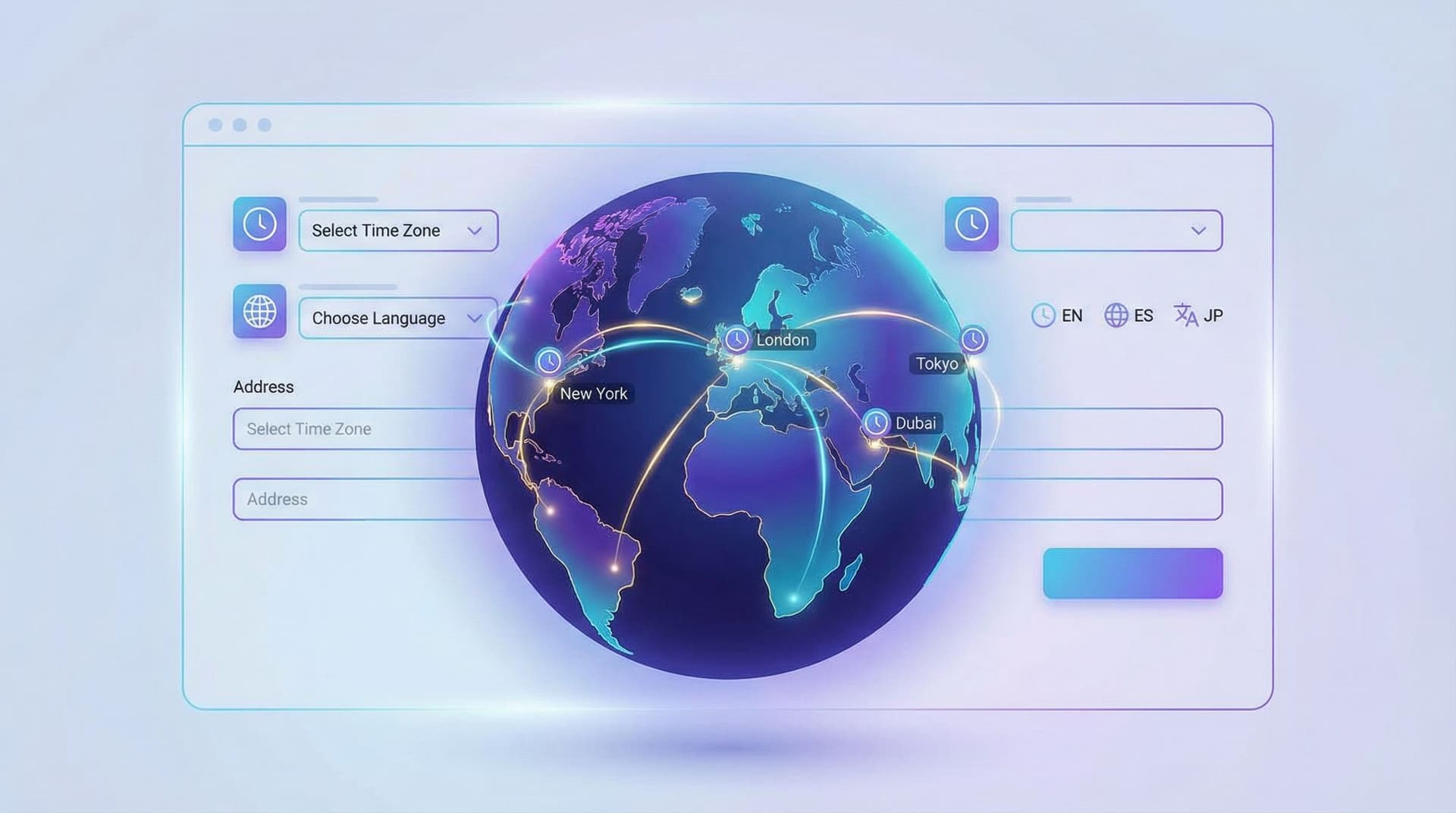
1. Always Capture Time Zone When Time Actually Matters
If you’re asking for anything time-related that will trigger a follow-up—calls, demos, interviews, deliveries—you must know the user’s time zone.
Good options:
- Explicit field: A dropdown like “Your time zone” with common options first (e.g., user’s detected zone, then region-based list).
- Auto-detect with override: Detect via browser and prefill, but always let users change it.
For example, in an Ezpa.ge form you might:
- Use a select field with grouped options (Americas, Europe, Asia, etc.)
- Pre-select based on browser time zone
- Store both the raw time and the selected time zone in your synced Google Sheet
Once you have that, your downstream systems (calendars, CRMs) can convert safely.
2. Use Clear, Unambiguous Time Formats
Avoid formats like 03/04/2025 7:00—is that March 4 or April 3?
Prefer:
- Spelled-out months:
4 March 2025orMarch 4, 2025 - 24-hour time or clearly marked AM/PM
If you’re collecting a date and time separately:
- Use a date picker that shows the month name
- Use a time picker that clearly shows AM/PM or 24-hour format
3. Show Both “Their Time” and “Your Time” in Confirmations
The form itself is just step one. What matters is what happens next.
If you’re scheduling something, your confirmation screens and emails should:
- Confirm the time in the user’s local time zone
- Optionally mention your team’s time zone if relevant
Example:
“We’ll call you on Tuesday, March 4 at 15:00 your time (Europe/Berlin).”
If you haven’t thought about what happens after submission yet, pair this with the patterns from From Form Field to Follow-Up.
4. Store Time in a Universal Format
Under the hood, store timestamps in a normalized format (like UTC with ISO 8601). This is where Ezpa.ge’s real-time Google Sheets syncing shines: you can log both:
- User-entered date/time
- Converted UTC timestamp
- User’s selected time zone
That gives you a single, consistent source of truth for analytics and scheduling.

Language: Beyond Just Translating Labels
Language support is not just “translate the form and call it a day.” It’s about comprehension, tone, and respect.
1. Decide on Your Language Strategy
You have three broad options:
-
Single lingua franca (often English)
- Fastest to ship
- Works when your audience is comfortable in that language
- Still worth simplifying your copy for non-native speakers
-
Localized variants of one language (e.g., US English, UK English)
- Adjust spelling, date formats, currency, examples
- Great for subtle trust-building
-
Fully multilingual forms
- Users choose language at the start
- Labels, help text, errors, and confirmation screens all localized
Ezpa.ge’s custom URLs make it easy to spin up language-specific variants with consistent theming—for example:
yourbrand.com/signup-enyourbrand.com/signup-esyourbrand.com/signup-fr
2. Keep Copy Simple and Translation-Friendly
Even if you only publish one language now, assume someone will translate it later.
Write:
- Short sentences with one idea each
- Concrete words instead of idioms or metaphors
- Consistent terminology (don’t switch between “client” and “customer”)
Avoid:
- Jargon that doesn’t translate well
- Culture-specific references
- Humor that depends on wordplay
For more on this, the patterns in Form Microcopy that Converts apply directly—especially around labels, helper text, and error messages.
3. Localize Error Messages and Validation Rules Together
A common failure mode: you translate the label, but the validation logic still assumes one locale.
For example:
- Error message says “Please enter a valid phone number,” but the field only accepts US formats.
- Date picker shows
DD/MM/YYYY, but the backend expectsMM/DD/YYYY.
To avoid this:
- Document allowed formats in helper text (e.g., “Use
DD/MM/YYYY”). - Match front-end validation to the format you present.
- Localize error messages so they’re clear and polite in every language.
4. Respect Writing Systems and Direction
If you support right-to-left (RTL) languages like Arabic or Hebrew:
- Ensure your form layout mirrors correctly (labels, progress indicators, icons).
- Check that placeholder text and helper text align properly.
- Test on real devices with native readers.
Ezpa.ge’s theme system can help you create RTL-aware variants of your form styles so you’re not hacking layout per form.
Local Input Patterns: Names, Addresses, Phones, and More
Global-ready forms shine or fail on the tiny details of how people type everyday information.
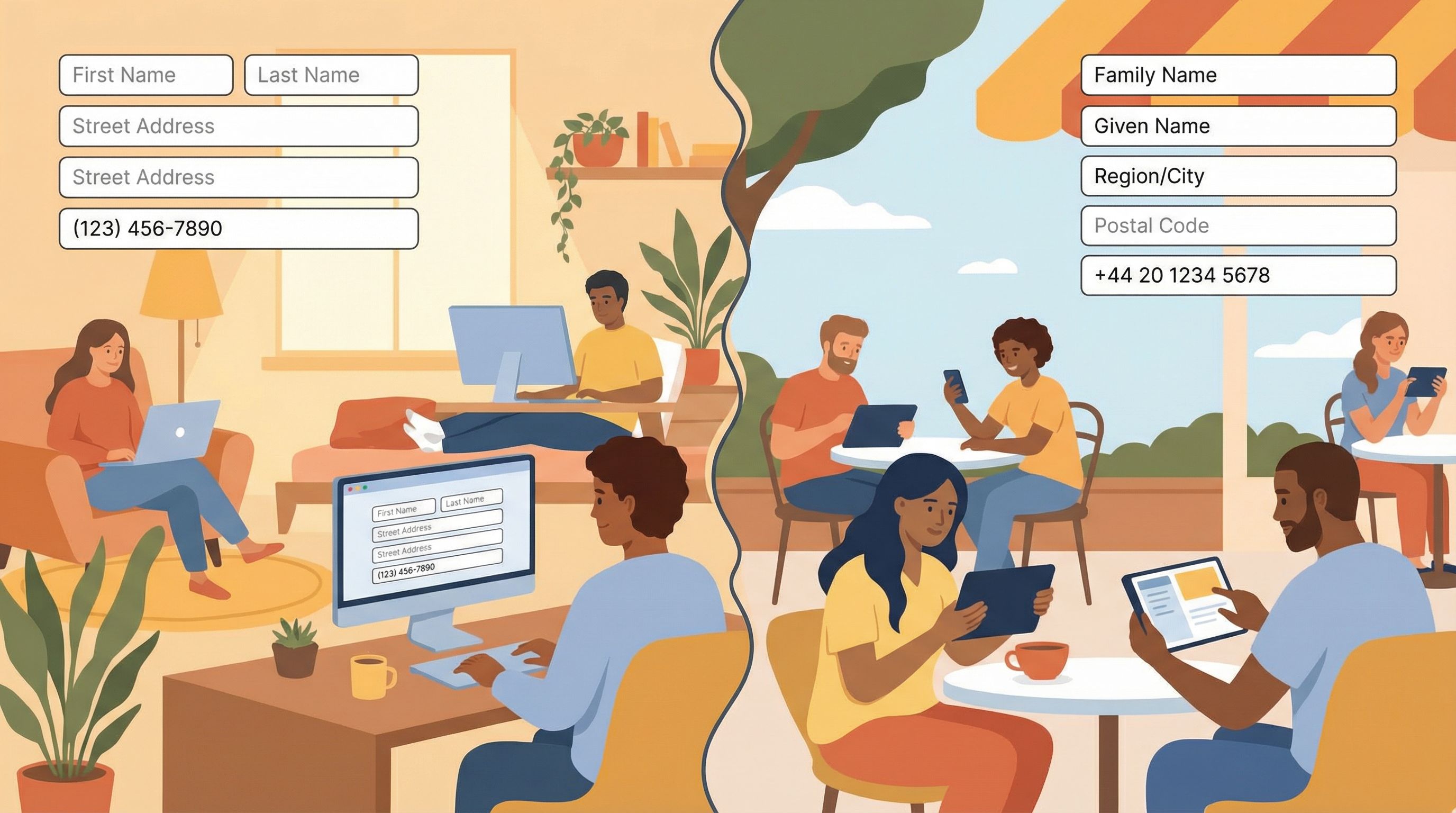
1. Names: Don’t Force Everyone into “First / Last”
Name structures vary widely:
- Some cultures use multiple family names.
- Some use one name only.
- Some place the family name first.
Safer patterns:
- Use a single “Full name” field when you don’t truly need the name split.
- If you must split, add helper text like “Given name” and “Family name” instead of “First/Last.”
- Avoid strict length limits that break longer names.
Only ask for what you truly need. If your system requires separate fields later, you can split the full name programmatically with rules and manual cleanup.
2. Addresses: Think Beyond One Country
Hard-coding US-style address fields (Street, City, State, ZIP) is a fast way to alienate global users.
Better options:
- Country selector first – Once a user picks their country, adapt the address fields.
- Use generic labels where possible: “Region/State/Province,” “Postal code,” “Address line 1/2.”
- Allow flexible formats – longer postal codes, non-Latin characters, different region names.
If you don’t have the engineering capacity for full-on dynamic address formats, at least:
- Make “State” and “ZIP” optional outside your primary country.
- Allow free-text “Region” instead of locked dropdowns.
3. Phone Numbers: Embrace Country Codes
Phone numbers are notoriously variable:
- Different lengths
- Leading zeros
- Country codes with
+
Practical patterns:
- Separate country code from local number, or use a combined international field that accepts
+and digits. - Pre-fill the country code based on selected country, but allow overrides.
- Show examples in helper text: “e.g.,
+44 20 1234 5678.”
Avoid:
- Forcing one exact length
- Stripping
+automatically - Rejecting spaces or dashes (you can normalize these on the backend)
4. Currency and Numbers
If you collect amounts, prices, or quantities:
- Be explicit about currency – don’t assume USD or EUR.
- Use either:
- A currency dropdown (
USD,EUR,JPY, etc.), or - Separate forms/flows per region with pre-set currency.
- A currency dropdown (
- Clarify decimal separators – some locales use commas instead of periods.
A simple pattern:
- Accept both
1,234.56and1.234,56in the UI. - Normalize to a single format in your synced Google Sheet.
5. Optional vs. Required: Respect Local Norms
Some data points are more sensitive in certain regions (e.g., gender, date of birth, ID numbers).
- Make sensitive fields optional unless you legally or operationally need them.
- Add why you’re asking in helper text.
- Consider regional variants of your form that omit unnecessary sensitive fields.
Using Ezpa.ge Features to Go Global Faster
Ezpa.ge gives you a few built-in advantages when you’re designing global-ready forms.
1. Themes That Scale Across Languages and Scripts
With Ezpa.ge’s theme system, you can:
- Define base typography that supports multiple scripts (Latin, Cyrillic, Arabic, etc.).
- Set responsive spacing that still works when labels get longer in translation.
- Reuse color and layout patterns across language variants, so every form still feels on-brand.
If you haven’t thought about this systematically yet, the ideas in Theme Systems, Not One-Off Skins are a great companion.
2. Custom URLs for Regional and Language Variants
Custom URLs make it easy to:
- Run country-specific campaigns with forms like
/signup-us,/signup-de,/signup-br. - Offer language-specific experiences with
/feedback-enand/feedback-es. - Keep tracking and analytics organized by region.
Because the URL itself can carry meaning (language, region, campaign), you can route submissions in your stack more intelligently.
3. Real-Time Google Sheets Sync for Global Debugging
Global-ready forms are never “done.” You’ll discover edge cases as real users interact.
With real-time Google Sheets syncing, you can:
- Watch live submissions from different countries.
- Spot patterns like:
- Many users from France leaving the phone field blank
- Repeated errors for users from Japan on the address field
- Iterate quickly: update labels, helper text, or validation rules and see the impact the same day.
If you want a concrete workflow for this, check out Real-Time Form Optimization: Using Live Google Sheets Data to Iterate in a Single Day.
4. Conditional Logic for Region-Specific Paths
Global doesn’t have to mean one-size-fits-all.
Use conditional logic to:
- Show different questions based on selected country or language
- Route users to different follow-up screens or URLs
- Ask for extra fields only when legally required in certain regions
This lets you keep one form URL while delivering region-appropriate experiences—a pattern we dive into deeply in One Form, Many Audiences.
A Lightweight Checklist for Global-Ready Forms
Before you ship, run through this quick checklist:
Time & Dates
- [ ] Do you capture the user’s time zone when scheduling matters?
- [ ] Are date formats unambiguous (month names, clear order)?
- [ ] Are confirmation messages explicit about time zones?
Language & Copy
- [ ] Is your copy clear for non-native speakers (short, concrete, jargon-free)?
- [ ] Are labels, helper text, and errors consistent and translation-friendly?
- [ ] If multilingual, are all states (including errors and success messages) localized?
Local Input Patterns
- [ ] Can users from any country reasonably enter their name?
- [ ] Can non-US users enter their address without hacking the fields?
- [ ] Do phone number fields accept international formats with
+and variable length? - [ ] Are currency and number formats clear and normalized on the backend?
Ezpa.ge-Specific
- [ ] Are you using themes that work across longer labels and multiple scripts?
- [ ] Do your custom URLs reflect language/region where helpful?
- [ ] Is your Google Sheet capturing raw input plus normalized, global-friendly versions (e.g., UTC timestamps)?
- [ ] Are you using conditional logic to tailor questions by region or language?
If you can check most of these boxes, you’re already ahead of many larger teams.
Wrapping Up: Global by Design, Not by Accident
A form that “sort of works everywhere” is very different from a form that’s intentionally global.
Designing for time zones, languages, and local input patterns:
- Reduces friction and confusion
- Improves data quality and routing
- Signals respect for users who don’t share your defaults
- Sets you up to scale into new regions without constant rework
You don’t need to solve every edge case on day one. Start with your biggest audiences, fix the most obvious assumptions, and use real-time data to guide what you improve next.
Your Next Step
Pick one live form—just one—that currently serves people in more than one country.
Over the next week:
- Audit it using the checklist above.
- Fix the top 3 issues you find (time zone capture, ambiguous dates, phone/address formats, or unclear copy).
- Watch your Ezpa.ge → Google Sheets data to see how behavior changes.
You’ll be surprised how much smoother the experience feels with just a few targeted improvements.
And if you’re ready to build your next form global from the start, open Ezpa.ge, spin up a new form, and design it as if your very first respondent will be from another continent—because they probably will be.