Form UX for Global Teams: Time Zones, Languages, and Parallel Ops in a Single Google Sheet


Global teams don’t struggle with a lack of form tools. They struggle with coordination.
You’ve got:
- Marketing running campaigns across three regions.
- CX collecting feedback in multiple languages.
- Ops tracking requests from partners in wildly different time zones.
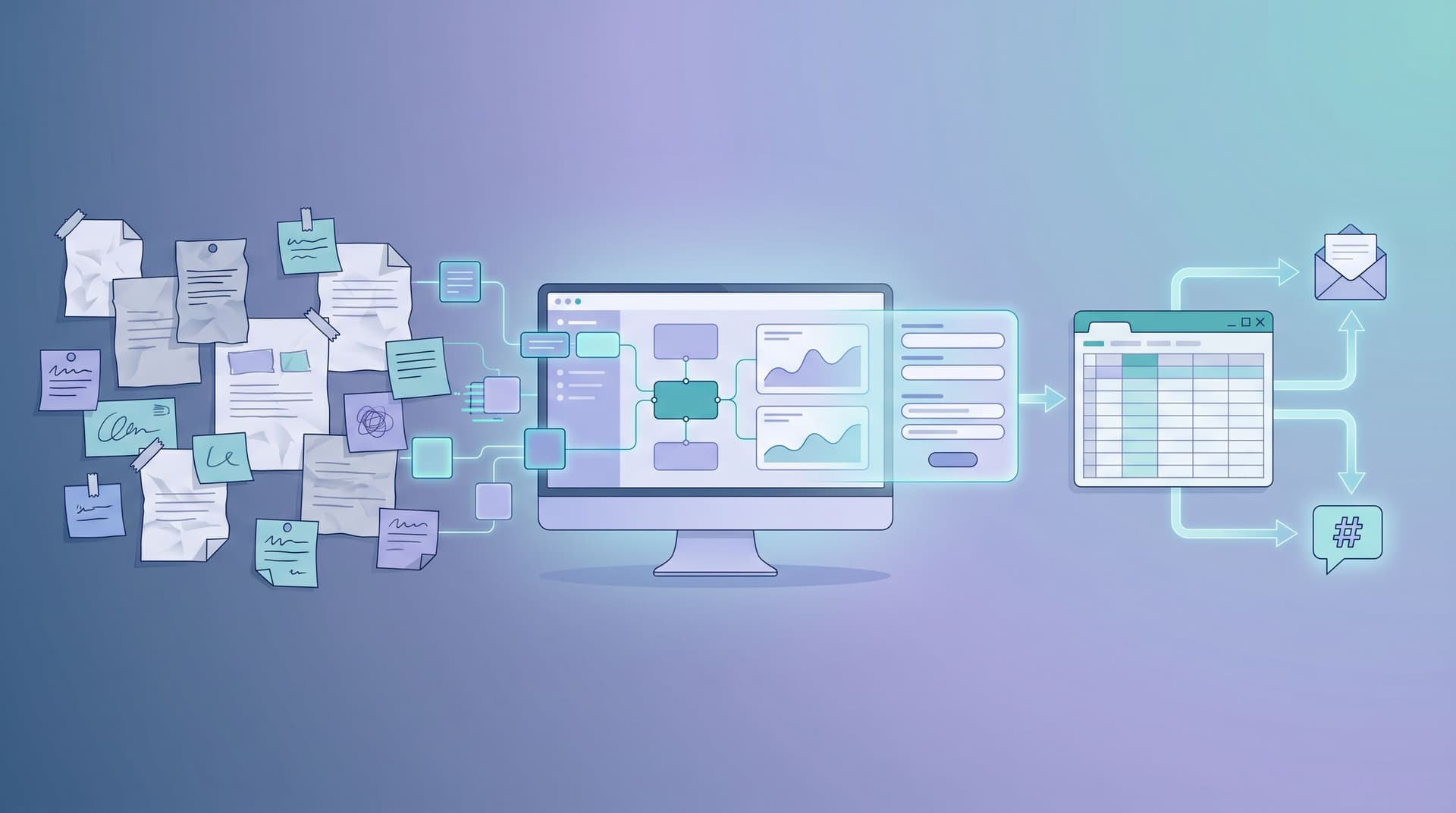
Everyone is technically “just using a form and a Sheet”… but the reality is fractured:
- Duplicate forms per region that drift out of sync.
- Columns that mean different things to different teams.
- Time stamps no one fully trusts.
- Endless copy‑pasting into local spreadsheets and CRMs.
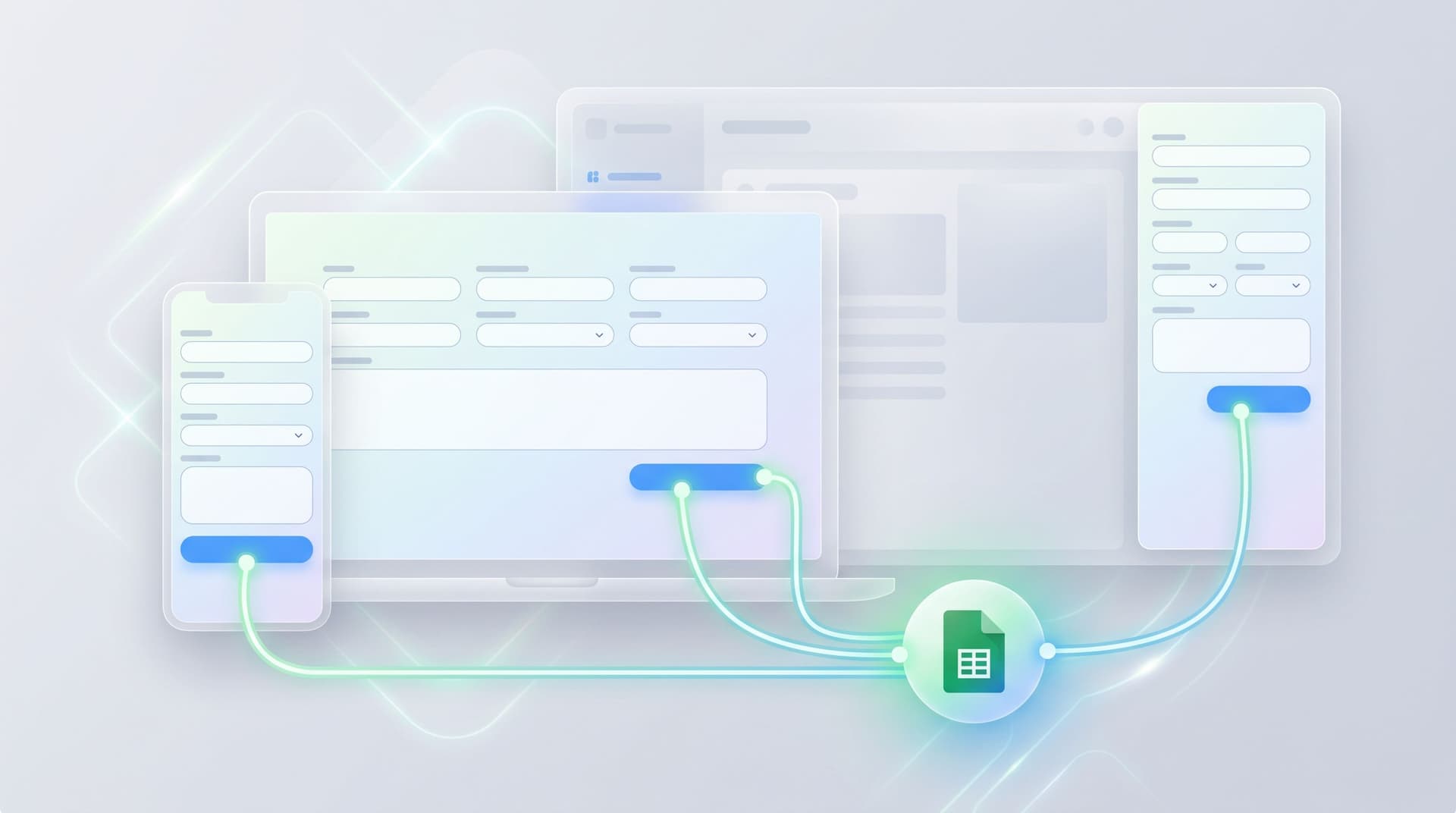
This post is about doing it differently: one shared Google Sheet as the operational backbone, with Ezpa.ge forms layered on top for time zone clarity, multilingual UX, and parallel workflows that don’t step on each other.
Why this matters for global teams
When your users and teammates span time zones and languages, form UX becomes an operations problem, not just a design problem.
The hidden costs of “just make another form”
Every extra regional variant or language clone creates:
- Schema drift – Columns added in one form but not another; fields renamed without warning.
- Reporting chaos – APAC reports off one Sheet, EMEA off another, HQ off a manual export.
- Lost context – A lead submitted at 09:00 in São Paulo looks like 02:00 in a US‑centric Sheet; no one knows if it was “business hours” or not.
- Slower reactions – Teams wait for someone to normalize data before they can act.
Meanwhile, users feel the drag:
- Confusing time pickers that don’t reflect their local time.
- Forms that partially translate labels but leave error states or helper text in another language.
- Confirmation emails that reference the wrong date or time.
When you get this right, you unlock a different kind of motion:
- One form system, many local experiences.
- One Sheet, many live views.
- One source of truth, many parallel teams.
That’s what Ezpa.ge + Google Sheets is especially good at.
The core idea: one schema, many experiences
Before diving into time zones and languages, you need a stable backbone: a shared schema that all forms write into.
Think of it as a contract between every region, team, and tool.
At minimum, define:
- Identity fields – e.g.
email,full_name,company,country. - Operational fields – e.g.
source_form,region,owner_team,status. - Time fields – e.g.
submitted_at_utc,submitted_local_time,local_timezone. - Language fields – e.g.
form_language,preferred_language.
Then make a simple rule: no form ships unless it writes cleanly into this schema.
This is a natural extension of what we covered in From Sheet to System: Turning Ad-Hoc Google Sheets Trackers Into Durable Form Ops: you’re not collecting answers; you’re building a system.
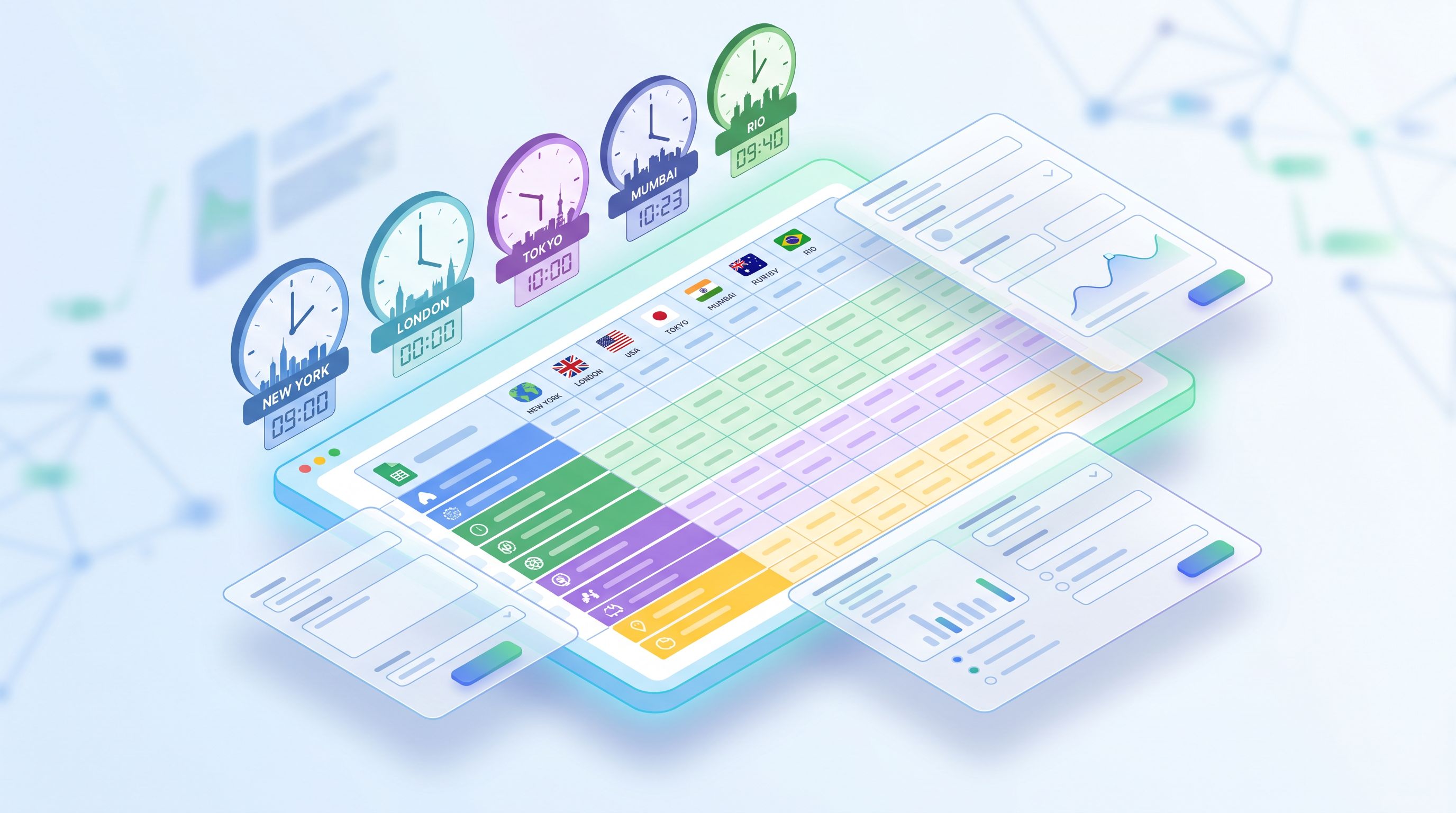
Designing for time zones without losing your mind
Time zones are where most “simple” form setups break.
1. Store one canonical time
Always store at least one canonical timestamp in UTC. This becomes your anchor for:
- Cross‑region SLAs (e.g. “respond within 4 hours”).
- Global reporting (e.g. “submissions per hour globally”).
- Auditing and debugging.
In Ezpa.ge, you can:
- Capture
submitted_at_utcvia a hidden field populated at submission. - Use Google Sheets’
=NOW()in a dedicated column as a backup.
Best practice:
- Column:
submitted_at_utc - Format: ISO 8601 (e.g.
2026-05-13T14:23:00Z)
2. Respect the user’s local time
Canonical time is for systems. Local time is for humans.
You’ll want to:
- Ask for or infer a time zone when it matters (e.g. scheduling, SLAs).
- Display time in the user’s local zone in confirmation pages and emails.
Options:
- Explicit selection: “What time zone are you in?” with a dropdown (
America/Sao_Paulo,Europe/Berlin, etc.). - Soft inference: Use country + city fields to pre‑select a likely zone, but still let people change it.
In your Sheet, add:
local_timezone(e.g.Europe/Berlin)submitted_local_time(calculated fromsubmitted_at_utc+local_timezone)
Then use Google Sheets formulas or Apps Script to:
- Convert UTC to local time for each row.
- Bucket submissions by “local business hour” vs “off‑hours”.
This is crucial when you’re running follow‑ups and SLAs across regions—you don’t want to call a “hot lead” at 3:00 a.m. their time.
3. Design time fields that feel native
Time fields are notoriously brittle. For global UX:
- Use clear labels: “Preferred meeting time (your local time)” beats “Preferred time”.
- Avoid ambiguous formats: Prefer
13:00over1:00if you have global traffic, or specify “AM/PM”. - Group date + time logically: Don’t scatter “date”, “time”, and “time zone” across the form.
If you’re already thinking about layout and input types across devices, The Responsive Form Stack: How to Make Every Field Feel Native on Mobile, Desktop, and In-App is a helpful companion.
Multilingual form UX without fragmenting your data
Supporting multiple languages is usually where teams fork their forms—and their Sheets. You don’t have to.
1. Separate language of the form from language of the person
You need both:
form_language– The language of the interface they saw (e.g.en,pt-BR,de).preferred_language– How they want to be contacted going forward.
Why it matters:
- Someone might fill an English form but prefer support in Spanish.
- You may A/B test language variants in a single market.
In Ezpa.ge, you can:
- Clone a base form for each language but keep field IDs identical.
- Set a hidden
form_languagefield per variant (en,fr,ja).
All variants still write into the same columns in Google Sheets.
2. Keep the schema stable, localize the surface
Your rule of thumb:
IDs and columns stay the same. Labels, helper text, and error messages change.
Concretely:
- Use consistent field keys internally (
company_size,use_case,budget_band). - Translate only what users see:
- Field labels
- Placeholder text
- Helper copy
- Error messages
- Success messages
This preserves a single schema while giving each region a fully localized experience.
For example:
company_sizecolumn in Sheets.- English label: “Company size”.
- Spanish label: “Tamaño de la empresa”.
- Japanese label: “従業員数”.
All rows still map to company_size.
3. Design error states that work across languages
Error states are where localization often breaks trust:
- A French form that suddenly shows an English error.
- A polite Japanese UI with a harsh, literal translation of “Invalid input”.
To avoid this:
- Maintain language‑specific error copy for each form variant.
- Use consistent patterns for validation messages (e.g. “Please enter a valid email address” translated with the same tone everywhere).
- Test right‑to‑left languages (if you support them) for layout and truncation.
If you want to go deeper on how error states impact trust, Brand-First Error States: Designing Form Failures That Still Build Trust has a full breakdown.
4. Normalize where it counts
Some fields should be normalized regardless of language:
- Countries → standardized codes (
US,DE,BR). - Industries → controlled vocabularies.
- Company size → ranges (
1–10,11–50,51–200, etc.).
You can:
- Present localized labels (e.g. “Estados Unidos” →
USunder the hood). - Use Google Sheets lookup tables to map free‑text answers into normalized values over time.
This makes global reporting and routing dramatically easier.
Running parallel operations from one Sheet
Once your forms write clean, consistent data into a single Google Sheet, you can let multiple teams operate in parallel without stepping on each other.
1. Create views, not copies
Instead of duplicating Sheets for each team or region, use:
- Filtered views for region‑specific pipelines (e.g.
region = "APAC"). - Filter by status for different workflows (
status = "New",status = "In progress"). - Color coding to signal ownership (e.g. APAC rows in blue, EMEA in green).
This keeps everyone on the same live data, while giving each team a focused view.
2. Use status columns as your workflow backbone
Add a few simple operational columns:
status–New,Qualified,Contacted,Closed,Archived, etc.owner_team–Sales_EMEA,CS_APAC,Community_LATAM.owner_email– Primary person responsible.next_action_at_utc– When the next follow‑up is due.
Then define lightweight rules:
- New rows start as
status = "New". - Regional teams filter for
New+ theirregion. - Once someone takes action, they update
statusandowner_*.
Because all of this lives in a single Sheet:
- Ops can audit across regions.
- Leadership can get a global snapshot without merging exports.
- Automation tools (Apps Script, Make, Zapier, etc.) have one source of truth.
3. Layer automation carefully
With Ezpa.ge syncing into Sheets in real time, you can:
- Trigger notifications when a new row appears for a given region.
- Auto‑assign owners based on rules (e.g.
country→owner_team). - Update CRMs or other systems from the Sheet.
Key principle: automation should decorate the Sheet, not replace it.
That means:
- Keep the Sheet readable by humans.
- Use formulas and scripts in helper columns, not in ways that overwrite raw form data.
- Document which columns are “system managed” vs “human edited”.

Practical setup: from blank Sheet to global form system
Let’s put this together into a concrete flow you can implement this week.
Step 1: Design your global schema
In a new Google Sheet, create columns like:
idsubmitted_at_utcsubmitted_local_timelocal_timezonefull_nameemailcompanycountryregionform_languagepreferred_languagesource_formstatusowner_teamowner_emailnext_action_at_utc
Add any domain‑specific fields you need (e.g. use_case, plan_interest, budget_band).
Step 2: Build a base Ezpa.ge form
Create a single “master” form that:
- Uses clear, neutral copy in your primary language.
- Maps each field to a column in your Sheet.
- Includes hidden fields for
source_form,region(if you know it), andform_language. - Captures or infers
local_timezonewhere relevant.
Test the sync to confirm each submission lands correctly.
Step 3: Clone for languages and regions—without breaking the schema
For each additional language or region:
- Clone the base form.
- Translate labels, helper text, and error copy.
- Update any region‑specific options (e.g. default country, currency examples).
- Set
form_languageandsource_formas hidden constants.
But do not:
- Rename field IDs.
- Add columns directly from the form without updating the global schema.
Step 4: Add time‑aware and language‑aware views in Sheets
In your Sheet:
- Create filtered views:
Leads – APAC→region = "APAC"Leads – EMEA→region = "EMEA"New – Global→status = "New"
- Add formulas to derive:
submitted_local_timefromsubmitted_at_utc+local_timezone.- Working‑hour flags (e.g.
=IF(HOUR(submitted_local_time) BETWEEN 9 AND 17, "Business hours", "Off-hours")).
Step 5: Wire in your follow‑ups
Decide what happens after a row appears:
- Notifications: Email or Slack alerts to the right regional team.
- Assignments: Auto‑populate
owner_teambased oncountryorregion. - Sequences: Trigger your CRM or customer.io sequences based on
preferred_languageandregion.
Because everything lives in one Sheet, you can evolve this over time without rebuilding your forms.
Bringing it to life with themes and context
So far, we’ve focused on structure and operations. But UX is also about how the form feels.
For global teams, that means:
- Matching visual themes to local channels and expectations.
- Keeping forms feeling native whether they’re in a TikTok bio, a B2B dashboard, or an internal portal.
If you’re already using Ezpa.ge’s theming and custom URLs, you can:
- Give each region its own branded URL that still writes into the same Sheet.
- Use adaptive themes so a late‑night mobile signup in Brazil feels different from a desktop enterprise request in Germany—without changing the underlying schema.
If that’s interesting, you’ll like Adaptive Themes in the Wild: Matching Form Skins to Channels, Devices, and Time of Day, which dives deep into that layer.
Summary: what “good” looks like for global form UX
When you put this all together, a healthy global form system looks like this:
- One shared Google Sheet as the backbone, not a graveyard of regional copies.
- Stable schema with clear columns for identity, time, language, and operations.
- Canonical UTC timestamps plus local time and time zone for human‑friendly context.
- Multilingual forms that localize the surface while keeping field IDs and columns consistent.
- Parallel workflows powered by views, status columns, and lightweight automation.
- Thoughtful themes and layouts that adapt to region, channel, and device—without fragmenting data.
The result: your global team moves faster, with less confusion, and your users get forms that feel like they were designed just for them.
Where to start this week
You don’t need to rebuild everything to get value from this approach.
Pick one initiative—say, your global demo request, partner intake, or community onboarding—and:
- Define a minimal global schema in a fresh Google Sheet.
- Wire a single Ezpa.ge form into that Sheet and confirm clean sync.
- Clone for one additional language or region, keeping IDs and columns identical.
- Add basic time zone handling (UTC + local time + local time zone).
- Create filtered views for at least two teams to work in parallel.
Once that works, you’ll have a template you can roll out to the rest of your forms.
If you’re ready to see how this looks in practice, spin up an Ezpa.ge form, connect it to a Google Sheet, and try building your first global‑ready flow. Start with one shared schema, and let the local experiences bloom on top.
Your future self—the one not merging CSVs at midnight—will thank you.