The Responsive Form Stack: How to Make Every Field Feel Native on Mobile, Desktop, and In-App


Forms are often the very first place your product makes a promise: “Tell us a bit about yourself and we’ll do something valuable with it.”
If that form feels clunky, cramped, or “not quite right” for the device someone is on, the promise breaks. People abandon. They mistrust. Or they give you low-quality data just to get through it.
A responsive form stack is about more than layouts that shrink on small screens. It’s about making every field feel like it belongs—on a phone keyboard, in a desktop browser, or inside an embedded in‑app experience.
With tools like Ezpa.ge—where you can theme forms, set custom URLs, and sync to Google Sheets in real time—you already have the building blocks. The opportunity is to assemble them into a stack that feels native wherever your users meet you.
Why “Feels Native” Matters More Than “Looks Fine”
Most teams ship forms that look okay everywhere. Far fewer ship forms that feel native anywhere.
That difference shows up in:
- Completion rates – A form that snaps to the right keyboard, input mode, and layout on mobile can see double‑digit gains in completion compared to a generic desktop-first layout.
- Data quality – When fields match the way people naturally answer on each device (pickers, toggles, chips), you get cleaner, more structured data.
- Trust and comfort – Native-feeling forms borrow credibility from the platform itself. People are more willing to share sensitive data when the interaction feels familiar and well‑crafted.
- Speed to signal – The faster someone can get through your form, the faster you get the signals that power routing, scoring, and personalization.
And the stakes are higher than they look:
- On mobile, even a 1–2 second delay or extra scroll can cause noticeable drop‑off.
- In-app, a jarring embedded form can feel like an interstitial ad rather than part of the product.
- On desktop, a cramped, mobile-style layout can waste valuable real estate and hide context that would make users more confident.
Your goal: one form system, many native-feeling surfaces.
Think in “Form Surfaces,” Not Just Devices
Instead of “mobile vs. desktop,” design for three primary surfaces:
- Mobile web – Small screens, touch input, OS keyboards, variable connectivity.
- Desktop web – Large screens, precise pointer, multi-tasking, often work context.
- In‑app embeds – Inside your product’s UI, where users already have goals and mental models.
Each surface has its own constraints and advantages. A responsive form stack respects those differences without multiplying form variants into chaos.
A useful mental model:
- Structure is shared – The core questions and logic stay consistent.
- Presentation is adaptive – Layout, affordances, and microcopy shift to feel native.
- Plumbing is centralized – Submissions land in the same systems (Sheets, CRM, webhooks) regardless of surface.
This is where Ezpa.ge’s custom URLs and real‑time Google Sheets syncing shine: you can run one canonical form definition while presenting it in different themed, embedded, or linked contexts.
Step 1: Start With Inputs, Not Layouts
Most responsive work starts with breakpoints and grid systems. For forms, that’s backwards.
Start with input types and how they behave on each surface.
Map Every Field to the Right Native Control
For each question, ask: What’s the most native way to answer this on this device?
Common patterns:
-
Email, phone, URL
- Mobile: use semantic input types (
email,tel,url) so the OS shows the right keyboard. - Desktop: same types for validation and autofill; add subtle helper text instead of long labels.
- Mobile: use semantic input types (
-
Dates and times
- Mobile: lean on native date/time pickers where possible; avoid free‑text unless absolutely necessary.
- Desktop: consider segmented inputs (DD / MM / YYYY) or a calendar picker with keyboard shortcuts.
-
Numbers and prices
- Mobile: numeric keypad, right‑aligned values, and clear unit labels.
- Desktop: allow arrow‑key increments and paste; validate gently instead of blocking.
-
Single choice
- Mobile: radio groups or button chips; avoid long dropdowns that hide options.
- Desktop: radios or select menus; use columns when you have many options.
-
Multi‑select
- Mobile: pill chips with clear selected state; avoid multi‑select dropdowns.
- Desktop: checkboxes or tokenized inputs with type‑ahead.
-
Long text
- Mobile: expandable textareas with character counters; auto‑grow instead of tiny boxes with scroll.
- Desktop: larger textareas; consider optional formatting hints.
On Ezpa.ge, you can define these as field types and validation rules once, then let the rendering layer adapt by theme and embed.
Step 2: Design Mobile-First, But Not Mobile-Only
Mobile is often the hardest surface to get right, so it’s a good forcing function. But “mobile-first” doesn’t mean “desktop as an afterthought.”
Make Mobile Feel Thumb‑Native
On mobile, aim for one clear action per screen and no precision required.
Key patterns:
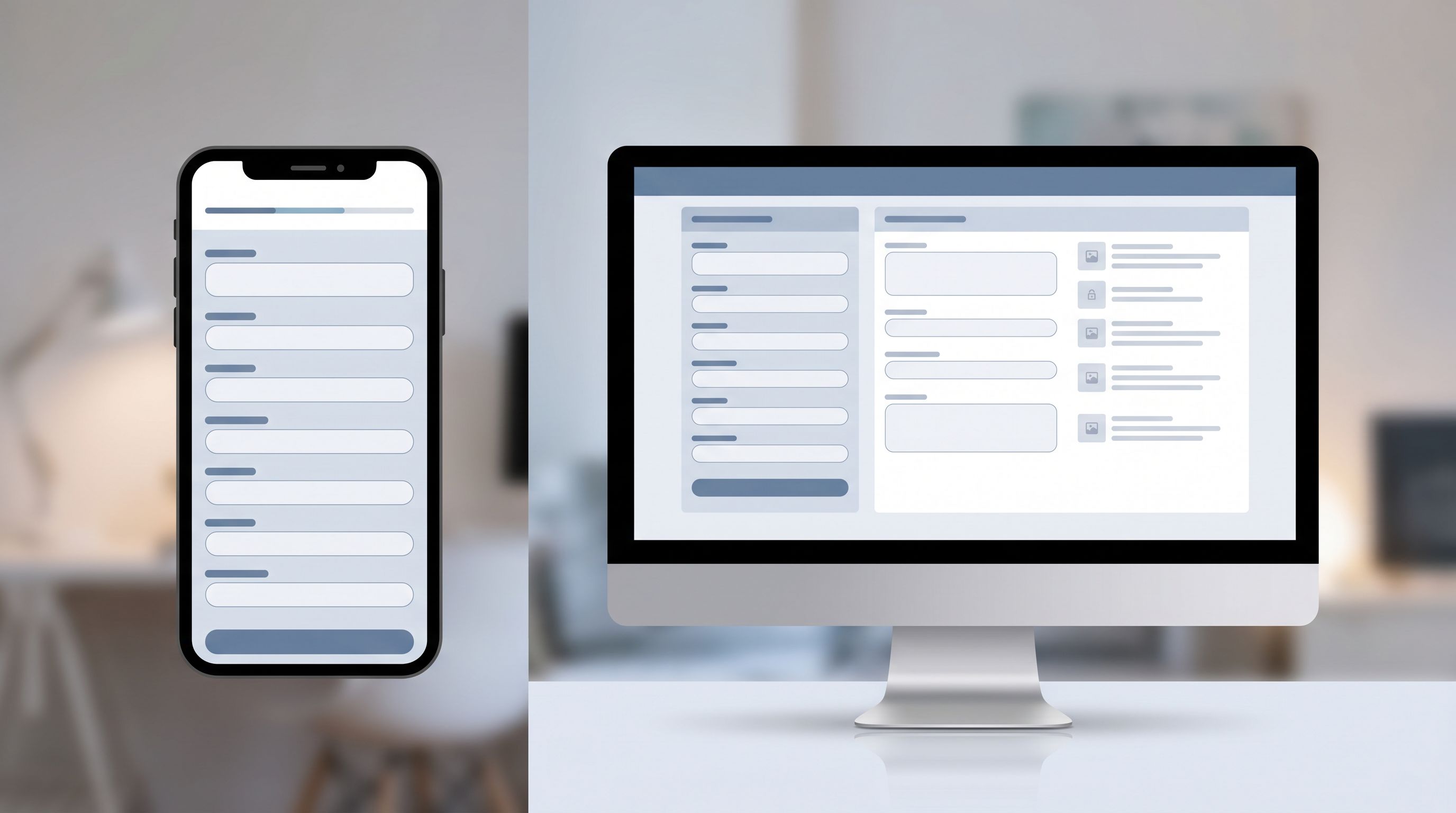
- Stacked, full‑width fields with generous touch targets (44–48px tall).
- Sticky progress and primary action so users always know what’s next.
- Top‑aligned labels that don’t disappear when the keyboard opens.
- Inline validation that appears as soon as someone leaves a field, not only on submit.
- Minimal required typing – prefer taps over text wherever possible.
When you’re asking for sensitive data on mobile, pair these patterns with the trust techniques from Trust at First Tap: Mobile Form Patterns That Make Users Comfortable Sharing Sensitive Data.
Then “Re‑Spend” Space on Desktop
Once mobile works beautifully, upgrade the desktop experience:
- Use multi‑column layouts for related fields (name + email, city + postal code).
- Show context sidebars – FAQs, security badges, or a brief “What happens next?” summary.
- Group sections visually with subheadings and dividers instead of one endless stack.
- Support keyboard power users – tab order, clear focus states, and shortcuts for common actions.
The structure is the same; the density and affordances change.
Step 3: Treat In‑App Forms as Product, Not Overlays
In‑app forms are where your form stack meets your core product. This is where “feels native” matters most.
Match Product Layout, Not Marketing Layout
A demo request form on your marketing site can feel like a standalone card. A survey inside your product should feel like part of the interface.
Tactics:
- Use your product’s typography and spacing tokens so the form blends in.
- Anchor forms to existing UI patterns – side panels, modals, inline expansions.
- Respect the task at hand – don’t block the entire screen when a side drawer would suffice.
If you already have a form design system, extend it into your product UI. If not, consider building one—Design Systems for Forms: Component Libraries, Tokens, and Guardrails Your Whole Team Can Use walks through how.
Ask for Just‑In‑Time Data
In‑app, you’re not guessing who someone is or what they’re doing—you’re watching it in real time.
Use that context to:
- Trigger micro‑forms at natural breakpoints (after feature use, at upgrade attempts, upon churn signals).
- Prefill known data (email, plan, role) so you’re not asking redundant questions.
- Use single‑question flows for high-signal moments, as covered in Forms for Product Discovery: Using Single-Question Flows to Prioritize Roadmaps and Kill Bad Ideas Early.
The more your in‑app forms feel like conversation turns rather than separate surveys, the more people will engage.
Step 4: Theme for Context, Not Just Brand
Brand consistency matters, but context matters more.
A responsive form stack uses themes to signal purpose and state, not just to match your logo.
Align Theme With Lifecycle
Someone encountering your form for the first time has different needs than a long‑time customer.
Consider:
-
Acquisition forms (ads, landing pages)
- Higher contrast, bolder headlines, social proof near the fields.
- Shorter flows with optional “more details” sections.
-
Onboarding forms
- Softer visuals, progress indicators, clear “You’re here → Next” breadcrumbs.
- Friendly microcopy and reassuring “You can change this later” notes.
-
Feedback and research forms
- Calmer, less promotional themes.
- Emphasis on anonymity or confidentiality where relevant.
This lifecycle-aware theming is core to the approach in Form Themes for Product-Led Growth: Matching In-App Prompts to Lifecycle, Not Just Brand.
Use Themes to Communicate Risk and Security
When you’re asking for sensitive data (payment, health, identity):
- Use stable, minimal motion to avoid feeling gimmicky.
- Surface security indicators near the fields, not just in the footer.
- Pair themes with structured questions that avoid collecting unnecessary risk, as explored in Security by Structure: Question Patterns That Reduce Risk Before Encryption Even Starts.
Step 5: Wire Your Stack So Every Surface Feeds the Same Brain
A responsive form stack isn’t just a UX challenge; it’s an operations challenge.
You want:
- One place to update questions and logic.
- One place where submissions land in real time.
- One set of automations that behave consistently regardless of surface.
Centralize Data With Google Sheets (Then Go Further)
With Ezpa.ge, you can sync all submissions into a single Google Sheet or a small set of structured Sheets:
- Each row is a submission, tagged with source surface (mobile web, desktop web, in‑app, campaign).
- Each column is a stable field ID, even if labels or themes differ.
- Filters and pivot tables let you compare performance by surface.
From there, you can:
- Push data into your CRM or warehouse using tools like Zapier or Make.
- Power routing and SLAs, as described in From Form Fill to Auto-Routing: Designing Intake Flows That Assign Owners, SLAs, and Next Steps by Default.
- Turn Sheets into a live operations layer, building on ideas from From Sheet to System: Turning Ad-Hoc Google Sheets Trackers Into Durable Form Ops.
The key: surfaces differ, schema doesn’t.

Step 6: Use Signals, Not Gut Feel, to Refine Each Surface
Once your stack is wired, the work shifts from designing to tuning.
Instrument the Journey Per Surface
At minimum, track:
- Views → Starts → Submits for each surface.
- Drop‑off by field (where do people stop?).
- Time to complete on mobile vs. desktop vs. in‑app.
This doesn’t require a heavy analytics setup. A lightweight framework—like the one described in Baseline to Benchmarks: Building a Lightweight Form Analytics Framework Your Team Will Actually Use—is more than enough.
Run Surface‑Specific Experiments
Don’t A/B test everything everywhere. Instead:
- On mobile, test:
- Fewer fields vs. more, with progressive disclosure.
- Button chips vs. dropdowns for key choices.
- On desktop, test:
- One long page vs. multi‑step flows.
- Inline helper text vs. sidebars with FAQs.
- In‑app, test:
- Inline micro‑forms vs. modal overlays.
- Single‑question prompts vs. short multi‑step sequences.
Because all surfaces share a schema and feed the same systems, you can compare not just completion rates but downstream outcomes: lead quality, activation, retention.
Step 7: Add Smart Personalization Without Breaking Trust
Once the basics are solid, you can start layering in invisible personalization.
Examples:
- Prefill known fields based on URL parameters or authenticated user data.
- Use conditional logic to hide irrelevant questions.
- Trigger different follow‑up questions depending on responses.
The trick is to keep it helpful, not creepy. If you want to go deeper here, see Invisible Personalization: Using Prefills, Logic, and URLs to Tailor Forms Without Feeling Creepy and AI-Generated Follow-Up Questions: Using Response-Aware Prompts to Go Deeper Without Longer Forms.
When done well, personalization makes each surface feel even more native: the form seems to already understand why someone is there.
Bringing It All Together
A responsive form stack that makes every field feel native isn’t about chasing the latest UI trend. It’s about aligning three layers:
- Inputs that match the device – Semantic types, native controls, and interaction patterns tuned for mobile, desktop, and in‑app.
- Themes that match the moment – Visual systems that adapt to lifecycle, risk, and context while staying recognizably “you.”
- Plumbing that stays consistent – One schema, one source of truth, many surfaces.
When those layers work together, you get:
- Higher completion rates across channels.
- Cleaner, more structured data.
- Faster routing and better automation.
- Users who feel like your forms are part of the product—not obstacles in front of it.
Your Next Move: Build One Canonical Form, Then Fan It Out
You don’t need to rebuild your entire form universe to benefit from this approach. Start small:
- Pick one high‑leverage form. A demo request, onboarding intake, or key feedback form.
- Audit it by surface. How does it feel on mobile, desktop, and in‑app (if applicable)? Where does it feel “bolted on” instead of native?
- Create one canonical Ezpa.ge form. Define clean field types, IDs, and validation; sync it to a Google Sheet.
- Spin up surface‑specific presentations.
- A mobile‑optimized theme with stacked fields and thumb‑friendly buttons.
- A desktop layout that uses space and context well.
- An in‑app embed that matches your product’s UI.
- Instrument and iterate. Track completion and downstream outcomes per surface; run small, focused experiments.
If you’re already using Ezpa.ge, you have most of the pieces. The work now is to treat forms as a responsive system, not isolated pages.
And if you’re not yet using Ezpa.ge, this is an ideal moment to try it: set up a form, connect it to Sheets, theme it for your key surfaces, and feel what it’s like when every field feels like it truly belongs.
Your users will feel the difference—even if they never know why your forms just feel right on every screen they touch.