Forms as Lightweight Workflows: Designing Conditional Paths That Replace Internal Tools (Without Code)

Internal tools used to mean one thing: tickets for engineering.
“Can we get a small app to route partner requests?” “Could you build a simple portal for customer discounts?” “We just need a quick UI for approvals.”
Weeks later, there’s a half-finished tool, a backlog of change requests, and a team that quietly goes back to… email threads and spreadsheets.
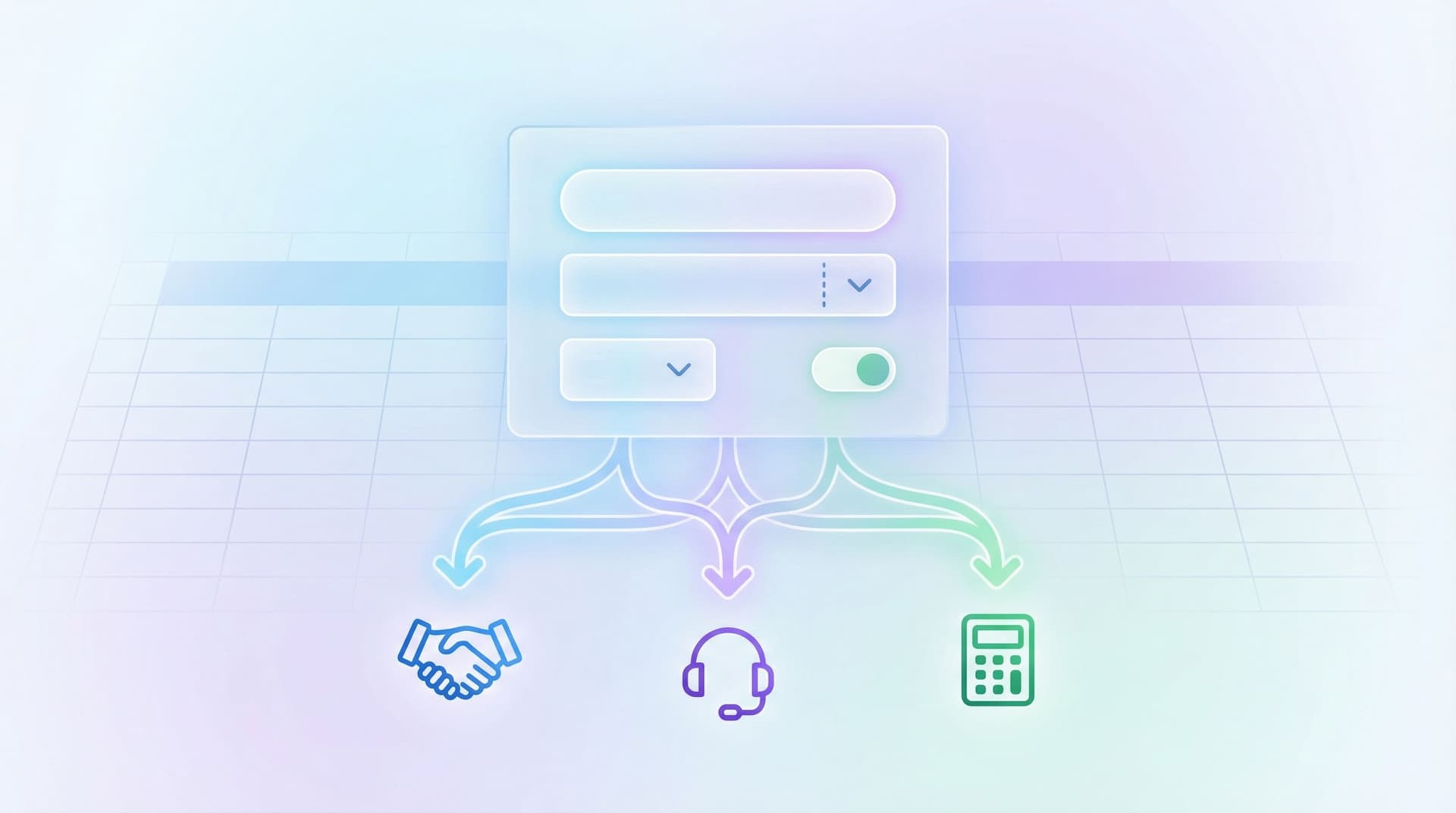
There’s a better pattern emerging: forms as lightweight workflows.
With modern form builders like Ezpa.ge, conditional logic, and real-time syncing to Google Sheets, you can turn what used to be “we need an internal tool” into “we’ll ship a form this afternoon.” No code. No backlog. Just structured flows that feel like mini-apps.
This post is about how to design those flows deliberately—so your forms don’t just collect data, they run your processes.
Why “Forms as Workflows” Matters
Most teams already use forms. But they often stop at the first step: capturing information.
When you design forms as workflows, you:
- Replace shadow processes that live in DMs and email with visible, trackable flows.
- Reduce dependency on engineering for simple internal tools and dashboards.
- Standardize decisions (like approvals, routing, or prioritization) instead of reinventing them in every thread.
- Move faster on experiments—new offers, betas, or pilot programs can launch as a form, not a full product.
If this sounds familiar, it’s probably because you’ve already started moving away from ad‑hoc intake. If you haven’t yet, this guide on turning inbox chaos into structured intake is a useful foundation.
The next step is to stop thinking of forms as static questionnaires and start treating them as lightweight, conditional workflows.
What Makes a Workflow Different from a Regular Form?
A regular form:
- Asks the same questions to everyone
- Sends submissions to a static destination
- Ends at a generic “Thanks” page
A workflow form:
- Changes based on answers (conditional logic / branching)
- Routes submissions differently based on conditions (e.g., team, priority, region)
- Triggers different next steps (follow-up instructions, links, emails, sheet views) depending on what the user needs
In other words, a workflow form behaves more like a simple app:
- It guides people down different paths.
- It makes decisions based on their inputs.
- It hands off work to the right owners with the right context.
With Ezpa.ge, you can do this with:
- Conditional sections and questions that only appear when relevant
- Custom URLs that tailor entry points for different teams or channels
- Real-time Google Sheets sync that turns your sheet into the “backend” of the workflow

Common Internal Tools You Can Replace with Conditional Forms
Before we dive into how, it helps to see where this pattern shines. Here are a few workflows that are often over-engineered into internal tools—or under-engineered into Slack chaos.
1. Request & Approval Flows
Examples:
- Discount or exception approvals
- Budget or spend requests
- Partner or vendor onboarding
How a conditional form replaces a tool:
- Ask for request type (discount, budget, exception).
- Based on type, show different required fields (deal size, justification, risk level).
- Use conditional logic to:
- Tag the request as low, medium, or high risk.
- Route it to different owners (sales leader vs. finance vs. legal).
- Sync to a Google Sheet where filters, views, and conditional formatting act as your “dashboard.”
2. Triage & Routing
Examples:
- Internal support or IT requests
- Customer issue escalation
- Operations triage (logistics, inventory, scheduling)
How a conditional form replaces a helpdesk-lite:
- Start with a simple “What do you need help with?” question.
- Branch into different subflows: “Access issues,” “Billing,” “Bug report,” etc.
- For each path, ask the minimum set of questions needed to resolve or route.
- Use form responses to:
- Assign to the right queue or owner
- Trigger follow-up instructions (e.g., “Here’s how to reset your password; if this doesn’t work, reply to this email.”)
This is where real-time Sheets sync becomes a quiet superpower. When every submission appears instantly in a structured sheet, your ops team can work from a single live queue instead of scattered inboxes. If you haven’t set this up yet, this post on real-time forms and Google Sheets walks through the pattern.
3. Guided Intake & Qualification
Examples:
- Sales qualification flows
- Partner fit checks
- Internal project intake
How a conditional form replaces a custom intake app:
- Start with a few high-signal questions (company size, region, use case).
- Based on answers, steer users down different paths:
- High-fit prospects see deeper qualification questions.
- Lower-fit or self-serve prospects see fewer questions and a different follow-up message.
- Use conditional thank-you screens to:
- Book different types of calls
- Point to different resources
- Set expectations (“You’ll hear from us within 1 business day” vs. “Here’s our self-serve plan”).
Designing Conditional Paths That Feel Natural
Conditional logic is powerful—but it’s also easy to overdo. The goal is not to build a maze. The goal is to make the experience feel shorter, smarter, and more relevant.
Here’s a practical approach for designing conditional workflows that actually work.
Step 1: Start with the Decision, Not the Form
Before you add a single field, answer these questions:
-
What decision needs to be made at the end of this workflow?
Examples: Approve/deny; route to Team A vs. Team B; invite to beta vs. waitlist. -
What are the 2–5 key criteria that drive that decision?
Examples: deal size, customer segment, urgency, risk level. -
What’s the very first fork in the road?
Examples: internal vs. external request; new vs. existing customer; low vs. high urgency.
Your form exists to surface those criteria—no more, no less.
If a question doesn’t change the decision or the path, it probably doesn’t belong in this workflow.
Step 2: Map the Branches on Paper First
Don’t start in the form builder UI. Start with a quick sketch:
- Draw a starting point ("User opens form").
- Add the first branching question.
- For each answer, draw the next step:
- Another question
- A different section
- A terminal state (e.g., “You’re not eligible,” “Here’s your next step”).
You’re aiming for a small number of clear paths, not a sprawling tree.
A good rule of thumb:
- 1–3 key branching questions
- 3–7 distinct paths that matter
- Each path should feel like a short, coherent flow (not a random subset of questions)
Step 3: Turn Branches into Conditional Sections
Once your map feels right, translate it into your form:
- Group related questions into sections (e.g., “Deal Details,” “Technical Requirements”).
- Use conditional logic to show or hide entire sections based on earlier answers.
- Keep the visible path as linear as possible for the user.
For example:
- Q1: “What are you requesting?” → Options: Discount, Exception, Budget.
- If Discount → show “Deal Details” section.
- If Exception → show “Policy Context” section.
- If Budget → show “Spend & Timeline” section.
The user experiences a clean, focused flow. Under the hood, you’re collecting structured data tailored to each case.
Step 4: Use Labels and Helper Text to Reduce Cognitive Load
Conditional paths can get confusing if users aren’t sure why they’re seeing certain questions.
A few patterns that help:
-
Explain the fork briefly.
“We’ll ask a few different questions depending on what you’re requesting. This helps us route it to the right team.” -
Use microcopy to reassure.
“2–3 quick questions to understand the context.” -
Keep section titles literal.
“About the Deal,” “About Your Use Case,” “Timing & Urgency” beat clever names.
If you want a deeper checklist for making these flows feel effortless, this guide to form UX for non-designers pairs nicely with the logic you’re designing here.

Turning Your Sheet into the “Backend” of the Workflow
A conditional form is the front-end of your workflow. The backend is often just a well-structured Google Sheet.
When Ezpa.ge syncs submissions into Sheets in real time, you can:
- Filter by branch or path (e.g.,
request_type,risk_level,urgency) - Create views for different teams (sales, finance, ops)
- Add formulas or conditional formatting to highlight what matters
- Drive lightweight automations (email notifications, Slack alerts, status updates)
To make this robust without feeling heavy:
1. Add “Logic Columns” in the Sheet
Don’t cram all your logic into the form. Use extra columns in Sheets to:
- Normalize values (e.g., map free-text to categories)
- Compute a priority score (e.g.,
deal_size * urgency_weight) - Derive routing (e.g.,
IF(region="EMEA","Team EMEA","Team Global"))
These columns turn raw responses into actionable signals—and you can tweak them without changing the form.
2. Build Filtered Views for Each Stakeholder
Instead of everyone living in the same noisy tab:
- Create filter views per team: “Finance Approvals,” “High-Risk Discounts,” “Urgent IT Requests.”
- Save and share links to those views as the canonical “queue” for that team.
This is often enough to avoid buying yet another tool.
3. Layer on Light Automations (Optional, but Powerful)
With tools like Zapier, Make, or native Sheets add-ons, you can:
- Send Slack or email alerts for high-priority submissions
- Update a “Status” column when a row changes
- Push select rows into your CRM or project tool
The key is restraint. Automate the 1–2 moments that save you the most manual follow-up, not every possible step.
For more on structuring Sheets so they scale with your forms, bookmark this deep dive on turning spreadsheet chaos into a source of truth.
Guardrails: Keeping No-Code Workflows from Becoming Spaghetti
The risk of making workflows easy to build is that… people build a lot of them.
A few guardrails keep your ecosystem of forms from turning into a tangle of half-remembered links and overlapping logic.
1. Name Forms by Job, Not by Project
Instead of:
Q1_Discount_Form_NewPartner-Flow-v2
Use names like:
Sales – Discount & Exception RequestsPartners – New Partner IntakeIT – Internal Access Requests
This makes it obvious what each form is for—and easier to retire old ones.
2. Standardize Core Fields Across Workflows
Even if each workflow has unique branches, keep a core set of fields consistent:
- Requester email
- Team or department
- Region or segment
- Priority/urgency
This consistency pays off when you:
- Aggregate data across workflows
- Build shared dashboards
- Hand off work between teams
3. Limit Branching Depth
More branches ≠ better workflow.
Try to avoid:
- Branches nested more than 2 levels deep
- Paths that only a tiny fraction of users will ever see
If a path is extremely niche, consider a separate, simpler form instead of making one giant “do everything” flow.
4. Document the Logic Once—Where Everyone Can Find It
Maintain a simple doc or Sheet tab that lists:
- Form name & link
- Owner
- What decisions it makes
- Key branching rules (in plain language)
This doesn’t need to be fancy. The goal is that anyone on the team can understand how a workflow behaves without reverse‑engineering it in the builder.
Putting It All Together: A 1-Day Workflow Upgrade
If you want to try this pattern without committing to a multi-week project, here’s a simple plan you can run in a single day.
Morning: Pick One Workflow to Upgrade
- Choose something that currently lives in email/Slack but happens at least a few times a week.
Examples: discount approvals, partner onboarding, internal access requests. - Write down:
- The decision at the end (approve/deny, route to X, etc.)
- The 3–5 questions you always end up asking in back-and-forth messages.
Late Morning: Map the Branches
- Identify the first big fork (request type, urgency, customer type).
- Sketch 3–5 paths max.
- Decide what “done” looks like for each path (approval, self-serve instructions, escalated review).
Afternoon: Build the Form in Ezpa.ge
- Create sections for each path.
- Add conditional logic to show/hide sections.
- Write clear helper text and concise labels.
- Set up real-time sync to a dedicated Google Sheet.
Late Afternoon: Wire the Sheet and Ship
- Add logic columns (priority, owner, status).
- Create one filter view per team.
- Share links and a short Loom or written walkthrough.
- Replace the old “just email me” instructions with the form link.
By the end of the day, you’ll have:
- A visible, trackable workflow
- A shared queue everyone can see
- Fewer one-off pings and less context-switching
And you’ll have a repeatable template for the next workflow.
Summary
Forms don’t have to be static questionnaires at the edge of your processes. With conditional paths, real-time syncing, and a bit of design discipline, they can quietly replace a surprising number of internal tools.
The core moves:
- Think in workflows, not fields. Start from the decision you’re trying to make and the paths users can take.
- Use conditional sections to keep flows short and relevant. Show only what’s needed for each path.
- Let Google Sheets be your backend. Add logic columns, filter views, and light automations instead of building full apps.
- Add guardrails. Name forms by job, standardize core fields, limit branching depth, and document logic.
Do this well, and you’ll spend less time waiting on engineering, less time chasing context across threads, and more time actually running your business.
Ready to Turn a Form into a Workflow?
You don’t need a new platform or a six‑month project plan. You need one well-chosen workflow and the willingness to replace “Just email me” with “Here’s the form.”
Pick a process that’s currently:
- Living in DMs or inboxes
- Causing delays or confusion
- Happening often enough to be annoying
Then:
- Map the key decisions and paths.
- Build a conditional form in Ezpa.ge.
- Sync it to Google Sheets and share the new queue with your team.
Once you’ve seen one of these lightweight workflows in action, it’s hard to go back. Your “internal tools backlog” starts to look a lot more like a “forms we can ship this week” list.
Take the first step: choose one workflow, and give it a form.