Google Sheets as Your Ops Brain: Advanced Form-Driven Workflows Beyond Simple Syncing


If you work in operations, revenue, CX, or product, you already live in spreadsheets.
You’re tracking:
- Who just submitted a high-intent demo request
- Which candidates are ready for the next interview
- What’s blocked in onboarding or implementation
- Which partners are waiting on approvals
Ezpa.ge plus Google Sheets syncing gives you the obvious win: every form submission lands in a Sheet, in real time, neatly structured. But that’s just the starting line.
Used well, Google Sheets stops being a passive log of responses and becomes your ops brain: a live decision engine that routes, prioritizes, and even triggers work across your team.
This piece is about that shift—how to design form-driven workflows where Sheets is not just “where the data goes,” but where the real work happens.
Why “Just Sync It to Sheets” Leaves Value on the Table
Most teams stop at:
- Build a form in Ezpa.ge.
- Connect it to a Google Sheet.
- Let responses pile up.
That’s better than inbox chaos, but it still leaves humans doing the hardest part manually:
- Scanning rows to see what matters
- Copy-pasting into other tools
- Slacking teammates for handoffs
- Rebuilding the same filters and views every week
When volume is low, that’s survivable. Once you have dozens of submissions a day across multiple forms, it becomes a drag on the whole org.
Turning Sheets into your ops brain means designing it to:
- Classify each submission (priority, segment, owner)
- Surface decisions (what needs action today, what can wait)
- Trigger workflows (notifications, status changes, tasks)
- Feed upstream improvements (what you learn loops back into better forms)
If you’ve already explored ideas like using forms as lightweight internal tools, you’ve seen the start of this pattern. Think of this as the next level up from what we covered in Forms as Lightweight Workflows: Designing Conditional Paths That Replace Internal Tools (Without Code).
Start at the End: Define the Decisions, Not the Fields
Before you open Ezpa.ge or create a new Sheet, answer one question:
What decisions should this workflow make automatically, and what should it prepare for a human to decide?
For a given form, write down:
- Primary decision – e.g., Approve or deny this request? Move this candidate to phone screen? Route this lead to AE or SDR?
- Secondary decisions – e.g., Who owns it? When is it due? What channel do we respond in?
- Exceptions – e.g., Anything from a strategic account goes to a specific owner, regardless of other rules.
Then translate each decision into:
- A field in your form (data you must collect)
- A column in your Sheet (logic you’ll calculate)
Example for a partner request intake:
- Decision: Is this partner worth a custom co-marketing plan?
- Form fields:
- Company size (headcount or revenue band)
- Region
- Channel (agency, tech partner, reseller, etc.)
- Proposed campaign type
- Sheet logic columns:
Partner Tier(calculated from size + channel)Strategic?(TRUE/FALSE based on tier + region)Owner(assigned based on tier + region)
You’re designing backwards from decisions, not forwards from “what might be nice to know.” That’s the core mental shift.
For more on how to keep these flows editable by non-technical teammates, you might also like Form UX for Busy Operators: How to Build Flows Your Team Can Update Without a Designer or Developer.
Structure Your Sheet Like an App, Not a Dump
Once your Ezpa.ge form is syncing to Google Sheets, treat that Sheet like a lightweight internal app.
Here’s a practical structure that scales:
1. Separate “Raw” From “Brain”
Use two layers:
- Raw tab – Direct sync from Ezpa.ge. One row per submission, one column per field. No heavy formulas here; keep it clean.
- Brain tab – References the raw tab with formulas, adds logic columns, status, ownership, and derived metrics.
Benefits:
- You can change column order or add logic without breaking the form sync.
- Ops can experiment with formulas without touching the source data.
Basic pattern in Brain!A2:
=FILTER(Raw!A:Z, Raw!A:A <> "")
This pulls all non-empty rows from Raw into Brain as a live mirror you can decorate.
2. Standardize Status and Ownership
Add columns like:
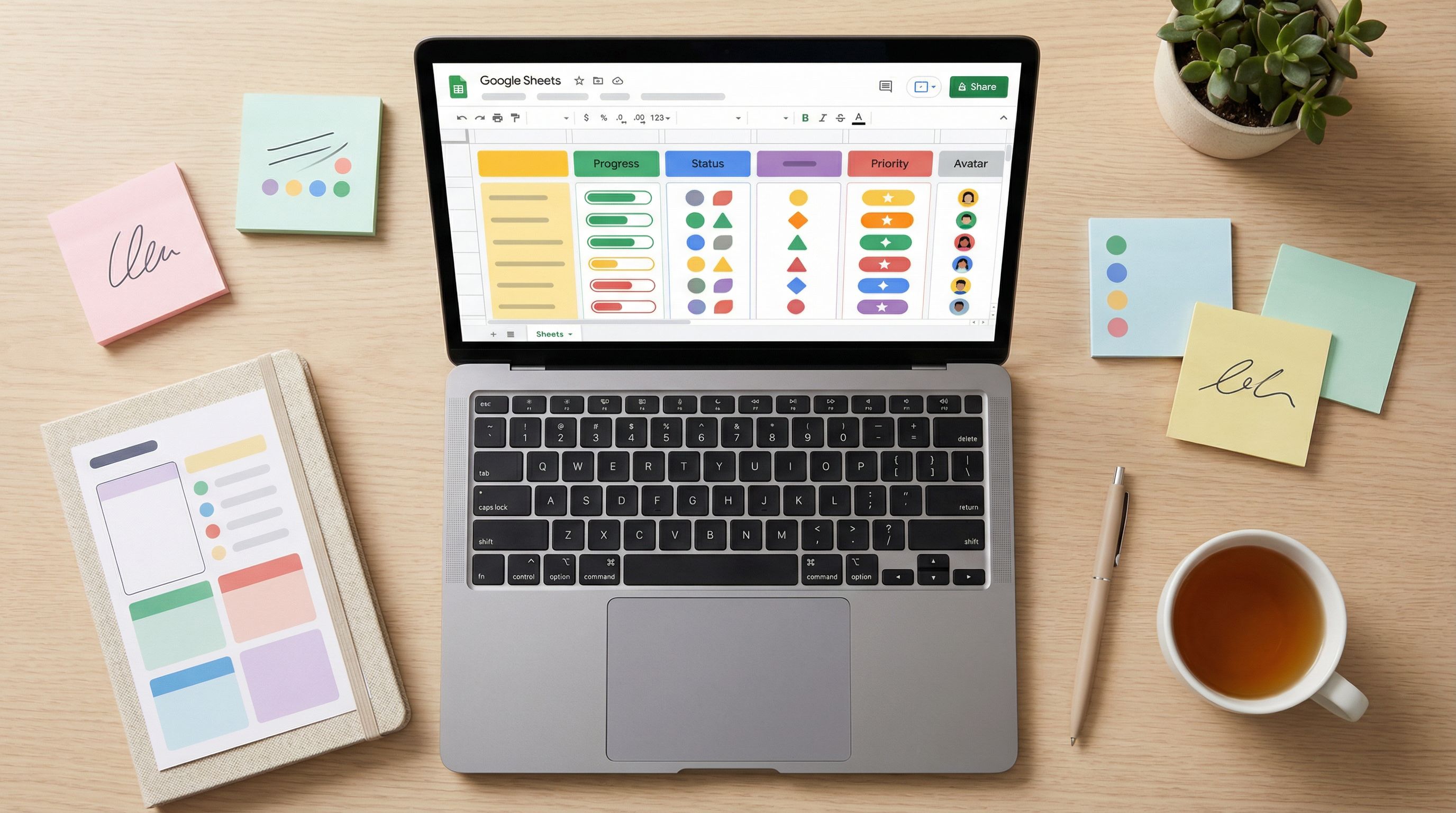
Status– New, In Progress, On Hold, Resolved, RejectedOwner– Email or name of the responsible teammateSLA Date– Calculated due date based on submission time + priorityLast Touched– Timestamp of last manual update (optional but helpful)
Even without a formal ticketing tool, this gives you:
- A single source of truth for “what’s on our plate”
- The ability to build views per owner or status
3. Use Named Ranges for Key Logic
Instead of writing complex formulas over and over, use Named Ranges (Data → Named ranges) for things like:
HighPrioritySegmentsStrategicAccountsBlockedStatuses
This makes formulas easier to read and less brittle when columns shift.
Turn Responses Into Auto-Prioritized Queues
Once your Sheet is structured, the next step is automatic prioritization. The goal: when someone opens the Sheet, the most important work is already at the top.
1. Score or Tag Each Submission
Create a Priority column that’s formula-driven, not manual. You can:
- Use a numeric score (e.g., 1–100)
- Use a tier (e.g., P0, P1, P2)
Example: lead routing form
Inputs from form:
Company Size(numeric or banded)Use Case(dropdown)RegionRequested Timeline
Derived logic in PriorityScore:
=IF([Requested Timeline] = "This month", 30, 0)
+ IF([Company Size] = "500+", 40, 0)
+ IF([Use Case] = "Core ICP", 20, 0)
+ IF([Region] = "Strategic", 10, 0)
Then map score to label:
=IFS(
  [PriorityScore] >= 80, "P0",
  [PriorityScore] >= 50, "P1",
  TRUE, "P2"
)
2. Use Filter Views as “Work Queues”
Instead of everyone sharing one chaotic view, create Filter Views (Data → Filter views → Create new filter view) such as:
AE – High Priority–Owner = "Unassigned"ANDPriority = "P0"CX – Today’s Renewals–Status = "New"ANDSLA Date = TODAY()Ops – Exceptions–Strategic? = TRUEOREscalated = TRUE
Each teammate bookmarks their views. Now your Sheet behaves more like a queue in a support tool than a static spreadsheet.
3. Color-Code for Fast Scanning
Use Conditional Formatting to:
- Highlight
P0rows in a subtle red or bold border - Shade rows where
SLA Date < TODAY()(overdue) - Dim rows where
Status = "Resolved"
The point isn’t aesthetics; it’s cognitive load. Operators can glance at the Sheet and know where to start.
Use Sheets to Drive Routing Logic Back Into Forms
Once you have live data in Sheets, you can use it to improve the form itself—without rebuilding from scratch.
This is where the loop between Sheets and Ezpa.ge gets powerful:
- Start with a simple, generic form.
- Watch how responses cluster in Sheets.
- Identify patterns that should change question paths or routing.
- Update the form logic or URL variants to match.
Examples:
- You notice a segment of candidates consistently failing at a certain stage. You adjust your Ezpa.ge candidate form to ask more targeted pre-screen questions for that segment, similar to the flows we explored in From Intake to Interview: Building Candidate Funnels with Ezpa.ge and Live Google Sheets Filters.
- You realize 70% of “custom request” submissions are actually a small set of repeatable scenarios. You turn those into explicit options in the form, with logic that shows different follow-up questions per choice.
Sheets becomes your feedback instrument: instead of guessing what to ask, you let real response data guide your next iteration.
Trigger Work Beyond Sheets With Integrations and Add-ons
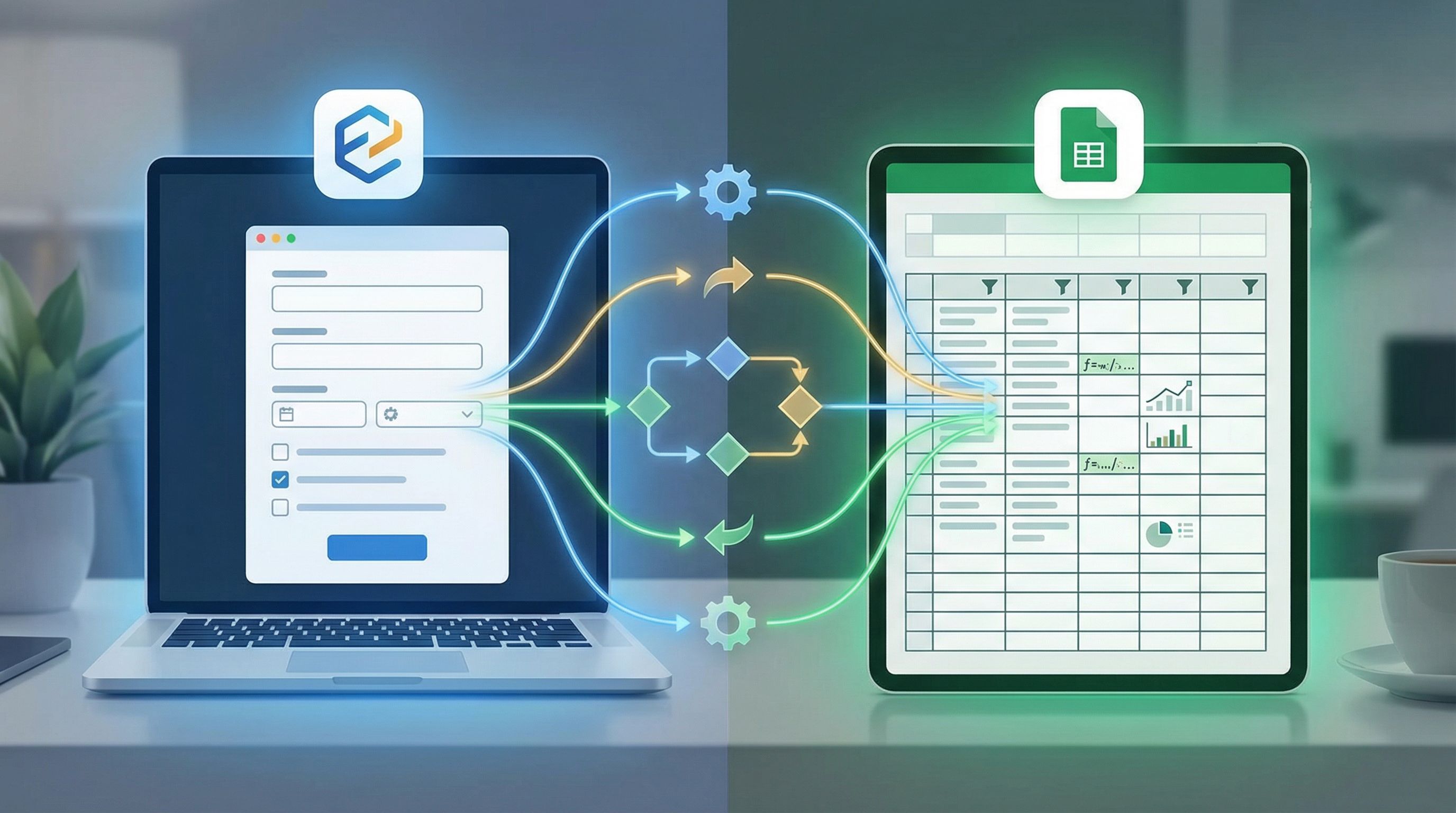
Your ops brain shouldn’t live only in a spreadsheet tab. Once your logic is in Sheets, you can use it to push actions into other tools.
Here are three practical patterns that don’t require heavy engineering.
1. Email and Chat Alerts via Apps Script or No-Code Tools
Use Google Apps Script or tools like Zapier, Make, or n8n to watch for specific changes in your Sheet and trigger:
- An email to the owner when a new
P0row appears - A Slack/Teams message when
Statusmoves toEscalated - A DM to a hiring manager when a candidate reaches
Onsitestage
Typical trigger conditions:
On form submit(new row added)On edit(Status or Owner changed)
Even a simple “New P0 lead” Slack message, with a direct link to the row, can save minutes per submission and ensure nothing critical is missed.
2. Task Creation in Project Tools
Use your Sheet as the source of truth for task creation:
- When
Statuschanges toApproved, automatically create a task in Asana, Jira, ClickUp, or Linear. - Include key fields (summary, requester, due date) in the task description.
- Store the task URL back in a
Task Linkcolumn so you can hop between Sheet and tool.
This keeps your forms as the front door and your project tool as the execution space, with Sheets gluing them together.
3. Lightweight SLAs and Escalations
Because your Sheet knows Submitted At, Priority, and Status, you can:
- Calculate
SLA Dateper row. - Use conditional formatting to flag items that are nearing or past SLA.
- Trigger escalations when
NOW() > SLA DateandStatusis stillNew.
You don’t need a full-blown ticketing system to enforce basic response standards; your form + Sheet combo can handle a surprising amount.
Design Forms With the Sheet in Mind
To make all of this work, your forms need to be ops-friendly from the start.
1. Use Controlled Inputs, Not Free-Form Chaos
Whenever possible, prefer:
- Dropdowns
- Multi-selects
- Radio buttons
- Structured date and number fields
Over:
- Open text fields for things you’ll filter or route on
This makes your Sheet easier to:
- Filter (
=FILTERand=QUERYlove consistent values) - Score (no need for fuzzy matching)
- Aggregate (pivot tables, charts)
2. Capture Metadata You’ll Need Later
Think about what future-you will wish you had captured—then add it now:
- Channel – Where did this submission link live? (Ad, email, partner, in-product, QR code, etc.)
- Intent – Interest level or reason for contact.
- Segment hints – Industry, team size, role, region.
Paired with Ezpa.ge’s custom URLs and variants, you can encode some of this in the URL itself and pass it as hidden or prefilled fields. If you’re curious how far you can take this, check out Form Systems, Not One-Off Links: Designing a URL Taxonomy That Scales With Your Ops.
3. Keep Operators in the Loop When Forms Change
Your Google Sheet logic is only as good as the assumptions behind it.
When you:
- Add or remove fields
- Change answer options
- Adjust branching logic
…make it a habit to:
- Note changes in a
Changelogtab in the Sheet. - Version your logic (e.g.,
PriorityScore_v2).
This helps you avoid “mystery drops” in your metrics when a seemingly small form tweak changes how data flows into your ops brain.
Putting It All Together: A Simple Implementation Blueprint
If you’re ready to move beyond “we sync to Sheets,” here’s a concrete path you can follow over a week or less.
Day 1–2: Map and Instrument One Critical Flow
- Pick a single high-impact form (e.g., demo requests, candidate intake, partner requests).
- List the decisions you want automated vs. human-reviewed.
- Audit the current form: are you collecting the right data to support those decisions?
- Make targeted updates in Ezpa.ge (fields, options, logic) if needed.
Day 3: Restructure the Sheet
- Create a Raw tab and point Ezpa.ge sync there.
- Create a Brain tab that mirrors Raw and adds:
- Status, Owner, Priority, SLA Date
- Any scoring or tagging logic
- Add named ranges for segments, strategic accounts, etc.
Day 4: Build Queues and Visuals
- Set up Filter Views for each team or owner.
- Add conditional formatting for priority and SLA.
- Share links to the right views with each stakeholder.
Day 5: Connect One External Action
- Choose a single trigger that matters (e.g., P0 submission → Slack alert).
- Implement it via Apps Script or your preferred automation tool.
- Test with a few dummy submissions.
From there, iterate:
- Add more logic columns as you learn.
- Refine your scoring and routing.
- Adjust the form to better capture what your Sheet needs.
Summary
Ezpa.ge plus Google Sheets can be far more than a pipe from “form” to “spreadsheet.” When you treat Sheets as your ops brain, you:
- Design forms around the decisions you need to make, not just the data you want to store.
- Structure Sheets into Raw and Brain layers so you can evolve logic safely.
- Turn submissions into auto-prioritized queues with scoring, status, and owner fields.
- Use Sheets as a feedback loop that informs how your forms adapt and improve.
- Trigger downstream actions—alerts, tasks, escalations—without writing full apps.
The payoff is simple: fewer ad-hoc threads, fewer “did anyone see this?” messages, and a lot more confidence that your forms are actually running your operations, not just documenting them.
Your Next Step
You don’t need to rebuild your entire stack to get started. Pick one form and one Sheet.
- Open the Sheet that’s already receiving responses from your Ezpa.ge form.
- Add a
Status,Owner, andPrioritycolumn. - Create a Filter View for “My Queue” and share it with the right teammate.
- Commit to working from that view for a week.
Once you feel how different that one workflow becomes, you’ll see the opportunity across the rest of your forms.
If you’re using Ezpa.ge already, log in, pick your most important form, and give it a proper brain in Google Sheets. If you’re not yet using Ezpa.ge, this is the perfect moment to try building a form that’s designed from day one to power real operations—not just collect submissions.