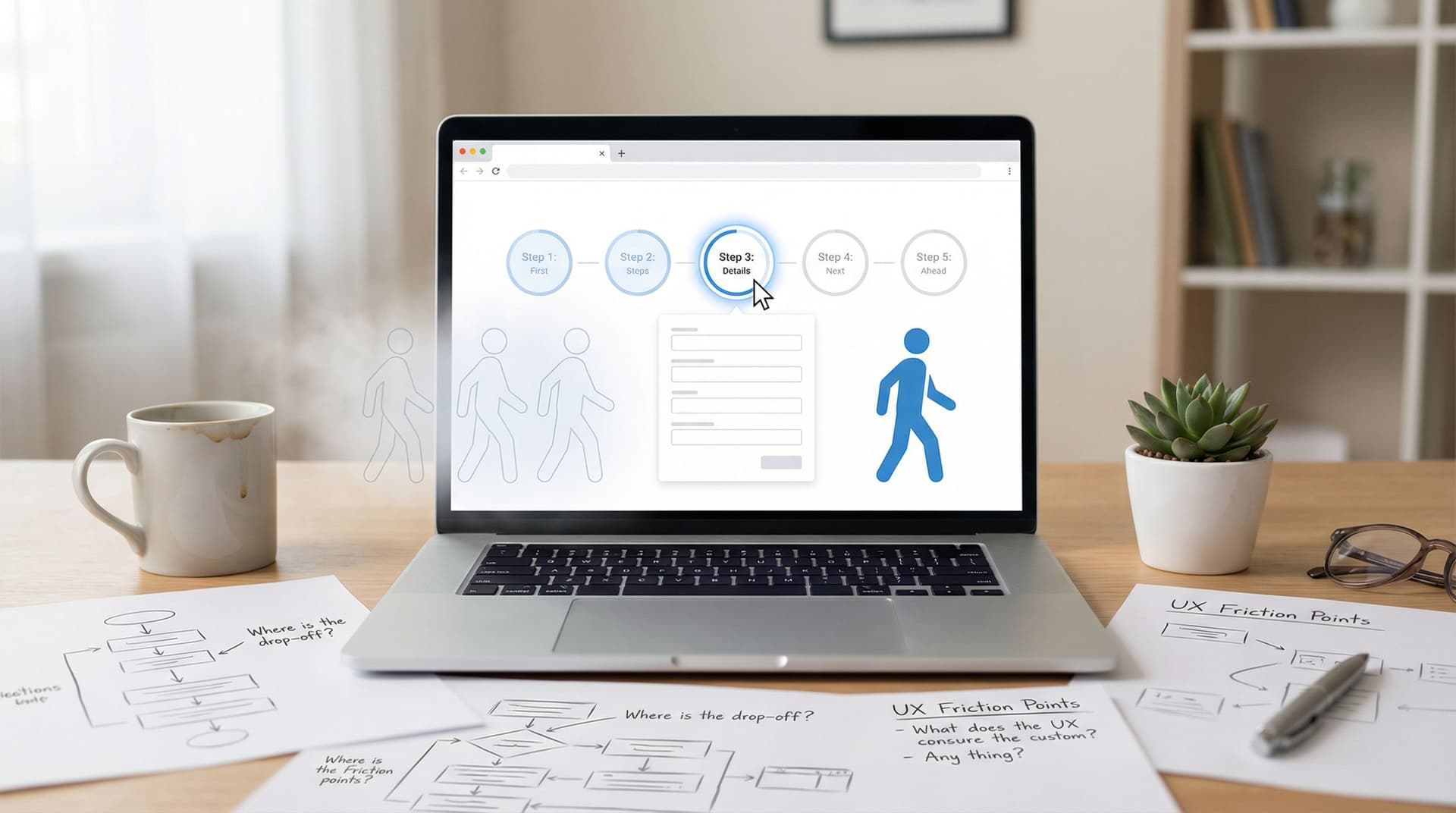
From Form to Funnel: Turning Raw Responses into a Live Google Sheets Dashboard


Forms are where the story starts—but not where it should end.
If you’re only exporting CSVs once a week and manually building reports, you’re treating your form like a suggestion box instead of a live signal. The real magic happens when every new response instantly updates a dashboard your team actually uses: a Google Sheet that behaves like a lightweight analytics hub.
Ezpa.ge already gives you real-time syncing to Google Sheets. The missing piece for many teams is turning that raw stream of rows into a clear, visual dashboard that drives decisions.
This guide walks through how to go from “we have responses” to “we have a living, breathing funnel view”—without needing a data team.
Why turning forms into live dashboards matters
A form on its own answers: “Who filled this out?”
A dashboard answers: “What should we do next?”
When you connect your Ezpa.ge forms to a live Google Sheets dashboard, you unlock:
-
Instant visibility
See new signups, survey responses, or feedback in real time—no more waiting for weekly exports. -
Funnel thinking instead of form thinking
You stop obsessing over individual fields and start asking: Where do people drop? Which channels convert? Which cohorts stick around? -
Faster experiments
Change a headline, reorder fields, or tweak your layout (see our post on conversion-first above-the-fold layouts) and watch the impact roll in live. -
Shared truth across the team
A single Sheet everyone can open: marketing, product, CX, founders. No one is guessing which numbers are “right.” -
Automation-ready data
Once your data is structured in Sheets, it’s easy to connect to tools like Looker Studio, Zapier, or internal scripts without changing how you collect responses.
If your forms are already syncing to Google Sheets with Ezpa.ge, you’re halfway there. The rest is structure, a few formulas, and a bit of thoughtful design.
Step 1: Start with the question, not the form
Before you touch Google Sheets, decide what you actually need to see.
Ask yourself:
-
What decisions will this dashboard support?
- Prioritizing which leads to call?
- Understanding which acquisition channels work?
- Tracking satisfaction over time?
-
Who will look at this—and how often?
- A founder checking daily signups.
- A support lead reviewing feedback weekly.
- A marketing team watching campaign performance hourly.
-
What are the 3–5 metrics that truly matter?
Examples:- Total submissions (by day / week / month)
- Conversion rate from view → submit
- Drop-off by step (for multi-step forms)
- NPS or satisfaction score
- Lead quality (e.g., % of leads matching your ICP)
Write these down. Your dashboard exists to answer these questions first. Everything else is optional.
A useful test: If a metric doesn’t change your behavior when it moves, it doesn’t belong on the first screen.
Step 2: Set up a clean data sheet from your Ezpa.ge form
Now let’s get the plumbing right.
Connect Ezpa.ge to Google Sheets
If you’re using Ezpa.ge, connect your form to Google Sheets so every new response appears as a new row. You’ll end up with a raw data sheet—we’ll call it Responses.
Make sure:
- Each field in your form has a clear, stable name (e.g.,
email,company_size,source,plan_interest). - You’re capturing timestamps and, if possible, UTM parameters or source info.
- Choice fields (like dropdowns) use consistent labels (e.g.,
Small (1–10), not1-10in one place and1–10 employeesin another).
This is your system of record. Don’t over-format it. Don’t add charts here. Just keep it clean and consistent.
For more on getting the form itself into shape before you worry about data, our piece on theme systems for forms is a good companion.
Step 3: Create a dedicated dashboard sheet
Never build your dashboard on the raw sheet.
Instead, add a new Sheet tab, name it Dashboard, and treat it like a separate product:
- Row 1–3: High-level KPIs
- Middle area: Charts and funnel views
- Lower area or right side: Tables for breakdowns (by channel, device, cohort, etc.)
Use a simple structure:
- Column A: Labels (e.g.,
Total submissions (last 7 days)) - Column B: Formulas that reference the
Responsessheet
Example formulas:
-
Total submissions (all time):
=COUNTA(Responses!A2:A)(Assuming column A has timestamps or unique IDs.)
-
Submissions in last 7 days:
=COUNTIF(Responses!A2:A, ">=" & TODAY()-7) -
Conversion rate by source (if you track
source):=COUNTIF(Responses!D2:D, "Paid Ads") / COUNTA(Responses!D2:D)(Assuming column D is
source.)
Keep the formulas simple at first. You can refactor into more advanced functions (like QUERY) once the basics are working.

Step 4: Turn rows into a funnel
A funnel is just a sequence of steps with counts and conversion rates between them. If your form is multi-step, this is where you get real insight.
Capture step-level data
To build a funnel, you need to know how far each respondent got. There are a few approaches:
-
Multi-step form tracking via hidden fields
- Add a hidden field like
last_step_seenthat updates as the user progresses. - When they submit, that value gets stored.
- Add a hidden field like
-
Separate forms for key steps
- For long flows, you might break steps into separate Ezpa.ge forms (e.g.,
Lead Capture→Qualification→Activation). - Each form syncs to its own Sheet, and you use a unique identifier (like email) to stitch them together.
- For long flows, you might break steps into separate Ezpa.ge forms (e.g.,
-
Event tracking with analytics tools
- For more advanced setups, you can combine form data with analytics events from tools like Google Analytics or Segment.
- Here, Sheets becomes the summary layer rather than the raw event store.
Build the funnel table
On your Dashboard tab, create a small table:
| Step | Description | Count | Conversion from previous | Cumulative conversion | |------|-------------|-------|--------------------------|-----------------------| | 1 | Viewed form | 1,000 | — | 100% | | 2 | Started form | 700 | 70% | 70% | | 3 | Reached step 2 | 500 | 71% | 50% | | 4 | Submitted | 350 | 70% | 35% |
Depending on what you can track, you might approximate Viewed form using pageview data, and the rest from your Responses sheet.
Example formulas (assuming last_step_seen is in column E of Responses):
-
Reached step 2:
=COUNTIF(Responses!E2:E, ">=2") -
Submitted:
If submission implieslast_step_seen = 4:=COUNTIF(Responses!E2:E, "4")
Then compute conversion rates by dividing each step’s count by the previous step.
This table becomes the backbone of your dashboard. You’ll see exactly where people vanish—and that’s where improvements like micro-animations that reduce drop-off or better microcopy can make a measurable difference.
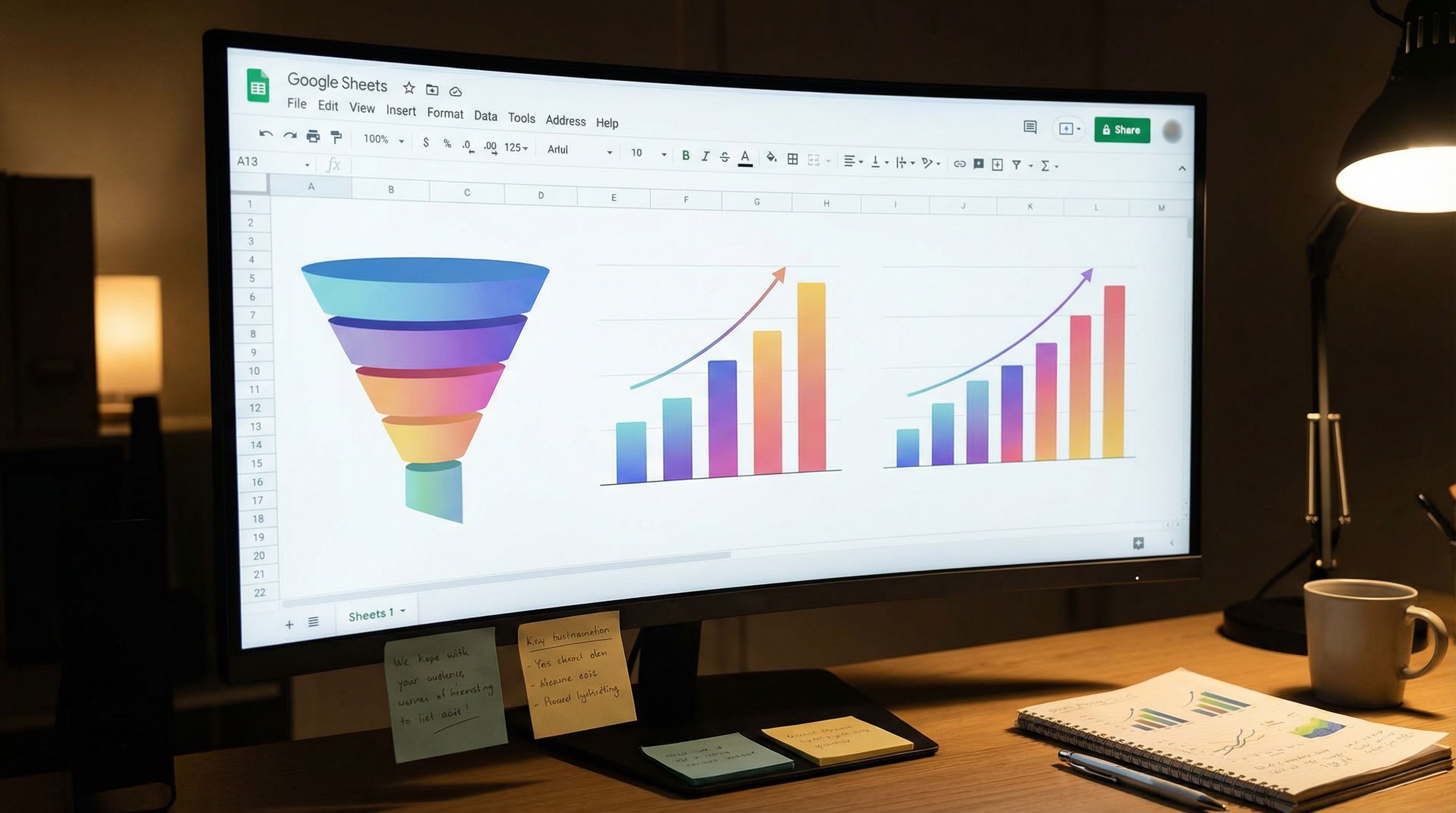
Step 5: Add visualizations that tell a story
A wall of numbers doesn’t change behavior. Thoughtful charts do.
Focus on a few visuals that map to the questions you defined earlier:
1. Submissions over time
- Chart type: Line chart
- Question: Are we trending up, flat, or down? Did that campaign launch move the needle?
Implementation:
- On a new tab (e.g.,
Daily Summary), create a two-column table:DateandSubmissions. - Use a
QUERYformula to group by date:=QUERY(Responses!A2:A, "select A, count(A) where A is not null group by A label count(A) 'Submissions'", 0) - Insert → Chart → Line chart, pointing at this table.
2. Channel or source breakdown
- Chart type: Stacked bar or pie chart
- Question: Where are our best submissions coming from?
Implementation:
- Build a summary table:
SourcevsCountusingQUERY:=QUERY(Responses!D2:D, "select D, count(D) where D is not null group by D", 0) - Chart it as a pie or bar chart.
3. Satisfaction or NPS distribution
- Chart type: Column chart / histogram
- Question: Are responses skewing positive or negative?
If you collect a rating (1–5 or 0–10), group counts by score and visualize them. This is especially powerful when combined with qualitative feedback in another tab.
Place these charts on your Dashboard around the KPI tiles so that a quick glance tells a coherent story.
Step 6: Build views for different stakeholders
A founder, a marketer, and a support lead care about different slices of the same data.
Instead of trying to cram everything into one cluttered view, use separate sections or tabs:
-
Leadership view
- Total submissions (by week/month)
- Overall conversion rate
- High-level funnel
-
Marketing view
- Submissions by channel/source
- Conversion rate by landing page or campaign
- Cost-per-lead (if you add spend data)
-
Product / CX view
- NPS / satisfaction over time
- Top themes in qualitative feedback (tagged manually or via simple text filters)
- Drop-off by step or device type
You don’t need complex permissions to start. Just:
- Use frozen rows and clear headings.
- Group related sections and add background colors for visual separation.
- Add a simple legend at the top: “This section is for X, updated in real time from Ezpa.ge responses.”
As your needs grow, you can connect your Sheet to Looker Studio or another BI tool—but the core logic will already be in place.
Step 7: Keep it maintainable
A live dashboard is only useful if it stays accurate and understandable.
A few maintenance principles:
-
Name your ranges and key cells
Instead of hard-codingResponses!A2:A, use named ranges likeTimestampsorSources. This makes formulas easier to read and update. -
Document your logic
Add aNotestab explaining:- What each KPI means
- How it’s calculated
- Which columns in
Responsesit depends on
-
Avoid fragile references
Don’t insert columns in the middle of yourResponsessheet without checking formulas. When possible, reference columns by header usingQUERYinstead of fixed column letters. -
Review quarterly
Every few months, ask:- Are these still the right questions?
- Which charts do people actually use?
- What’s missing that would change decisions?
This is also a good time to revisit the form itself—tuning copy, layout, and trust cues. Our article on building trust with progress indicators and micro-interactions pairs well with funnel analytics; you’ll see exactly how UX changes affect completion.
Step 8: Layer on automation and alerts
Once your dashboard is stable, you can let it start talking back.
Simple alerts with Google Sheets + email
Use conditional formatting and filters to highlight:
- Sudden drops in submission volume
- Spikes in negative feedback
- Channels with unusually high or low conversion
Then, set up:
- Email notifications when your
Responsessheet gets new submissions (in Google Sheets: Tools → Notification rules). - Filtered views that show only “high risk” or “high value” responses for quick triage.
Integrations with other tools
Because Ezpa.ge syncs to Google Sheets in real time, your Sheet can act as a trigger for other workflows:
-
Zapier / Make:
- When a new row is added meeting certain criteria (e.g.,
plan_interest = Enterprise), send a Slack message or create a CRM record.
- When a new row is added meeting certain criteria (e.g.,
-
Looker Studio:
- Connect your Sheet as a data source and build more advanced visualizations while keeping Sheets as the underlying logic layer.
-
Internal tools:
- Use Apps Script or internal scripts to pull from the Sheet and power internal dashboards or admin panels.
The key is: don’t automate before you’ve validated that the metrics and logic in your Sheet are correct. Otherwise, you’re just moving bad data around faster.
Common pitfalls (and how to avoid them)
Even simple dashboards can go sideways. Watch out for:
-
Too many metrics, not enough meaning
- Symptom: A cluttered Sheet no one opens.
- Fix: ruthlessly prioritize 3–5 core metrics tied to actual decisions.
-
Inconsistent form options
- Symptom:
USA,United States, andU.S.all show up as separate rows in your country breakdown. - Fix: standardize field options in Ezpa.ge; clean historical data once in Sheets.
- Symptom:
-
Broken formulas after edits
- Symptom: KPIs suddenly show
#REF!or obviously wrong numbers. - Fix: keep a
Sandboxtab for experiments; only update production formulas after testing.
- Symptom: KPIs suddenly show
-
No owner
- Symptom: Outdated filters, charts referencing old ranges, confusion about which Sheet is “the real one.”
- Fix: assign a clear owner for the dashboard, even if it’s just one person for now.
-
Ignoring qualitative data
- Symptom: You know what is happening (drop-offs, low scores) but not why.
- Fix: add a simple tagging system to open-text responses and review them regularly.
Bringing it all together
When you connect an Ezpa.ge form to Google Sheets and design a thoughtful dashboard on top, you’re doing more than making a spreadsheet.
You’re building a live control panel for your funnel:
- Raw responses land in a structured
Responsessheet. - A
Dashboardtab turns those rows into clear KPIs, funnels, and charts. - Different stakeholders get the views they need to act quickly.
- Automation and alerts help you respond in real time.
The result: every time someone hits “Submit,” your team gets a little smarter—and a little faster.
Where to go next
If you want to keep building on this foundation, here are a few directions:
- Tighten the front of the funnel with better layouts and first-screen experiences: Conversion-First Form Layouts.
- Make your forms feel more on-brand and consistent, so your funnel data reflects a cohesive experience: Theme Systems, Not One-Off Skins.
- Turn your live Sheets sync into a broader growth engine: Real-Time Forms, Real-Time Strategy.
Ready to turn your form into a live funnel?
You don’t need a full analytics stack to start. You just need:
- One Ezpa.ge form connected to Google Sheets
- A clean
Responsestab - A simple
Dashboardtab with a handful of meaningful metrics
From there, you can layer on funnels, charts, stakeholder views, and automation at your own pace.
Open your form, connect it to a Sheet, and sketch your first three metrics. By the time the next response comes in, you’ll have taken a big step from raw data to live insight.
Your form is already collecting the story. It’s time to give that story a dashboard.