AI as Your Form Editor: Using Models to Rewrite Labels, Hints, and Microcopy for Clarity and Conversion

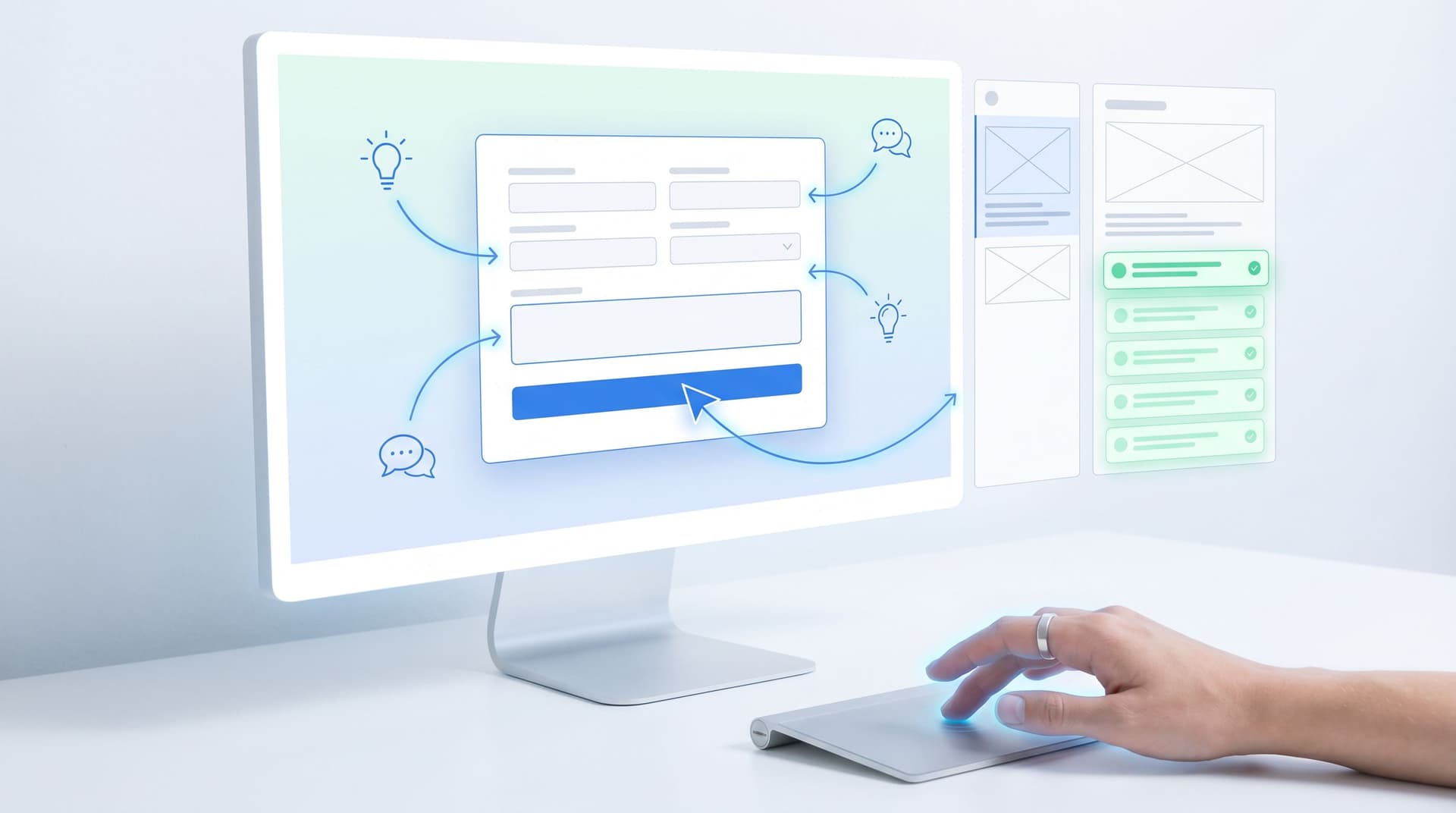
AI can now do more than summarize your survey results or score your leads. It can sit inside your form-building workflow as a kind of on-call editor—rewriting labels, hints, and microcopy so they’re clearer, friendlier, and more likely to convert.
For a tool like Ezpa.ge, where you can spin up a form in minutes, that’s a big deal. The bottleneck is rarely “Can we build the form?” It’s “Does this copy make sense to anyone who isn’t us?”
In this post, we’ll look at how to treat AI as your form editor—not your replacement. You’ll learn how to use models to:
- Clarify confusing labels
- Tighten long-winded hints
- Adjust tone for different audiences
- Localize copy without losing intent
- Run quick A/B ideas before you ever ship
And we’ll anchor all of it in practical patterns you can apply directly to your Ezpa.ge forms.
Why microcopy is quietly running your conversion rate
Most teams think of form performance in terms of fields and layout:
- How many questions are we asking?
- Is this on one page or multiple steps?
- Do we really need phone number and company size?
Those questions matter (see: The Minimal Field Manifesto). But even a perfectly scoped form can underperform if the words around each field are confusing, intimidating, or vague.
Microcopy—the short bits of text that guide people through your form—includes:
- Field labels (e.g., “Work email” vs. “Email”)
- Placeholder text (e.g., “name@company.com”)
- Helper text (e.g., “We’ll only use this to send your invoice.”)
- Error messages (e.g., “That doesn’t look like a valid URL.”)
- Button copy (e.g., “Get your quote” vs. “Submit”)
These details shape how safe, simple, and worthwhile a form feels. Small changes in microcopy routinely move conversion rates by several percentage points in experiments run by UX and growth teams across SaaS, ecommerce, and fintech.
Why humans struggle to write great form copy
Good microcopy is:
- Plain (no jargon)
- Specific (no vague asks like “Tell us about your business” with no guidance)
- Reassuring (especially around data and commitment)
- Context-aware (speaks to the exact moment the user is in)
The problem: the people writing form copy are usually too close to the product. Product teams default to internal language. Marketers default to slogans. Ops teams default to whatever the CRM calls a field.
AI is very good at breaking that spell—as long as you point it at the right problem.
What it means to treat AI as your form editor
Think of AI as a hybrid of:
- A junior UX writer who can generate lots of options fast
- A style-checker that can flag jargon and complexity
- A localization assistant that can adapt tone and language
Your job is to:
- Set constraints (who is this form for, what is the promise, what’s non-negotiable?).
- Feed the model your current copy and context.
- Review, edit, and choose what ships.
AI drafts. You decide. That’s the safest and most effective pattern.
Where AI helps most in your forms
Let’s walk through the main surfaces where AI can quietly level up your form UX.
1. Field labels that people actually understand
The label is often the only thing a skim-only user reads. If it’s unclear, everything else downstream gets noisy. (If you’re designing for skimmers, you’ll also like Designing Forms for ‘Skim-Only’ Users.)
Use AI to:
-
De-jargon labels
- Input:
"Current ARR (USD)" - Prompt: “Rewrite this label for a non-technical small business owner in plain language. Keep it under 5 words.”
- Possible output:
"Annual revenue (USD)"
- Input:
-
Clarify ambiguous asks
- Input:
"Website" - Prompt: “Make this label clearer so users know we want their company site URL, not a social profile.”
- Possible output:
"Company website URL"
- Input:
-
Match mental models
- Input:
"Preferred contact channel" - Prompt: “Rewrite this label so it matches how a customer would say it, not internal jargon.”
- Possible output:
"How should we contact you?"
- Input:
When you’re building in Ezpa.ge, you can keep your internal field names for Sheets and let AI help you craft the user-facing labels.
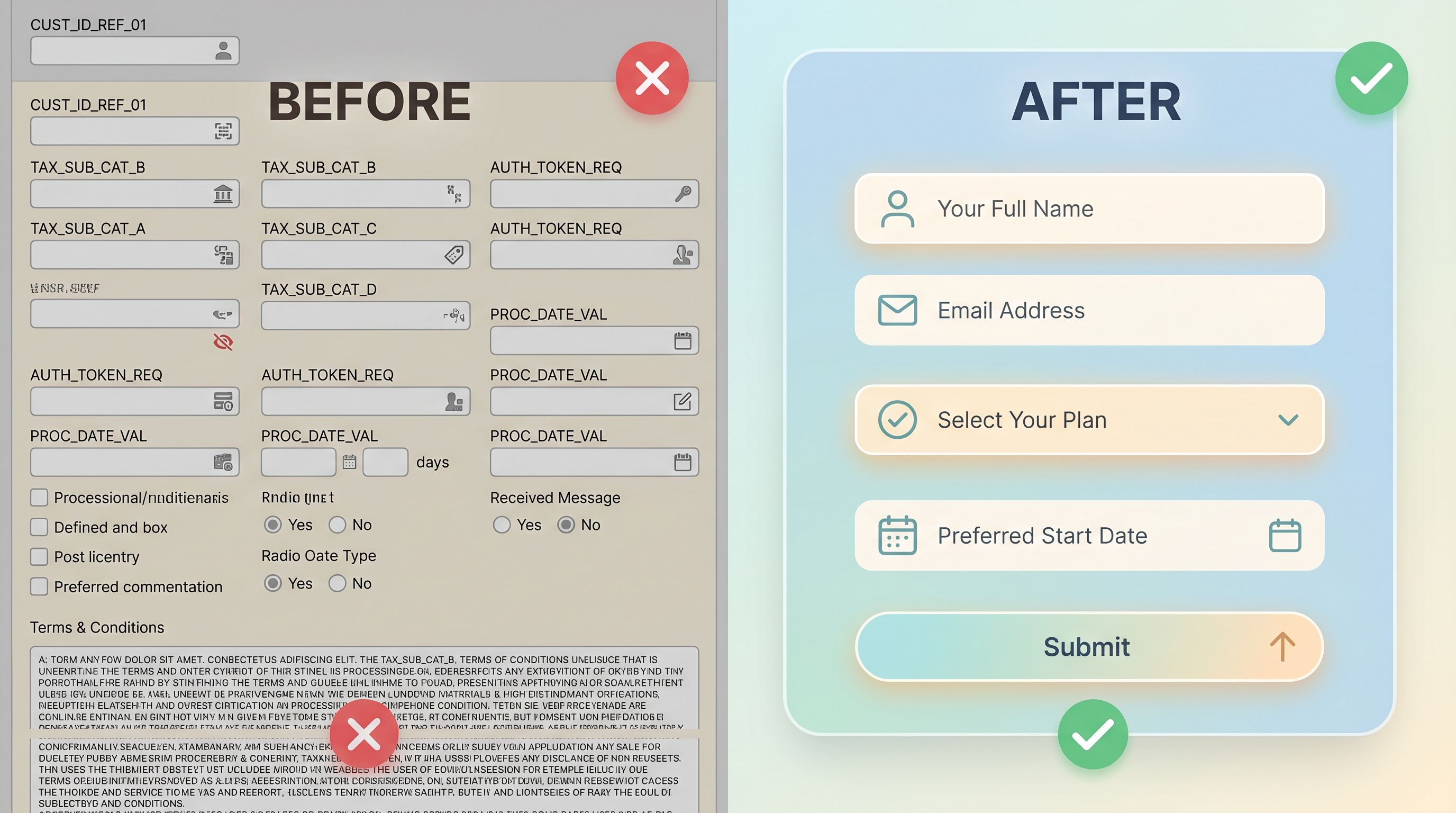
2. Helper text that reduces hesitation instead of adding noise
Helper text is where many teams accidentally create friction:
- Long paragraphs under a single field
- Legal-sounding disclaimers for simple asks
- Vague instructions like “Please be as detailed as possible”
AI can help you:
-
Shorten without losing meaning
Prompt pattern:“You are editing helper text for a form. Rewrite this to be 1–2 short sentences, plain language, and focused on what the user should do or expect. Keep the same meaning.
Original: ‘We require your phone number in order to be able to contact you in the event that there are issues with your account or billing.’”
Likely output:
“Add a phone number so we can reach you if there’s an issue with your account or billing.”
-
Add reassurance around sensitive fields
For fields like budget, phone, or personal details:Prompt pattern:
“Rewrite this helper text to be reassuring and privacy-conscious. The company is trustworthy and will not sell the data. Keep it under 20 words.”
Output example:
“We only use this to match you with the right plan—never for sales lists or sharing with third parties.”
-
Give examples instead of vague instructions
Prompt pattern:“Turn this vague instruction into a concrete example, in under 15 words. Field: ‘What challenges are you facing?’ Current helper: ‘Please be as detailed as possible.’”
Output example:
“For example: ‘Churn is up 20% and we’re not sure why.’”
3. Error messages that feel human, not hostile
Error copy is usually written by whoever implemented validation, not by a UX writer. That’s how you end up with:
- “Invalid value”
- “Field is required”
- “422: Unprocessable entity”
AI can transform these into messages that help users recover quickly.
Use prompts like:
“Rewrite this error message in friendly, specific language that tells the user how to fix the problem. Under 15 words.
Original: ‘Invalid phone number.’”
Better outputs might be:
- “That phone number looks off. Try including your country code.”
- “Please enter a phone number with digits only—no spaces or dashes.”
You can even generate multiple variants and choose the one that best fits your brand voice.
4. Buttons that carry the promise, not just the action
The primary button is the last piece of microcopy someone sees before committing. A generic “Submit” wastes that moment.
AI can quickly propose benefit-focused alternatives:
- For demo requests:
"Book my demo","Talk to sales","See Ezpa.ge in action" - For downloads:
"Get the playbook","Email me the guide" - For event RSVPs:
"Save my spot","Join the waitlist"
Prompt pattern:
“Suggest 5 button labels for a form where the user is requesting a live product demo. Tone: confident, clear, not salesy. 2–4 words each.”
Then pick the one that:
- Matches the promise of your page
- Feels consistent with your brand
- Makes sense when read out of context (e.g., in a screen reader)
A practical workflow: using AI alongside Ezpa.ge
Let’s put this together into a repeatable workflow you can use on any new form.
Step 1: Start with the bare-bones form
In Ezpa.ge, sketch the structure first:
- Decide what must be collected (and cut the rest—again, see The Minimal Field Manifesto).
- Add fields with simple, internal labels.
- Set your Google Sheets sync so you know how each field maps.
Don’t worry about copy perfection yet. Get the skeleton in place.
Step 2: Export or copy your raw microcopy
Create a simple text or spreadsheet view with:
- Field name
- Current label
- Current helper text (if any)
- Placeholder
- Error messages (if already defined)
This is what you’ll feed to your AI editor.
Step 3: Write a short “form brief” for the model
Before you ask AI to rewrite anything, give it context:
- Audience: e.g., “Busy founders of 5–50 person SaaS companies.”
- Goal: e.g., “Get them to request a 30-minute onboarding consultation.”
- Tone: e.g., “Clear, concise, friendly, not jokey.”
- Constraints: e.g., “Avoid promising specific revenue outcomes. Don’t mention pricing.”
Prompt example:
“You are helping me edit a form for Ezpa.ge, a tool for creating beautiful, responsive forms that sync to Google Sheets.
Audience: RevOps and marketing leaders at B2B SaaS companies. Goal: Get them to request a live walkthrough. Tone: Clear, confident, respectful of their time.
I’ll paste my current labels and helper text. Please suggest improvements that:
- Use plain language
- Reduce length where possible
- Add reassurance around data use when relevant
- Keep technical accuracy
Return a table with: field, old label, new label, old helper, new helper.”
This kind of brief dramatically improves the quality of suggestions.
Step 4: Review with a human eye (and a few simple checks)
AI will give you options, but you still need to:
- Check for over-promising. Make sure the copy doesn’t guarantee outcomes your product can’t.
- Verify accuracy. Especially for anything touching legal, compliance, or pricing.
- Guard your brand. Adjust phrasing that feels off-tone, even if it’s “technically fine.”
A quick checklist for each field:
- Can a new visitor understand this label in 2 seconds?
- Does the helper text answer the most likely hesitation?
- Is the placeholder an example, not an instruction?
- Does the error message tell them how to fix the issue?
Step 5: Implement and test in Ezpa.ge
Once you’re happy with the revised copy:
- Update labels and hints directly in your Ezpa.ge form.
- Keep your internal field names stable for Sheets and downstream workflows.
- Use Ezpa.ge’s custom URLs to keep the promise consistent from link to form (for more on why this matters, see Custom URLs as Brand Signals).
If your volume supports it, you can even:
- A/B test different button labels
- Compare completion rates before and after microcopy changes
- Track error rates per field to see if new helper text is working

Advanced moves: using AI for tone, segments, and localization
Once you’re comfortable with the basics, you can start using AI for more nuanced work.
Adapting tone by segment
If you run multiple forms for different audiences—say, self-serve SMB vs. enterprise buyers—you can:
- Keep the meaning of each field consistent.
- Ask AI to adapt tone and emphasis.
Example:
-
Enterprise tone:
“Share your team’s primary use cases so we can tailor the walkthrough.”
-
SMB tone:
“Tell us how you’d like to use Ezpa.ge so we can show what’s most relevant.”
Prompt pattern:
“Take this form copy and adapt it for [audience], keeping the same meaning but adjusting tone and vocabulary. Avoid slang. Keep sentences short.”
Localizing without losing intent
For multilingual forms, AI can:
- Provide first-draft translations
- Flag idioms that won’t carry over
- Suggest more natural phrasing for specific regions
Always have a native speaker review, but AI can dramatically reduce the initial effort.
Prompt pattern:
“Translate this form label and helper text into [language] for [region]. Keep tone professional but friendly. If a direct translation sounds awkward, choose the most natural local phrasing instead.”
Drafting conditional copy for dynamic flows
If you’re using Ezpa.ge forms as part of a broader onboarding or intake journey (see From Form to Onboarding Journey), AI can help you:
- Draft different helper text based on previous answers
- Write branching explanations (e.g., why you’re asking for extra details in certain cases)
Example:
“If the user selects ‘Enterprise’ as company size, show helper text that explains why we ask for more detailed information and how it speeds up security review. Keep it under 25 words.”
Output:
“Because you’re a larger team, a few extra details help us fast-track security and procurement review.”
Guardrails: where AI should not have the final say
To keep your forms safe, trustworthy, and on-brand, draw a few hard lines:
-
Legal and compliance copy
AI can suggest friendlier phrasings, but legal text should be reviewed (and often written) by your legal team. -
Pricing, guarantees, and SLAs
Don’t let AI improvise numbers, timelines, or promises. Feed it the exact constraints. -
Sensitive topics
For healthcare, finance, HR, or any high-stakes flow, treat AI outputs as drafts only—then have domain experts review.
A simple policy: AI can propose, but humans approve—especially where risk lives.
Bringing it all together
When you treat AI as your form editor, you:
- Ship forms faster without sacrificing clarity
- Reduce internal debates over wording by letting models propose options
- Make labels, hints, and errors friendlier and more specific
- Keep your data structure stable while improving the user-facing experience
Most importantly, you respect your users’ time and attention. You make it obvious what you’re asking for, why it matters, and what happens next.
That’s the foundation not just for higher completion rates, but for better downstream journeys—whether that’s onboarding, support, or sales.
Where to start this week
If you want to try this without overhauling every form you own, start small:
-
Pick one high-impact form.
A demo request, onboarding intake, or key support form. -
Run a microcopy audit.
List every label, helper, placeholder, and error. Mark what feels:- Confusing
- Overly technical
- Long-winded
- Generic (e.g., “Submit”)
-
Draft an AI brief.
Write 5–7 sentences about audience, goal, tone, and constraints. -
Generate options, then edit.
Use AI to propose new labels, hints, and button copy. Keep what works. Rewrite what doesn’t. -
Implement in Ezpa.ge and watch the data.
Track completion, time-to-complete, and error rates over the next few weeks.
You don’t need a massive AI strategy deck to get value. You just need one form, one brief, and a willingness to iterate.
Summary
- Microcopy—labels, hints, error messages, and buttons—quietly drives whether people finish your forms.
- AI is well-suited to act as an editor for that microcopy, especially when you give it a clear brief about audience, goal, tone, and constraints.
- Use AI to de-jargon labels, shorten helper text, humanize error messages, and make buttons carry the promise instead of a generic action.
- Build a simple workflow: structure the form in Ezpa.ge, export the copy, brief the model, review with a human eye, then implement and test.
- As you get comfortable, expand into tone-by-segment, localization, and conditional copy for dynamic journeys.
- Keep firm guardrails around legal, pricing, and sensitive topics—AI drafts, humans approve.
Your next step
Open your highest-traffic form in Ezpa.ge and look at it not as a list of fields, but as a script for a first meeting with your user. Then:
- Write a short brief about who they are and what you’re promising.
- Paste your current labels, hints, and button copy into your AI tool of choice.
- Ask it to help you make every word clearer, kinder, and more specific.
Within an hour, you can ship a meaningfully better version of that form—without changing a single field.
Let Ezpa.ge handle the structure, syncing, and URLs. Let AI handle the first draft of the words. And let your team make the final call on what feels right.
That’s how forms stop being a chore and start becoming one of the sharpest tools in your growth and operations toolkit.