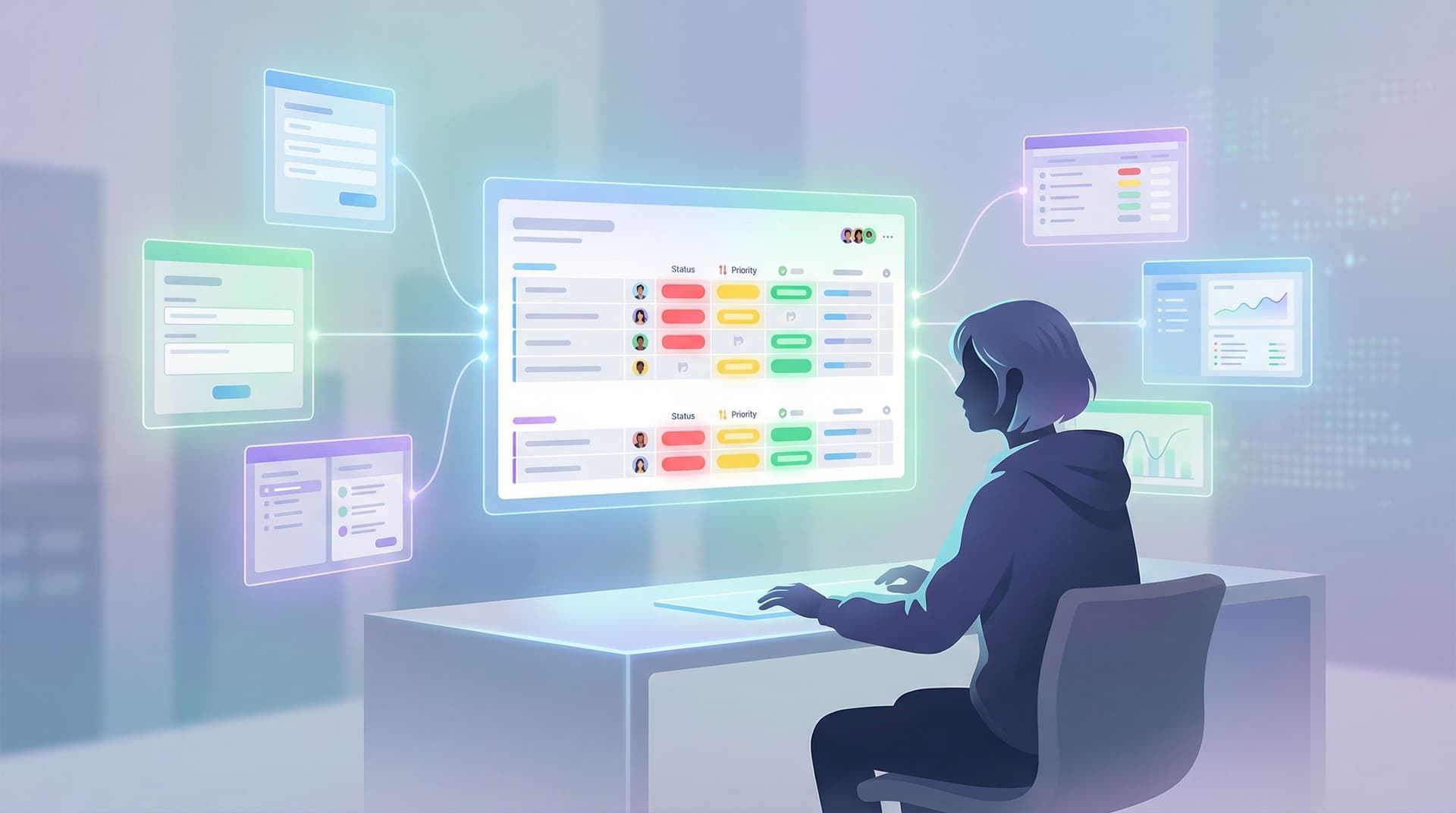
Forms as Source-of-Truth Dashboards: Turning Google Sheets Views into Live Ops Cockpits

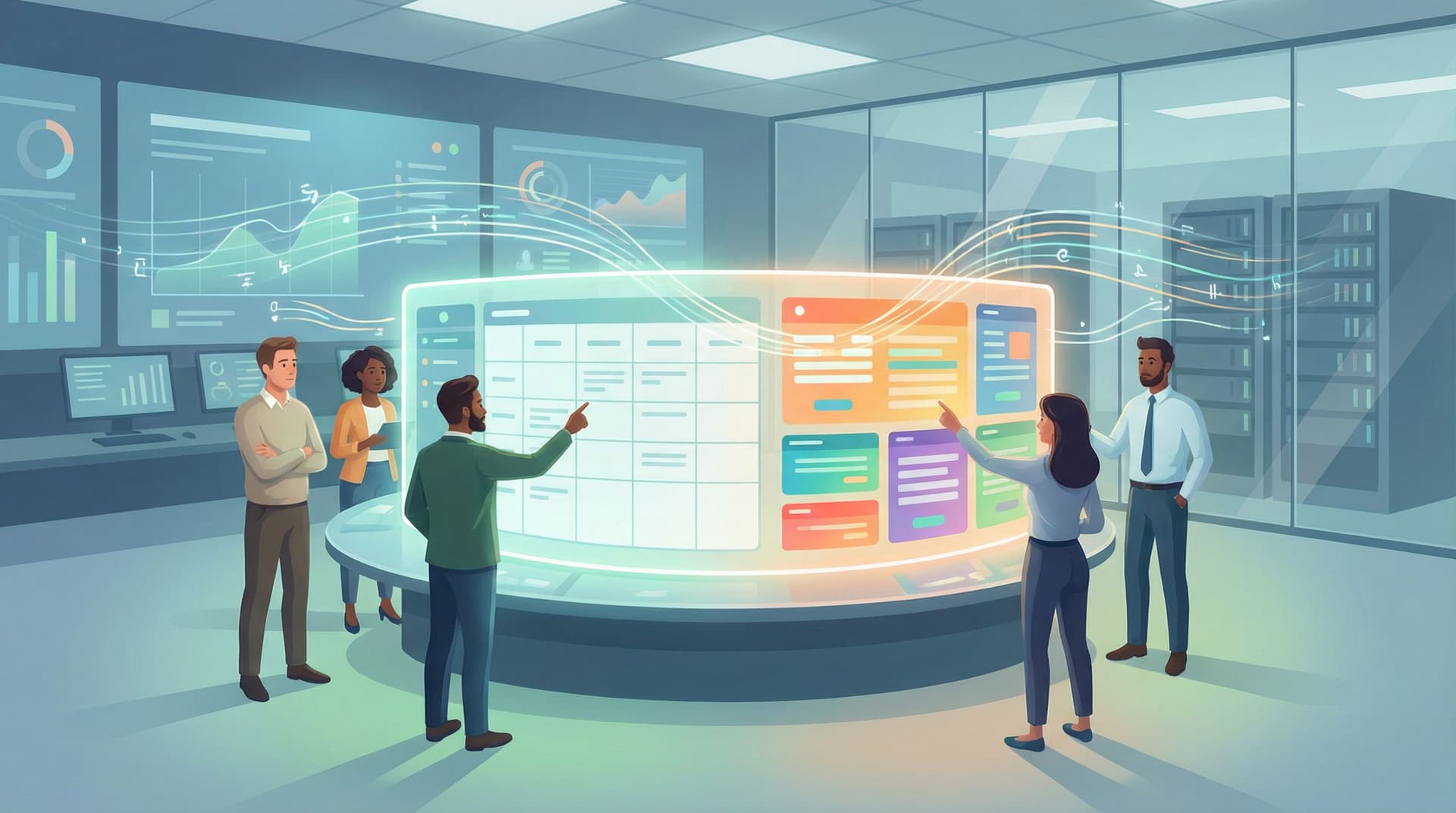
Most teams already have a “source of truth” for operations. It’s not your CRM, your project tool, or your BI stack.
It’s a Google Sheet.
Sales, CX, RevOps, People, Product, Partnerships—everyone has at least one Sheet that secretly runs the business. That’s where:
- The real lead queue lives.
- The hiring funnel is actually tracked.
- The onboarding backlog is prioritized.
- The partner approvals log quietly rules who gets what.
The problem isn’t that Sheets are central. The problem is that they’re buried—behind filters, hidden columns, and “don’t touch this tab” warnings.
What if your forms didn’t just feed those Sheets, but also surfaced the most important views back to operators—live, filtered, and focused—so they could run their day from a simple cockpit?
That’s what this post is about: treating forms plus Google Sheets as live ops dashboards, not just intake portals.
Why this shift matters
Most form setups look like this:
- User fills out a form.
- Responses land in a Google Sheet.
- Someone on the team:
- Opens the Sheet.
- Applies manual filters.
- Pivots, sorts, and color-codes.
- Slacks a screenshot or copy-pastes into another tool.
Rinse, repeat, all day.
This creates three problems:
- Lag: By the time you’ve cleaned up the Sheet, the situation has changed.
- Ownership confusion: No one’s sure which tab or filter is the “real” queue.
- Context switching: Operators bounce between forms, Sheets, email, and tools just to answer basic questions like “What’s next?”
Turning Sheets into live ops cockpits—simple, focused dashboards connected to forms—solves those problems:
- Single source of truth: Everyone sees the same filtered, real-time view.
- Less tool sprawl: Operators can work from a form-like surface they already understand.
- Faster action: Priorities, SLAs, and ownership are visible at a glance.
If you’ve already explored using Sheets as an “ops brain,” this is the next step: not just thinking in workflows, but in interfaces. (For a deeper dive on workflow patterns, see Google Sheets as Your Ops Brain: Advanced Form-Driven Workflows Beyond Simple Syncing.)
The core idea: views, not raw logs
The key mindset shift is simple:
Your raw response tab is not your dashboard.
It’s your database.
Your dashboards—the views operators actually use—should be curated, filtered, and stable.
Think in layers:
-
Raw responses (database)
- Every submission from your Ezpa.ge forms lands here.
- No one touches this structure lightly.
-
Ops views (working surfaces)
- Filtered tabs, pivot tables, and views for specific roles:
- "New demo requests (unassigned)"
- "Candidates ready for hiring manager review"
- "Onboarding projects blocked > 3 days"
- Filtered tabs, pivot tables, and views for specific roles:
-
Cockpits (interfaces)
- Forms or light UIs that:
- Show a small set of key metrics.
- Surface prioritized items.
- Let operators update status, ownership, or notes.
- Forms or light UIs that:
Ezpa.ge sits at the edges of this stack:
- On the way in, forms collect structured data into the raw responses tab.
- On the way out, you can build form-like experiences that let operators update data, trigger workflows, or navigate directly to the right view in Sheets.
You’re not replacing Sheets. You’re wrapping them in better, more focused interfaces.

Step 1: Design your “ops questions” before your dashboard
Most teams start with “What chart do we want?”
Start instead with: “What questions do operators need answered in under 10 seconds?”
For a given process, list 5–10 questions like:
-
For sales demo requests:
- How many high-intent leads are waiting right now?
- Who should pick them up next?
- Which ones are stuck and why?
-
For hiring:
- Which candidates are ready for screening today?
- Who’s waiting on feedback from which interviewer?
- Where are we losing the most candidates in the funnel?
-
For onboarding or implementations:
- What’s blocked, and for how long?
- Which customers are approaching a critical milestone or SLA?
- Who owns each account’s next step?
Each question implies a view, not a generic Sheet:
- A filter (e.g.,
status = 'New' AND priority = 'High'). - A sort (e.g.,
sort by created_at ascending). - A subset of columns (e.g., name, company, ARR, owner, next step).
Write these down explicitly. They’re the spec for your dashboards.
Step 2: Structure your form data for dashboards, not just storage
If your data is messy, no view will save you.
When you build forms in Ezpa.ge (or any modern builder), design fields with downstream dashboards in mind:
Use discrete, filterable fields
Avoid overloading a single field with multiple concepts like:
- “What are you interested in and how urgent is it?”
Instead, split into:
intent_type(e.g., Demo, Support, Partnership).urgency(e.g., Low, Medium, High).segment(e.g., SMB, Mid-market, Enterprise).
This lets you build views like:
- “High-urgency partnership requests from Enterprise accounts.”
Normalize options where it matters
Free text is great for context, terrible for dashboards.
Use:
- Dropdowns or radio buttons for fields you’ll filter or group by.
- Consistent labels (e.g.,
New,In Progress,Done) for status.
You can still add a free-text “Additional context” field for nuance.
Bake in routing hints
Add fields that help you assign and triage later, such as:
region(Americas, EMEA, APAC)product_line(Core, Enterprise, Add-on X)channel(Paid, Organic, Partner, Event)
These become the backbone of your views and routing logic. If you’re already using URL-based targeting, this pairs nicely with patterns from Custom URLs as Routing Logic: Directing Traffic by Intent, Channel, and Buyer Stage.
Step 3: Build Google Sheets views that map 1:1 to real work
With structured data flowing in, it’s time to build the operational views.
Start with filtered tabs, not “one Sheet to rule them all”
For each key question from Step 1, create a dedicated view:
- Use FILTER formulas or QUERY functions to pull from the raw responses tab into a working tab.
- Example:
=FILTER('Raw Responses'!A:Z, 'Raw Responses'!status="New", 'Raw Responses'!priority="High")
Name tabs after the work, not the data:
Sales – New High IntentHiring – Ready for ScreenOnboarding – Blocked > 3 Days
Add lightweight metrics at the top
At the top of each working tab, reserve a small area for:
COUNTof open items.COUNTIFSfor SLA breaches.- Simple
SUMIFSfor pipeline or ARR.
This turns each tab into a mini-dashboard:
- A few headline numbers.
- A prioritized list of rows.
Keep formulas out of the raw tab
Protect your source of truth:
- Only the form (Ezpa.ge) writes to the raw responses tab.
- All formulas, filters, and pivots live in separate tabs.
This keeps your dashboards resilient when fields change or new questions are added.
For more ideas on structuring multi-form, multi-brand setups, it’s worth revisiting how design systems and theme tokens work in forms: Theme Tokens, Not One-Off Styles: Building a Form Design System That Scales Across Brands. The same “system vs. one-off” thinking applies to your Sheets.

Step 4: Wrap your views in form-like cockpits
A Sheet tab is a great backend. It’s not always a great daily interface.
Operators often need:
- A simple place to update status and ownership.
- A quick way to log notes or next steps.
- A sense of “What should I do next?” without touching formulas.
This is where Ezpa.ge can act as a front door for your dashboards.
Pattern 1: Update forms tied to specific rows
For workflows where each item is handled over time (e.g., candidates, complex deals, onboarding projects), you can:
- Generate a unique link per row that includes an identifier (e.g., candidate ID, deal ID).
- Use that link in:
- Calendar invites.
- Internal task descriptions.
- CRM notes.
- Build a simple “Update status” form in Ezpa.ge that:
- Accepts the identifier as a hidden field.
- Lets operators choose a new status, owner, and add notes.
- Writes updates to a dedicated “events” or “updates” tab in Sheets.
Your views can then:
- Join the latest update back onto the main record.
- Show “current status,” “last touch,” and “owner” based on the latest event.
Result: operators interact with a clean form, not a fragile Sheet.
Pattern 2: Operator-specific dashboards
Create simple Ezpa.ge forms that act like personal control panels:
- A dropdown to select “My queue” vs. “Team queue.”
- Buttons or links that deep-link to the right filtered Sheet view.
- Embedded metrics (via images or simple text) pulled from your Sheets.
Because Ezpa.ge supports custom URLs and theming, you can:
- Give each team or region its own branded cockpit.
- Use URL parameters to prefilter views (e.g.,
?owner=aliceor?region=emea).
Pair this with ideas from Form Systems, Not One-Off Links: Designing a URL Taxonomy That Scales With Your Ops to keep your cockpit URLs organized and meaningful.
Pattern 3: Approval and escalation panels
For processes with strong SLAs or approvals (discounts, partner deals, security reviews):
- Build an Ezpa.ge form that shows a short explanation at the top: “Here’s what’s waiting for your approval.”
- Include links to the relevant Sheet views.
- Add fields so approvers can record:
- Approve/Reject.
- Reason or notes.
- Target follow-up date.
Again, the form writes to an “approvals” tab, and your main dashboard pulls the latest decision into the queue view.
Step 5: Make it feel like a product, not a spreadsheet hack
The more your ops cockpit feels like a polished internal tool, the more your team will actually use it.
Here are a few ways to get there without engineering:
Brand your cockpits
Use Ezpa.ge’s theming to:
- Match your internal brand or team identity.
- Use consistent colors and typography across all ops cockpits.
- Make it visually obvious which cockpit you’re in (Sales, CX, Hiring, etc.).
This is the same idea as using “form skins” to test external positioning—just pointed inward. If you haven’t tried it yet, the patterns from Theme-First Branding: Using Form Skins to Test Positioning Before You Redesign Your Site transfer surprisingly well to internal dashboards.
Keep interactions stupid-simple
For operators, the cockpit should answer three things without scrolling:
- What’s the current state? (e.g., “12 high-priority tickets unassigned.”)
- What should I do next? (e.g., a link: “Open my queue.”)
- How do I record what I just did? (e.g., a short update form.)
Avoid:
- Overloaded pages with 10+ metrics.
- Complex navigation.
- Requiring people to remember which tab or filter to use.
Design for non-technical ownership
Your goal is that ops, CX, or sales leaders can adjust these cockpits without a designer or engineer.
That means:
- Using named ranges and clearly labeled tabs in Sheets.
- Keeping Ezpa.ge forms modular:
- One for intake.
- One for updates.
- One for approvals.
- Documenting “how to change a metric” in a short Loom or internal doc.
Once this is in place, updating the system is closer to editing a form than filing a ticket—very much in line with the patterns we’ve covered in Form UX for Busy Operators: How to Build Flows Your Team Can Update Without a Designer or Developer.
Step 6: Start small, then layer on sophistication
You don’t have to rebuild your entire ops stack as form-driven dashboards in one go.
A practical rollout plan:
-
Pick one process where lag hurts.
- High-intent demo requests.
- Priority support tickets.
- New hire intake.
-
Audit the current flow.
- Where does the form live?
- Where do responses land?
- Who looks at them first, and how often?
- Where do decisions actually get recorded?
-
Define a single cockpit question.
- Example: “What should I work on in the next 30 minutes?”
-
Create one working view in Sheets.
- Filtered to show only what matters for that question.
- Sorted by urgency and age.
-
Wrap it in a simple Ezpa.ge cockpit.
- Headline metric (e.g., “5 high-priority requests waiting”).
- One “Open my queue” link.
- One short “Log an update” form.
-
Run it for a week with a small group.
- Ask: Did this reduce context switching? Did it clarify ownership? Did it change how quickly things move?
-
Iterate.
- Add a second view (e.g., “Blocked items”).
- Add a second metric.
- Only then consider rolling to another process.
This incremental approach keeps the project grounded in real behavior, not just dashboard aesthetics.
Summary: From raw responses to real control rooms
If Google Sheets already runs your operations, you’re halfway to having a real-time ops cockpit.
The missing pieces are:
- Structured intake: Forms that collect data in a way that’s easy to filter, group, and route.
- Curated views: Sheets tabs that map directly to the questions your team asks every day.
- Form-like interfaces: Ezpa.ge cockpits that make those views feel like a product, not a hack.
When you put those together, you get:
- Less time hunting for “the right Sheet.”
- Faster responses to high-intent signals.
- Clearer ownership across sales, CX, hiring, and onboarding.
- A foundation you can evolve without engineering.
Forms stop being one-way funnels into a spreadsheet. They become bidirectional interfaces: collecting data on the way in, and giving operators clarity and control on the way out.
Take the first step this week
You don’t need a massive project to start.
This week, you can:
-
Choose one form that really matters.
- Demo requests, candidate intake, or onboarding are great candidates.
-
Open the connected Google Sheet.
- Add a new tab with a simple filtered view of “what’s waiting.”
-
Create a minimal Ezpa.ge cockpit.
- One headline metric, one link to the view, one short update form.
-
Ask the team to use it for a few days.
- Collect feedback on what’s clearer, what’s still confusing, and what they wish they could see at a glance.
From there, you can layer on routing, approvals, and richer dashboards—but the biggest win comes from that first working cockpit.
If you’re ready to turn your forms and Sheets into a real ops layer, start by mapping one process, one view, and one cockpit. The rest will follow.