From Form to Live Queue: Building Real-Time Triage for Support, Sales, and Ops with Google Sheets


If your team runs on forms, you’ve probably felt this gap:
- A customer fills out a support form.
- A prospect requests a demo.
- An internal stakeholder submits an urgent ops request.
The form works. The data lands in a spreadsheet or inbox.
And then… nothing happens fast enough.
Work gets stuck because there’s no live queue: no shared, real-time view of what just came in, who owns what, and what needs attention right now. Tickets get cherry‑picked, VIPs wait too long, and your team spends more time asking “Who’s on this?” than actually solving problems.
Ezpa.ge plus Google Sheets gives you a different pattern:
Form → Structured data → Live queue → Clear ownership.
In this post, we’ll walk through how to turn a simple Ezpa.ge form with real-time Google Sheets syncing into a working triage system for support, sales, and operations—without buying a new platform or waiting on engineering.
Why Live Queues Matter More Than More Tools
Most teams already have:
- A helpdesk for support
- A CRM for sales
- A project tool for ops
So why bother building a live queue on top of Google Sheets at all?
Because the real bottleneck usually isn’t tooling; it’s intake and triage.
What goes wrong without structured triage
When requests arrive as unstructured emails, vague tickets, or half‑filled forms, you see the same symptoms:
-
Cherry-picking and neglect
Easy, well‑scoped issues get picked up first. Messy, ambiguous, or cross‑functional requests sit for days. -
No shared sense of “now”
Each person has their own view of what’s urgent. There’s no canonical queue that everyone trusts. -
Manual routing overhead
Someone becomes the human router—reading every request, DMing the right person, and tracking it in yet another sheet. -
Bad data, bad decisions
When intake is inconsistent, you can’t reliably track SLAs, conversion, or which channels are working.
A well‑designed form feeding a live Google Sheet queue fixes this by making every request look the same on the inside, even if it comes from different links, campaigns, or teams.
If you’re new to treating forms as operational infrastructure, it can help to first think about them as microsites that carry context and brand along with them. We go deeper on that idea in Forms as Microsites: Replacing One-Off Landing Pages with Theme-Driven Flows.
The Core Pattern: Form → Sheet → Queue
Let’s break the pattern into four building blocks you can reuse across support, sales, and ops:
- A structured intake form (built in Ezpa.ge)
- Real-time sync into Google Sheets
- A filtered, prioritized queue view for the team actually doing the work
- Simple status and ownership fields that turn the Sheet into a live board
Once these are in place, you can layer on automation, SLAs, and reporting.
Step 1: Design Intake for Triage, Not Just Storage
Your form isn’t just a way to capture information; it’s how you pre‑sort the work.
For triage, you’re designing for three audiences at once:
- The person filling out the form (clarity, trust, low friction)
- The person triaging (signal, context, routing hints)
- The person doing the work (enough detail to act without a long back‑and‑forth)
The three question types every triage form needs
Regardless of function (support, sales, ops), your form should capture:
-
Who is this?
- Name
- Email (and/or account ID)
- Company / organization
- Role or segment (e.g., customer tier, region)
-
What is this about?
- Category (dropdown or multi-select)
- Sub-category (conditional on category)
- Short summary (single line)
- Detailed description (long text)
-
How urgent and impactful is this?
- Impact (e.g., “Just me”, “My team”, “Our customers”)
- Severity (e.g., “Blocked”, “Degraded”, “Question / advice”)
- Time sensitivity (e.g., deadline, event date)
These fields are what your triage queue will sort and filter on.
Make it feel human, not bureaucratic
A common mistake is turning intake into an interrogation. You can avoid that by:
- Using plain language labels (“What’s going wrong?” instead of “Issue description”).
- Grouping questions into short, themed sections.
- Using conditional logic so people only see questions relevant to their situation.
- Adding microcopy that explains why you’re asking something (e.g., “This helps us route you to the right specialist.”).
If you want a deeper dive on designing flows that operators can safely update without design or engineering help, see Form UX for Busy Operators: How to Build Flows Your Team Can Update Without a Designer or Developer.
Step 2: Wire Ezpa.ge to Google Sheets in Real Time
Once the form is designed, you want every submission to appear in your Sheet instantly—no exports, no manual copy‑paste.
With Ezpa.ge, you can:
- Connect your form directly to a Google Sheet.
- Map each form field to a column.
- Include system fields like timestamp, form version, and submission ID.
A simple but powerful column setup might include:
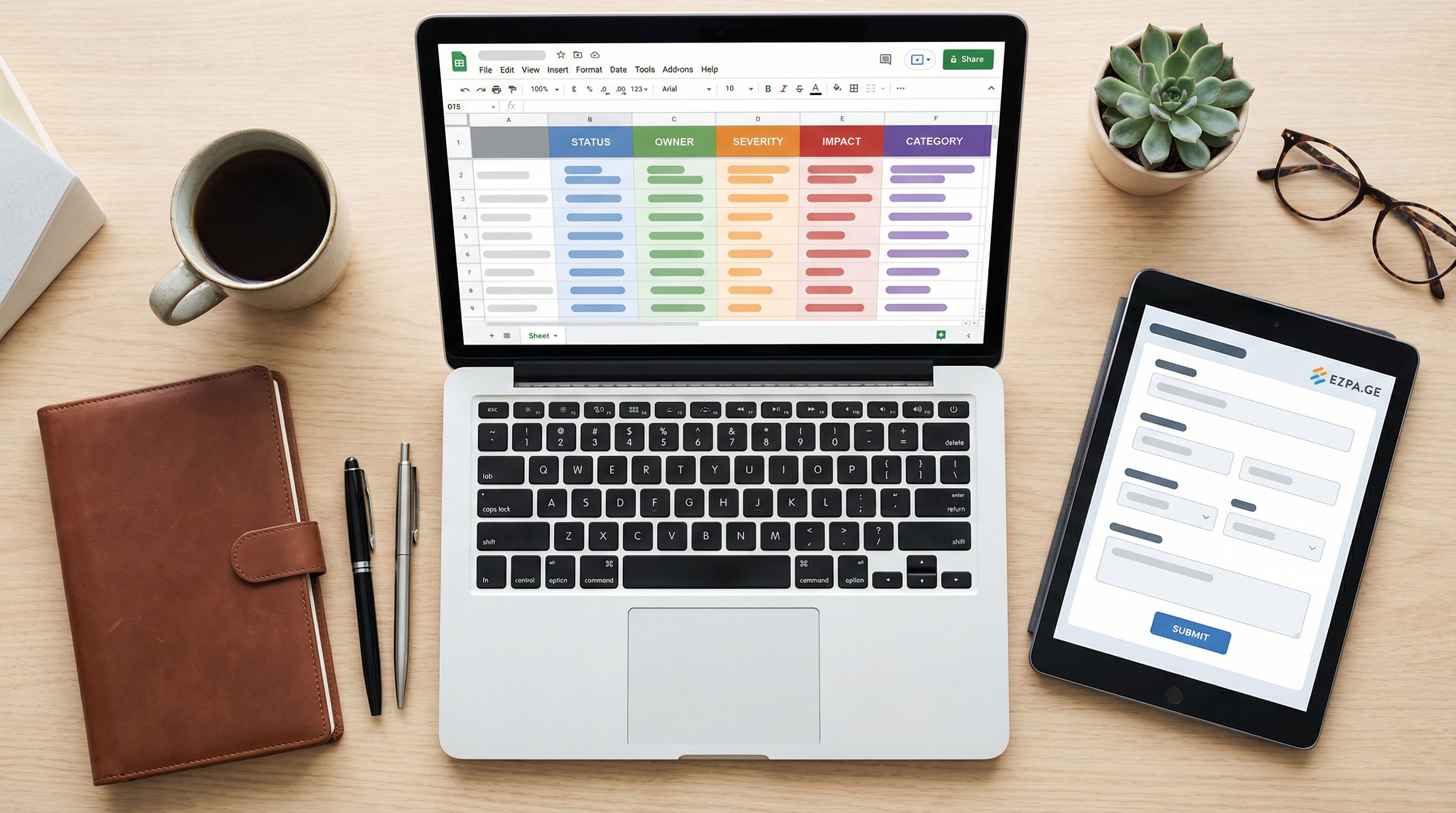
submitted_at(timestamp)source_form(if you have multiple forms feeding the same Sheet)requester_namerequester_emailcompanycategorysubcategorysummarydetailsimpactseveritydeadlinestatus(we’ll add this in the next step)ownerteamnotes_internal
This structure is the backbone of your queue.
Step 3: Turn the Sheet into a Live Queue
A Sheet full of rows is still just a log. To make it a live queue, you need three things:
- Status and ownership fields
- Filtered views for each team
- Sorting rules that reflect your priorities
Add status and ownership columns
Add these columns to your Sheet (if you haven’t already):
status– e.g.,New,Triaged,In Progress,Waiting on Customer,Doneowner– email or name of the person responsibleteam– if multiple teams share the queue (e.g., Support, Sales, Ops)priority– calculated or manually set (e.g., P0–P3)
You can start simple:
- Default
statustoNewfor every new submission (using an array formula or Apps Script if needed). - Let the triage lead update
statusandownerduring a quick sweep.
Build filtered views instead of more tabs
Resist the urge to create a new tab for every team and queue. Instead, use:
- Filter views in Google Sheets for:
Support – New & TriagedSales – New & TriagedOps – This Week
- Or QUERY-based tabs that pull from a master
Submissionstab into per‑team views.
For example, a simple QUERY formula for a support queue might be:
=QUERY(Submissions!A:Z,
  "select * where team = 'Support' and status in ('New','Triaged') order by priority asc, submitted_at asc",
  1
)
Now your support team has a live, auto‑updating queue sorted by priority and age.
Define your prioritization logic
Prioritization shouldn’t live in people’s heads. Use formula columns to encode it.
For example, you can compute priority from impact and severity:
- If
impact = "Our customers"andseverity = "Blocked"→P0 - If
impact = "My team"andseverity = "Degraded"→P1 - Else if
impact = "Just me"andseverity = "Question / advice"→P3
You can implement this with nested IF statements or a small lookup table.
The goal is that anyone looking at the queue can answer:
- What should we do right now?
- What can wait?
- What can we safely park for later?
Step 4: Tailor the Queue for Support, Sales, and Ops
The pattern is the same, but each function needs slightly different fields and views.
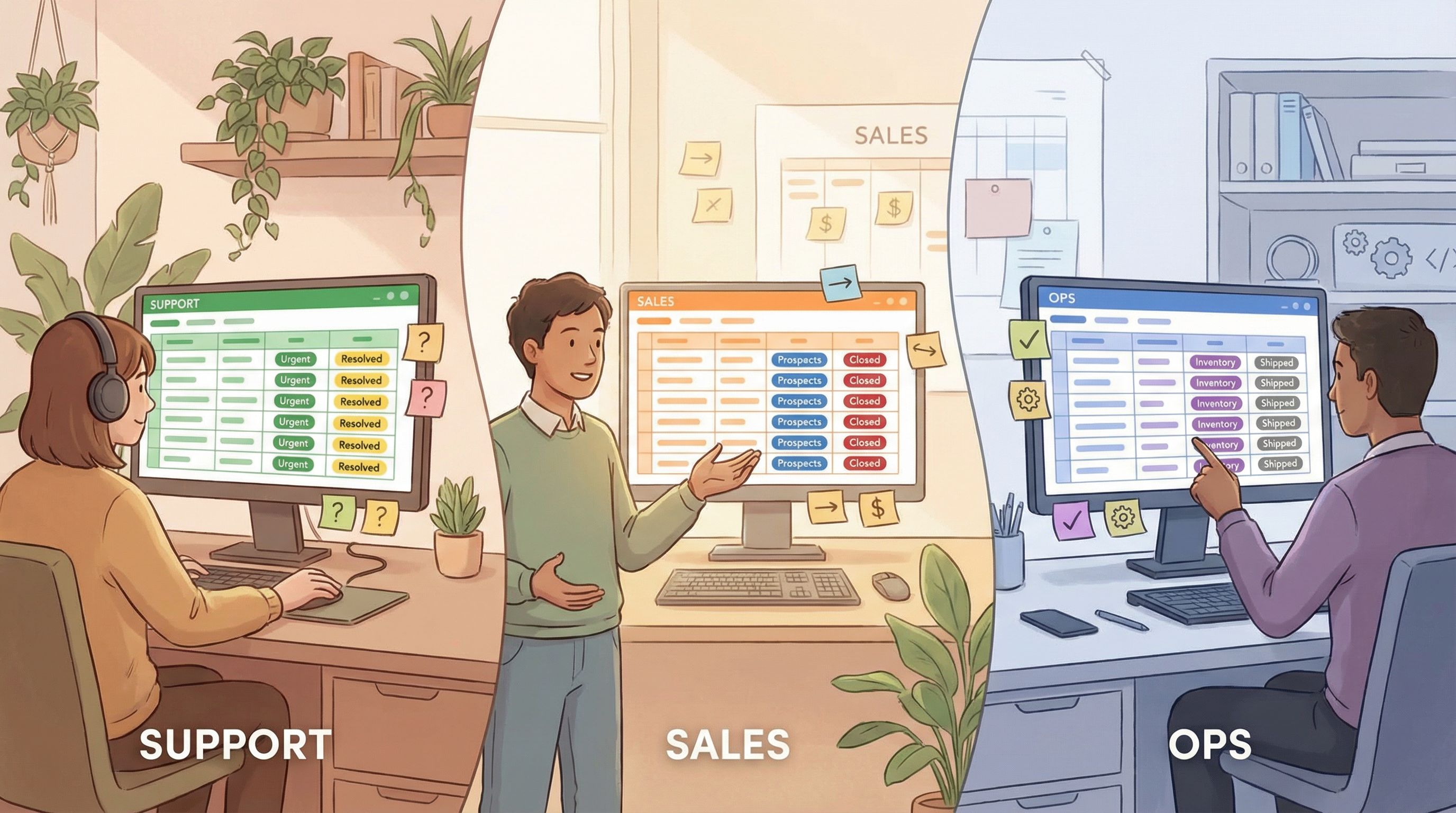
Support: From tickets to smart intake
For support, your triage form should lean into:
- Product area (dropdown)
- Environment (browser, OS, plan)
- Attachments or links (screenshots, URLs)
- Impact on customers (as above)
Your queue views might include:
- Frontline queue – New & Triaged, sorted by priority and age
- Escalations – Category in
Billing,Security,Data Loss, etc. - Bugs vs. Questions – Filter by category to route to engineering vs. support
If you’re curious about replacing traditional support queues entirely with smarter intake and routing, we cover that in Forms for Service Teams: Replacing Support Queues with Smart Intake and Real-Time Routing.
Sales: From form fill to live lead queue
For sales, your intake form should capture qualification signals up front:
- Company size / revenue band
- Role (buyer vs. user vs. champion)
- Use case (dropdown)
- Timeline and budget signals
Your queue views might include:
- High-intent leads – Where use case matches your ICP and timeline ≤ 3 months
- Self-serve assist – Existing users who need help expanding
- Partner-sourced – If you’re running partner programs with their own forms
Pairing your Ezpa.ge forms with strong theming (see Beyond Dark Mode: Theming Strategies That Adapt to Brand, Context, and User Preferences) can also help align sales intake flows with specific campaigns or partner brands without breaking your queue structure.
Ops: Internal requests without another tool
Operations teams are often drowning in:
- Access requests
- Policy exceptions
- Data pulls
- “Quick” one‑off favors
A single Ops Request form, themed appropriately for internal use, can feed a queue with:
- Request type (access, exception, data, process change)
- Team / function requesting
- Deadline and business impact
- Approver (manager, legal, finance)
Queue views might include:
- This week’s commitments – Requests due in the next 7 days
- Blocked on approvals – Status =
Waiting on Approver - High-impact bets – Impact tagged as
Revenue,Risk, orCustomer Experience
If you want to experiment with new kinds of ops intake—VIP lanes, pilot flows, or temporary campaigns—Ezpa.ge makes it easy to ship those as ops-ready experiments that still feed the same queue. We unpack that pattern in Ops-Ready Form Experiments: Shipping New Intakes, URLs, and Logic in a Single Afternoon.
Step 5: Add Lightweight Automation and Alerts
Once your live queue is working, you can layer on simple automation without turning your stack into a science project.
Here are a few high‑leverage moves:
1. Email or chat alerts for high-priority items
Use tools like:
- Google Apps Script to watch for new
P0orP1rows and send email alerts. - Zapier, Make, or similar to post into Slack/Teams channels when:
priority = P0- or
category = "Billing"andseverity = "Blocked"
This keeps your queue as the system of record while still nudging the right people when something truly urgent lands.
2. Auto-assign based on rules
You can auto‑populate owner or team using formulas or automation based on:
- Category (e.g.,
Billing→billing@company.com) - Region or language
- Customer tier (Enterprise vs. SMB)
This reduces triage overhead and shortens time‑to‑first‑response.
3. SLA tracking with timestamps
Add a few timestamp columns:
first_touched_at– whenstatusfirst changes fromNewresolved_at– whenstatusbecomesDone
Use formulas to compute:
time_to_first_touch=first_touched_at – submitted_attime_to_resolution=resolved_at – submitted_at
Then create simple conditional formatting to highlight rows that are breaching or close to breaching your SLAs.
Step 6: Close the Loop with Requesters
A live queue isn’t just for your team; it should improve the experience for the people submitting requests.
A few patterns to consider:
-
Confirmation pages that set expectations
Use Ezpa.ge’s theming and copy to tell people:- When they’ll hear back
- What channel you’ll use (email, phone, in‑app)
- What to do if it’s truly urgent
-
Status emails at key milestones
Trigger short, plain‑language emails when:statuschanges toIn Progressstatuschanges toDone
-
Feedback on the process itself
After resolution, send a tiny follow‑up form asking:- “Did we resolve your issue?”
- “How was your experience with our response time?”
This doesn’t just improve satisfaction; it also helps you refine your triage rules and queue design over time.
Step 7: Evolve from Queue to Ops Cockpit
Once your live queue is humming, you can turn your Sheet into a lightweight operations cockpit:
- Summary metrics (submissions per day, by category, by team)
- SLA performance (on‑time vs. late by priority level)
- Volume by channel or campaign (if you have multiple forms feeding the queue)
You can build this directly in Google Sheets with pivot tables and charts, or connect to a BI tool later if you need more sophistication.
If you’re curious about taking this idea further—using Sheets as the living “brain” of your operations, not just a passive log—check out Forms as Source-of-Truth Dashboards: Turning Google Sheets Views into Live Ops Cockpits.
Putting It All Together
Here’s the full journey from form to live queue:
- Design a triage‑ready form in Ezpa.ge that captures who, what, and how urgent.
- Sync submissions to Google Sheets in real time, with clean columns for every field.
- Add status, owner, team, and priority columns so the Sheet can act as a queue.
- Build filtered views for support, sales, and ops instead of cloning forms or Sheets.
- Encode prioritization logic with formulas so the most important work always rises to the top.
- Layer on automation for alerts, auto‑assignment, and SLA tracking.
- Close the loop with requesters through confirmation pages and status updates.
- Evolve into a simple ops cockpit with charts and summary metrics.
You end up with a system where:
- Every request lands in a single, structured place.
- Every team has a live, prioritized queue they can trust.
- You can adapt quickly—adding new forms, new queues, or new rules—without waiting on engineering or buying another platform.
Ready to Build Your First Live Queue?
You don’t need a full replatform to fix triage.
You need:
- One well‑designed Ezpa.ge form
- One connected Google Sheet
- A couple of smart filters and status fields
From there, you can grow into multiple queues, richer automation, and more sophisticated reporting—at the pace your team is ready for.
If you’re already using Ezpa.ge, try this:
- Pick one high‑impact flow (support intake, demo requests, or internal ops requests).
- Redesign the form with triage in mind.
- Wire it to a fresh Google Sheet, add status and owner columns, and create a filtered view for the team.
- Run it for a week and watch how much smoother work moves when everyone’s looking at the same live queue.
And if you’re just getting started, Ezpa.ge makes it easy to go from form idea to live queue in an afternoon—without sacrificing brand, UX, or data quality.
Your forms are already where work begins. It’s time to let them run the queue, too.