Form Fatigue Is Real: Designing Shorter Flows That Still Capture Rich Data


Form fatigue isn’t a UX buzzword. It’s the quiet reason people abandon your signup halfway through, skip half your survey, or give you junk answers just to get to the end.
If you’ve ever stared at a long wall of fields and thought, “I’ll do this later,” you’ve felt it yourself.
The tension is obvious:
- Your team wants rich, structured data for targeting, qualification, and reporting.
- Your users want speed, clarity, and respect for their time.
The good news: you don’t have to choose between “short” and “useful.” With thoughtful design, you can build shorter flows that still capture deep, high-quality data—and tools like Ezpa.ge make it easier to ship and iterate on those flows quickly.
This guide breaks down how to do exactly that.
Why Form Fatigue Happens (and Why It Matters)
Form fatigue is what happens when cognitive load, time cost, and perceived value fall out of balance.
Common symptoms:
- Drop-off spikes on certain steps
- People starting but never submitting
- Low-quality responses (“asdf”, “N/A”, random phone numbers)
- Users complaining that the form is “too long” (even when it isn’t, technically)
What’s really going on
-
Too many decisions in a row
Every field is a micro-decision: Do I know this? Do I want to share this? How should I phrase it? Stack enough of those and people mentally check out. -
Unclear payoff
If users can’t see why you’re asking something—or what they’ll get in return—they’re less willing to push through friction. -
Poor pacing
Long, uniform steps (e.g., 15 text fields in a single view) make a form feel endless, even if it’s only a minute or two of work. -
Context mismatches
Asking for detailed info when someone is on a phone, in a rush, or on a weak connection amplifies frustration. (This is where truly responsive design and device-native patterns really matter.)
Why you should care:
- Higher completion rates: Shorter, smarter flows reduce abandonment.
- Better data quality: People give more thoughtful answers when they’re not exhausted.
- Stronger trust: Respecting someone’s time is a trust signal.
- Cleaner funnels: Less noise, fewer fake leads, and more reliable analytics.
Step 1: Define “Rich Data” Before You Touch a Single Field
Most bloated forms start with the wrong question: “What else might be useful to know?”
Flip it to: “What data do we absolutely need to drive a specific decision or outcome?”
Run a ruthless field audit
If you already have a form, start here. If you’re designing from scratch, treat this as a pre-flight checklist.
- List every field in a doc or spreadsheet.
- For each, answer:
- What decision does this field support? (e.g., lead routing, pricing, personalization)
- Who uses it? (marketing, sales, support, product, compliance)
- How often is it actually used? (be honest)
- Mark each field as:
- Must-have: Without this, the form’s purpose fails.
- Nice-to-have: Useful, but not critical.
- Legacy / unclear: No one can explain why it exists.
Then:
- Delete legacy/unclear fields outright.
- Move nice-to-haves to later steps, optional sections, or follow-up flows.
If you’re using Ezpa.ge with real-time Google Sheets syncing, you can pair this with live data: look at which fields are frequently blank or filled with junk. Those are prime candidates for removal or rethinking. For a deeper dive on this kind of rapid iteration, check out Real-Time Form Optimization: Using Live Google Sheets Data to Iterate in a Single Day.
Define your “minimum viable submission”
Ask: What is the smallest, cleanest set of fields that still makes a submission valuable?
Examples:
- Lead gen: name, email, company size bracket, rough intent.
- Event signup: name, email, attendance choice, accessibility needs.
- Feedback: satisfaction score, short comment, optional contact.
Once you know this, you can design your flow so that:
- Everything before that point is ultra-lightweight.
- Everything after that point is additive, not required.
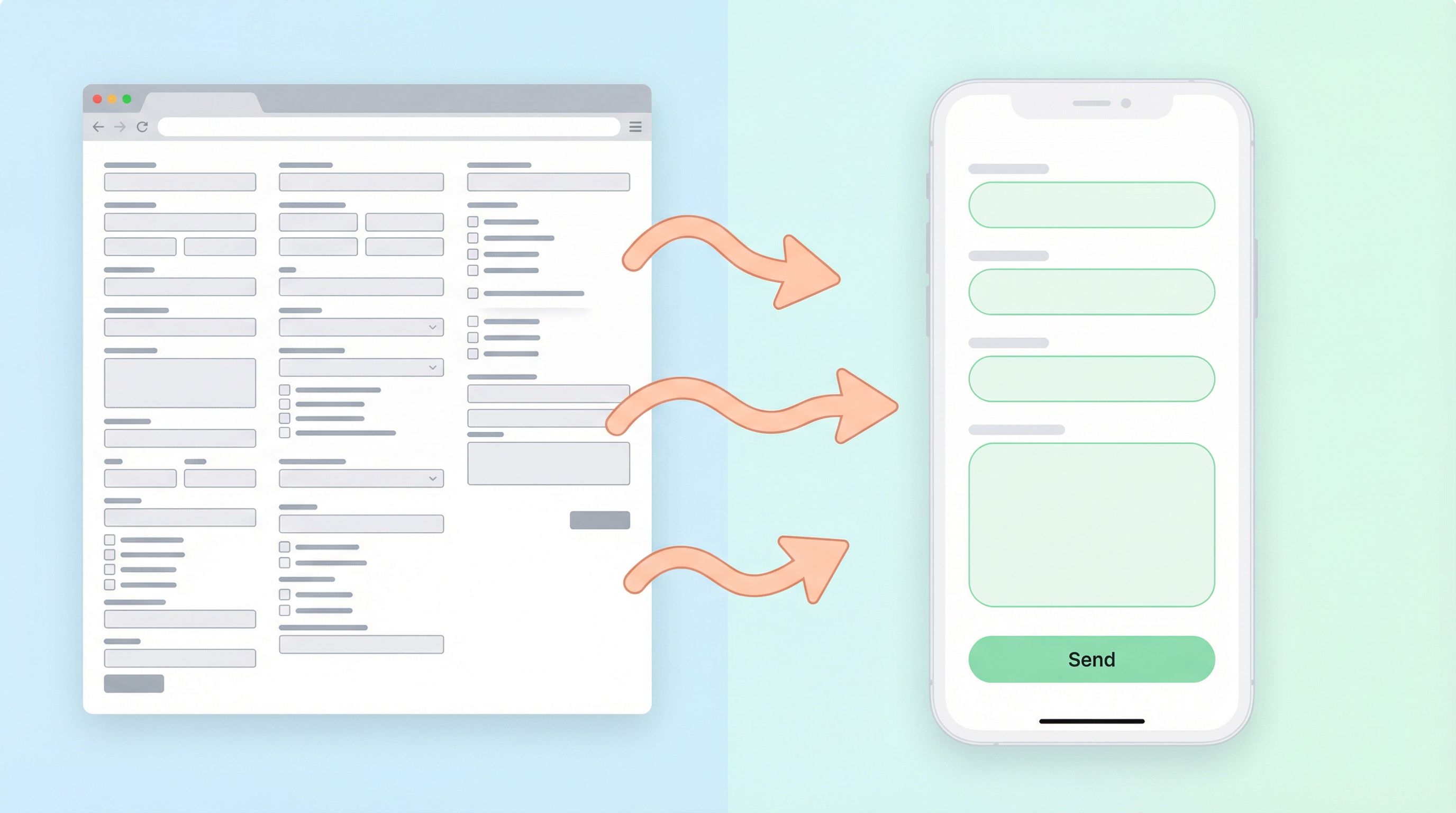
Step 2: Front-Load Value, Not Fields
People are more willing to share when they feel the benefit early.
Instead of opening with a long questionnaire, think in terms of micro-commitments:
- 1–3 super simple fields to start
- Immediate clarity about what happens next
- A visible sense of progress
Make the first screen a “yes, I can do this” moment
Your above-the-fold experience should:
- Show only the first few fields, not the entire journey.
- Clearly state what they get (demo, download, quote, support, etc.).
- Use a strong, plain-language headline and subcopy.
If you want patterns for that crucial first impression, you’ll find them in Conversion-First Form Layouts: Above-the-Fold Patterns That Actually Drive Submissions.
Use progress cues wisely
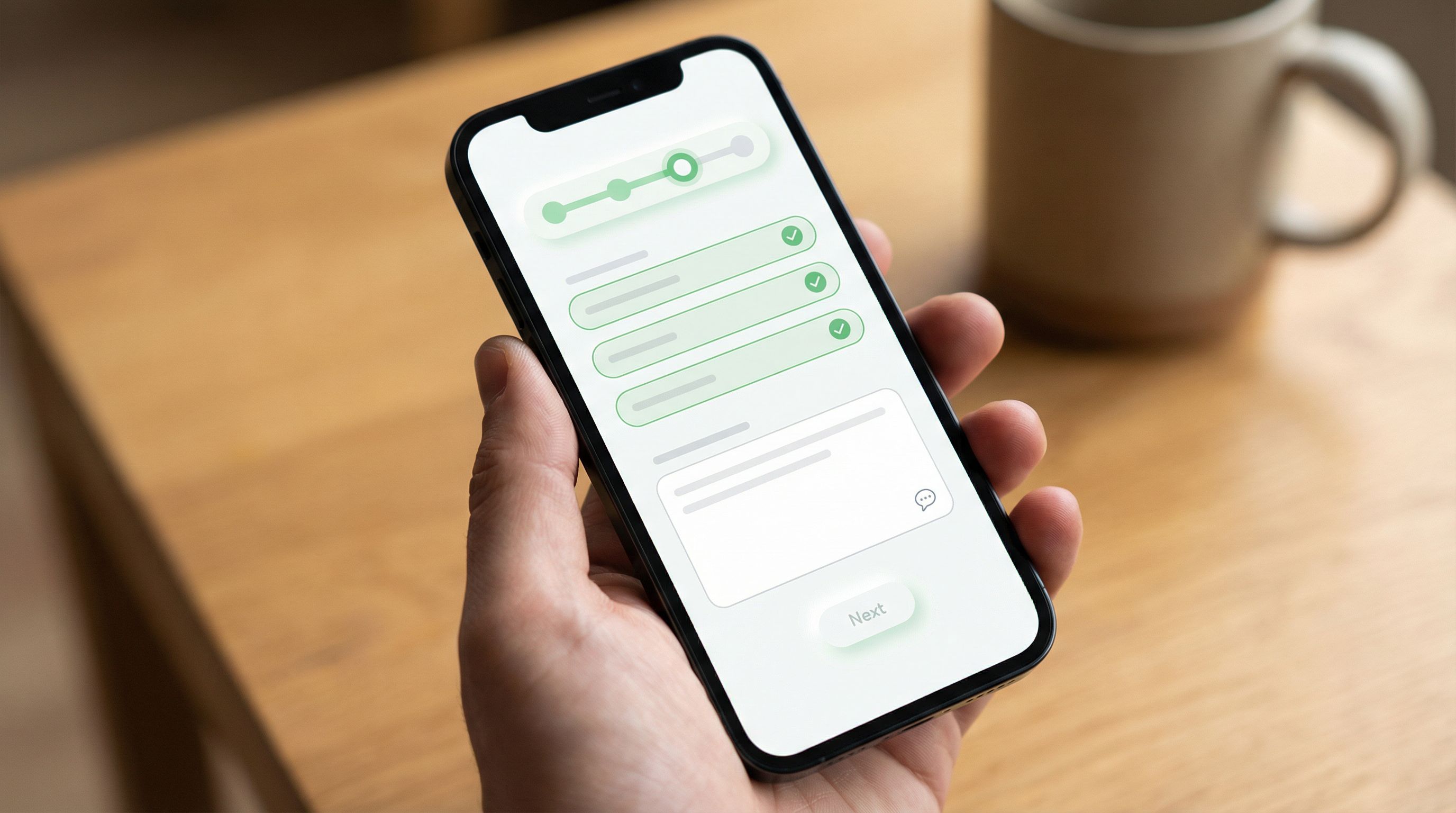
Progress indicators can reduce anxiety, but only if they’re honest:
- Use step counts sparingly (e.g., “Step 1 of 3”), and keep step numbers low.
- Consider soft progress instead: a subtle bar that fills as they complete fields.
- Pair progress with reassurance: “This takes about 60 seconds.”
Shorter flows are as much about perceived length as actual length. Smart progress cues make a 90-second form feel manageable.
Step 3: Let Logic Do the Heavy Lifting
If you’re trying to serve multiple audiences with one form, it’s easy to end up with a monster. That’s where conditional logic earns its keep.
Ask fewer, smarter questions
Instead of asking everyone everything, design for branching:
- Show role-specific questions only when a user selects a certain role.
- Ask one high-signal question that unlocks a tailored path (e.g., “What best describes you?”).
- Hide irrelevant sections by default.
Example:
- Q1: “What are you primarily interested in?”
- Option A: “Booking a demo” → show 3–4 qualification questions.
- Option B: “Getting support” → show ticket-specific questions.
- Option C: “Exploring partnership” → show partner-focused fields.
You still collect rich, relevant data—but each person only sees a thin slice of the total question set.
For a deeper dive into this pattern, see One Form, Many Audiences: Using Conditional Logic to Personalize Paths Without Losing Your Mind.
Use dynamic defaults and smart helpers
Reduce typing and thinking wherever possible:
- Pre-fill known data (e.g., email if they’re coming from an authenticated area or a campaign link with UTM data).
- Use location-aware defaults for country, currency, or time zone when appropriate (and editable). This pairs well with the strategies in Global-Ready Forms: Designing for Time Zones, Languages, and Local Input Patterns.
- Offer sensible options instead of open text when you don’t need exact phrasing.
The more your form feels like it’s meeting users where they are, the less it feels like a chore.
Step 4: Trade Width for Depth (Without Making It Feel Longer)
If you need richer insight, you don’t always need more questions. Often, you need better-shaped questions.
Replace many shallow fields with a few deep ones
Instead of:
- “What’s your budget?”
- “What’s your timeline?”
- “What’s your main challenge?”
- “What does success look like?”
You might ask:
“Tell us about your project: budget range, timing, and what success would look like.”
Yes, this is one longer text field—but:
- It feels like one question.
- It gives richer, narrative data.
- It’s easier to answer in a single train of thought.
You can always parse and categorize this later in your synced Google Sheet.
Use scales and structured inputs strategically
To reduce fatigue:
- Turn vague open-ended questions into rating scales (1–5, 1–10) where appropriate.
- Use multiple choice over free text for predictable categories.
- Keep option lists short; use an “Other” field instead of 20 checkboxes.
This keeps interactions snappy while still giving you data you can segment and analyze.
Step 5: Design Micro-Interactions That Fight Fatigue
Tiny UX details can make a form feel surprisingly light.
Reduce uncertainty with inline validation
Nothing kills momentum like filling everything out, hitting submit, and then seeing a wall of errors.
Instead:
- Validate as people type or when they leave a field.
- Use clear, friendly messages: “That email doesn’t look right—did you mean .com?”
- Highlight only what needs attention, not the whole form.
Use motion and feedback to reward progress
Subtle animations and transitions can:
- Make step changes feel smoother.
- Reinforce that something worked (e.g., a tiny checkmark when a field validates).
- Give a sense of momentum.
If you’re curious how far to go with this, Micro-Animations in Forms: Subtle Motion That Reduces Drop-Off (Not Just Looks Cool) breaks down practical patterns.
Write copy that respects people’s time
Good microcopy is a powerful fatigue reducer:
- Labels that are plain and unambiguous.
- Helper text that clarifies why something is needed.
- Error messages that explain how to fix the problem, not just what went wrong.
For more on this, see Form Microcopy that Converts: Writing Labels, Helpers, and Errors that Users Actually Read.
Step 6: Move Non-Essentials to Smarter Follow-Ups
One of the most effective ways to shorten a form is to stop treating it as the only chance you’ll ever have to ask questions.
Think in journeys, not single screens
Consider:
- Post-submission pages that ask 1–2 optional questions while motivation is still high.
- Follow-up emails with a short, focused survey.
- Triggered forms based on behavior (e.g., a quick satisfaction poll after someone uses a feature).
This approach lets you:
- Keep the initial form short and conversion-focused.
- Gather richer data over time, from people who are already engaged.
If you want to design these “after” moments thoughtfully, From Form Field to Follow-Up: Designing Post-Submission Experiences That Actually Convert is a great companion read.
Use real-time data to decide what to ask next
With Ezpa.ge syncing responses directly into Google Sheets, you can:
- Segment respondents by behavior or attributes.
- Trigger targeted follow-up forms for specific segments.
- Continuously refine what you ask based on what’s missing or unclear.
Instead of a single bloated form, you end up with a lightweight, adaptive data collection system.
Step 7: Measure Fatigue and Iterate Quickly
You can’t improve what you don’t measure. To keep fatigue in check, track:
- Start vs. completion rate: Are people bouncing early or late?
- Step-level drop-off (for multi-step forms): Where does the curve dip?
- Time to complete: Are people taking much longer than you expected?
- Field-level abandonment: Which questions correlate with exits or junk data?
Once you see the patterns, run small, focused experiments:
- Remove or rephrase one high-friction question.
- Split one long step into two shorter ones.
- Add a progress indicator or improve microcopy.
With a tool like Ezpa.ge, you can ship these tweaks quickly and see the impact almost immediately through synced Sheets and dashboards.
A Practical Checklist for Shorter, Richer Forms
Before you ship (or rework) your next form, run through this list:
Purpose & data
- [ ] I can explain the primary purpose of this form in one sentence.
- [ ] Every field is tied to a specific decision or outcome.
- [ ] I know my “minimum viable submission” fields.
Length & structure
- [ ] The first screen has 1–3 simple fields and a clear value statement.
- [ ] Optional or nice-to-have questions are moved later or into follow-ups.
- [ ] Multi-step flows have honest, reassuring progress cues.
Personalization & logic
- [ ] Different audiences see only what’s relevant to them.
- [ ] High-signal questions drive branching instead of asking everyone everything.
- [ ] Where possible, fields are pre-filled or use smart defaults.
Experience & clarity
- [ ] Inline validation prevents end-of-form error walls.
- [ ] Microcopy explains why sensitive or complex fields are needed.
- [ ] Motion and feedback are subtle, helpful, and not distracting.
Lifecycle & iteration
- [ ] Non-essential questions are moved to post-submission or follow-up flows.
- [ ] Metrics are in place to track step-level drop-off and completion time.
- [ ] There’s a plan to review real responses and iterate quickly.
If you can check most of these boxes, you’re well on your way to shorter flows that still give your team the data it needs.
Bringing It All Together
Form fatigue is real—but it’s not inevitable.
When you:
- Ruthlessly prioritize the data that truly matters,
- Design the opening moments to feel light and valuable,
- Use conditional logic and smart defaults to keep paths thin,
- Trade a few high-impact questions for dozens of low-impact ones,
- Spread non-essential questions across follow-ups instead of cramming them in,
…you end up with forms that people actually finish—and data your team can actually use.
Shorter doesn’t mean shallower. It means more intentional.
Your Next Step
You don’t need a full redesign or a massive project to start reducing form fatigue.
Pick one live form that matters to your business and:
- Audit every field using the must-have / nice-to-have / legacy framework.
- Remove or relocate at least three non-essential questions.
- Add one improvement that reduces friction—better microcopy, inline validation, or a clearer first screen.
If you’re building with Ezpa.ge, spin up a new version with these changes, connect it to a Google Sheet, and watch how real users respond over the next few days. Let the data guide your next round of tweaks.
Your users are already telling you when they’re tired—through drop-offs, rushed answers, and half-finished forms. Start listening, and start designing flows that respect their time while still giving you the rich insight you need.
That first, smaller step is where better forms—and better data—begin.