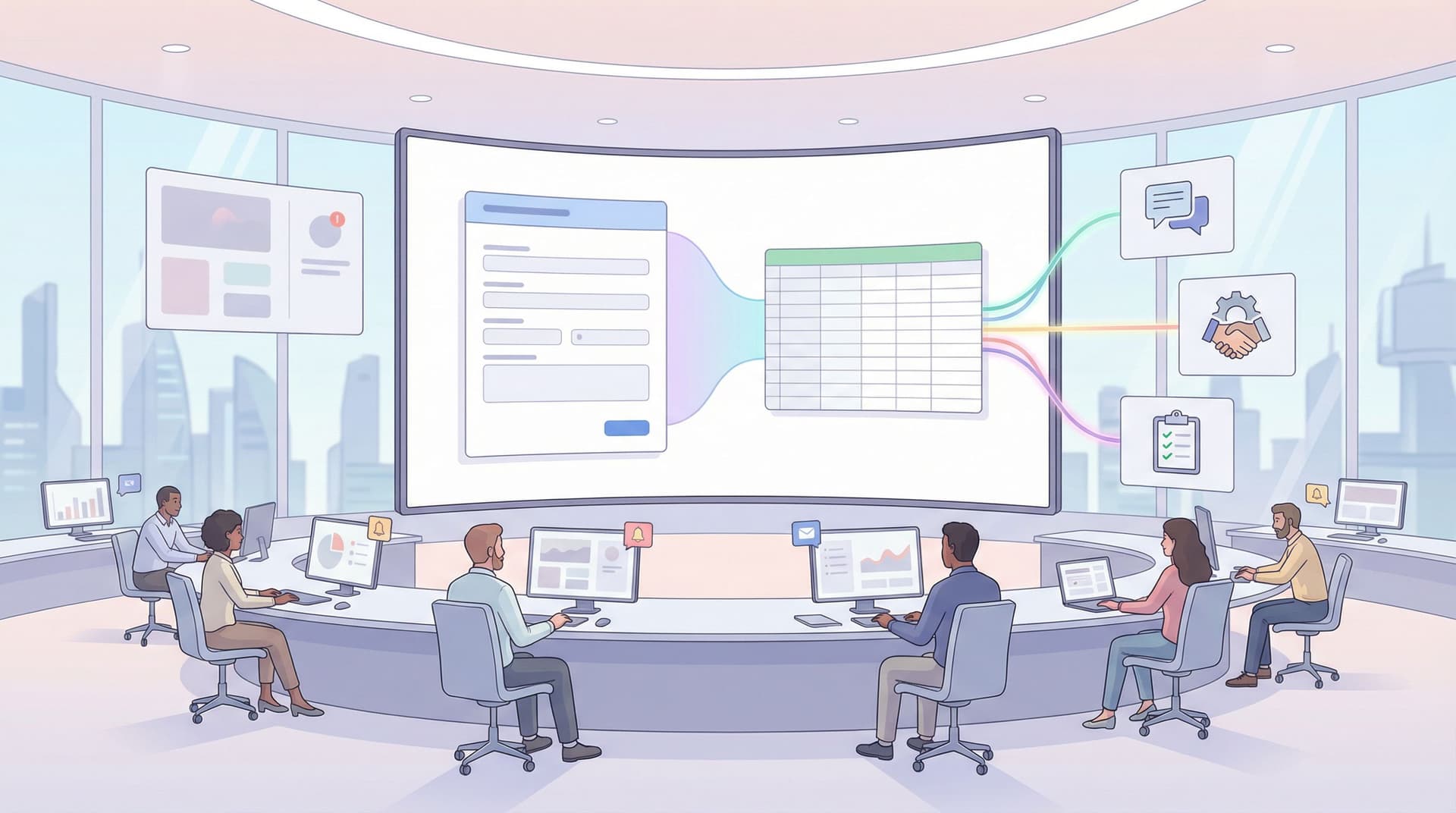
From Form to Workflow: Automating Onboarding, Support, and QA with Ezpa.ge + Google Sheets


From Form to Workflow: Automating Onboarding, Support, and QA with Ezpa.ge + Google Sheets
Modern teams don’t struggle to collect data. They struggle to do something with it—quickly, reliably, and without adding another tool that only two people know how to use.
Ezpa.ge + Google Sheets is a quiet power combo for solving exactly that. You get:
- Beautiful, branded, responsive forms that people actually want to fill out.
- Real-time syncing into a tool your whole team already understands: Google Sheets.
- A low-code automation layer you can extend into onboarding, support, and QA workflows—without waiting on engineering.
This post walks through how to turn a simple Ezpa.ge form into a working system for three common use cases:
- New customer or employee onboarding
- Support intake and triage
- QA and internal review flows
We’ll stay concrete: which fields to add, how to structure your Sheet, and how to connect the dots so that every new submission triggers the right next step.
Why “Form → Sheet → Workflow” Matters
A form on its own is just a doorway. A spreadsheet on its own is just storage. The magic is what happens between them.
When you wire Ezpa.ge directly into Google Sheets and build a few simple rules, you:
- Eliminate manual glue. No more exporting CSVs, copy-pasting into other tools, or asking, “Did anyone see that submission?”
- Shorten response times. Support tickets get routed instantly. Onboarding tasks kick off the second someone hits Submit.
- Reduce errors. Standardized fields + real-time validation means cleaner data and fewer “oops, wrong column” moments.
- Create shared visibility. Everyone—from ops to product to leadership—can see what’s happening in one live Sheet.
If you’re already thinking in terms of systems, this is a natural extension of ideas from posts like “Ops in the Loop: Using Real-Time Form Data to Trigger Playbooks, Notifications, and Automations” and “No-Dev Ops: Automating Product Workflows with Ezpa.ge Forms and Google Sheets Triggers”. Here, we’ll zoom into three specific workflows and show how to put them into practice.
The Core Setup: Ezpa.ge + Google Sheets as Your Workflow Engine
Before we dive into onboarding, support, and QA, let’s align on the foundation.
Step 1: Design a form that reflects the workflow, not just the fields
If you only think about what data you want, you’ll miss what your workflow needs.
For each use case, ask:
- Who needs to act on this submission? (e.g., HR, sales, support, QA lead)
- What decision do they make next? (approve, assign, escalate, schedule)
- What information do they actually need to make that decision?
- What should happen automatically vs. manually?
Then design your Ezpa.ge form around those decisions, not just around “nice to have” questions. If you want a deeper dive into this mindset, “Flow, Not Fields: Mapping Your User’s Mental Journey Before You Design a Single Input” is a great companion read.
Step 2: Sync to a dedicated Google Sheet
Every Ezpa.ge form can sync responses directly into a Google Sheet in real time. A few best practices:
- One primary Sheet per workflow. Don’t scatter a single process across six spreadsheets.
- Freeze a header row. Make sure each column name is clear and stable.
- Reserve extra columns to the right of the synced data for:
- Status (e.g.,
New,In Progress,Done) - Owner (person or team)
- SLA timestamps (e.g.,
First Response At,Resolved At) - Automation helpers (e.g., formulas that compute priority)
- Status (e.g.,
From there, you can use tools like Google Apps Script, Make, or Zapier to trigger actions whenever a new row appears or changes.

Workflow 1: Automating Onboarding (Customers or Employees)
Onboarding is where expectations are set—and where manual work loves to hide. Whether you’re welcoming a new customer or a new hire, the pattern is similar:
- Collect structured information.
- Decide who owns which part of the onboarding.
- Trigger a sequence of tasks, messages, and checks.
What your Ezpa.ge onboarding form should capture
For customer onboarding, consider fields like:
- Company name, size, industry
- Primary contact (name, email, role)
- Use case / goals (multi-select + free-text)
- Timeline urgency (e.g., “Go live in: 1–2 weeks, 1 month, 3+ months”)
- Technical constraints (e.g., SSO required, specific integrations)
For employee onboarding, you might include:
- Role, team, manager
- Start date and location (remote/hybrid/office)
- Equipment needs (laptop type, accessories)
- Tools access required (list of systems)
- Special accommodations
Use Ezpa.ge features like:
- Custom themes to match your brand, so the form feels like a natural extension of your product or HR portal.
- Custom URLs (e.g.,
onboarding.yourcompany.ezpa.ge) so people can find the form easily and trust the link.
If you’re collecting sensitive data—especially for employees—borrow patterns from “Form UX for High-Stakes Data: Designing Calm, Trustworthy Experiences for Payments, Healthcare, and Hiring” to keep the experience safe and reassuring.
Structuring your onboarding Sheet
Once responses land in Google Sheets, add columns like:
Owner– who’s responsible for this onboarding (CSM, HRBP, hiring manager)Onboarding Type– e.g.,Customer,Employee,ContractorPriority– formula based on company size, start date, or timeline urgencyStatus–New,Preparing,In Progress,Completed,On HoldKickoff Scheduled?– yes/no or date
Example priority formula:
=IFS(
  AND([@[Onboarding Type]]="Customer", [@[Company Size]]>500), "High",
  [@[Start Date]]<=TODAY()+7, "High",
  TRUE, "Normal"
)
(This assumes you’re using an Excel-style table reference; in Google Sheets, adapt to your column letters.)
Automations that bring onboarding to life
Once your structure is in place, you can:
- Notify the owner instantly when a new onboarding row is created.
- Trigger: new row added in the
OnboardingSheet. - Action: send an email or Slack/Teams message with key details.
- Trigger: new row added in the
- Create a checklist in your task tool (Asana, Linear, Jira, ClickUp, etc.).
- Trigger: new high-priority onboarding.
- Action: create a project or task template with subtasks (e.g., “Provision access,” “Schedule intro call,” “Send welcome email”).
- Auto-schedule kickoff calls.
- Trigger:
Statuschanges fromNewtoPreparing. - Action: send a Calendly link or use an API to create a calendar invite.
- Trigger:
Start small. Even one automation—like “notify the right person when a high-priority onboarding comes in”—can cut days off your time-to-first-touch.
Workflow 2: Support Intake and Triage
Support is where form-to-workflow shines the brightest. A good intake form reduces back-and-forth. A good Sheet turns that intake into clear queues.
Designing a support form that routes itself
Your Ezpa.ge support form should aim to answer: Who should handle this, and how urgent is it?
Useful fields:
- Contact info (name, email, account ID if relevant)
- Issue category (billing, bug, how-to question, account access, etc.)
- Impact level (e.g., “Can’t use product,” “Workaround available,” “Minor inconvenience”)
- Affected users (just me, my team, whole company)
- Environment (browser, OS, app version)
- Attachments or links (screenshots, URLs)
Use conditional logic where it helps:
- If
Issue category = Billing, show fields about invoice number or plan. - If
Issue category = Bug, show environment and reproduction steps.
For a deeper look at keeping forms short but effective, “Form Fatigue Is Real: Designing Shorter Flows That Still Capture Rich Data” offers practical patterns you can reuse here.
Turning your support Sheet into a live queue
In Google Sheets, add:
Queue– which team:Support L1,Billing,Technical,SuccessSeverity– computed from impact + categoryAssigned To– the individual ownerFirst Response At– timestampResolved At– timestampSLA Breach?– formula based on submission time and severity
Example severity formula:
=IFS(
  AND(A2="Can't use product", B2="Whole company"), "Critical",
  A2="Can't use product", "High",
  A2="Workaround available", "Medium",
  TRUE, "Low"
)
(Here A2 might be Impact and B2 Affected users.)
Then:
- Use Filters or Filter Views to give each team their own “queue view.”
- Use Conditional Formatting to highlight
CriticalorHighseverity rows. - Add a pivot table on another tab to track volume by category, severity, and response time.
Automating triage and follow-up
With your Sheet structured, you can:
- Auto-route tickets based on category.
- Trigger: new row.
- Action: set
Queueand notify the right Slack channel or email group.
- Escalate stalled tickets.
- Trigger:
SLA Breach?becomesTRUE. - Action: ping a manager, add an “Escalated” label in your help desk, or create a new task in your incident tool.
- Trigger:
- Send satisfaction follow-ups.
- Trigger:
Statuschanges toResolved. - Action: send a short Ezpa.ge micro-survey asking “How did we do?”
- Trigger:
That last step pairs nicely with ideas from “Beyond NPS: Micro-Form Strategies for Continuous Product Feedback Without Annoying Users”, where you can reuse micro-forms to capture quick post-support sentiment.

Workflow 3: QA and Internal Review Loops
Quality assurance isn’t just for engineering. Product managers, designers, operations, and even leadership often need structured ways to:
- Review new features before launch
- Approve content or campaigns
- Log internal issues found during dogfooding
Ezpa.ge + Google Sheets can become a lightweight QA platform that doesn’t require a full-blown test management tool.
Building a QA / review form
For feature QA or internal reviews, your Ezpa.ge form might include:
- Feature or project name
- Environment (staging, production, beta group)
- Type of feedback (bug, UX issue, copy suggestion, performance issue)
- Steps to reproduce (for bugs)
- Expected vs. actual behavior
- Screenshots or screen recording links
- Severity (blocker, major, minor, polish)
If you’re running structured test passes, add:
- Test case ID or scenario name
- Pass/Fail selection
- Notes / observations
Turning QA responses into an actionable backlog
In Google Sheets, add columns like:
Owner– product or engineering leadArea– part of the product (e.g., Onboarding, Billing, Search)Status–New,Triaged,In Progress,Ready for Retest,ClosedRelease Target– version or dateLinked Issue– URL to your issue tracker ticket
Then:
- Use filters to create views for each owner or area.
- Use data validation to keep
StatusandSeverityconsistent. - Create a summary tab that counts open issues by area and severity.
Automations that close the loop
A few high-impact automations:
- Auto-create tickets in your issue tracker.
- Trigger: new QA row with
Type = BugandSeverityin (Blocker,Major). - Action: create a ticket in Jira/Linear/GitHub Issues with the description and link back to the Sheet row.
- Trigger: new QA row with
- Notify owners for blockers.
- Trigger: new
Blockerissue. - Action: send a Slack/Teams message to the feature owner with the details.
- Trigger: new
- Retest reminders.
- Trigger:
Statuschanges toReady for Retest. - Action: email or message QA testers with a link to the environment and test case.
- Trigger:
Over time, your QA Sheet becomes a living record of quality over releases—and because it’s built on a simple form + Sheet, anyone on the team can contribute without extra logins or training.
Patterns That Work Across All Three Workflows
Once you’ve built one form-to-workflow system, the second and third become much easier. A few reusable patterns:
- Standardize status columns. Use similar
Statusvalues across onboarding, support, and QA so reporting is easier. - Use helper columns for automation. Instead of trying to encode complex logic in your automation tool, compute
Priority,Queue, orSeveritywith formulas in the Sheet, then trigger off those columns. - Protect the structure. Lock header rows and formula columns so well-meaning teammates don’t accidentally break automations.
- Document the flow. Add a “Read Me” tab in each Sheet explaining:
- What the form is for
- What each status means
- Which automations are connected
- Who owns the workflow
Most importantly: treat your Ezpa.ge + Google Sheets setup as a system, not a one-off form. Iterating on it weekly—tweaking fields, refining formulas, adjusting automations—will pay back in hours saved every month.
Bringing It All Together
When you connect Ezpa.ge forms to Google Sheets with intention, you get more than prettier intake pages. You get:
- Onboarding that feels coordinated instead of chaotic.
- Support queues that route themselves and surface what’s urgent.
- QA loops that turn scattered feedback into a clear, actionable backlog.
You don’t need a new platform or a six-month implementation. You need:
- A clear picture of the workflow you’re trying to support.
- A thoughtfully designed Ezpa.ge form that collects only what you need.
- A structured Google Sheet that acts as your source of truth.
- A handful of automations that turn new rows and status changes into real action.
From there, you can layer on more sophistication—validation rules, dashboards, experiments—using ideas from posts like “Real-Time Guardrails: Using Google Sheets Logic to Auto-Clean and Validate Form Data” and “From Form to Funnel: Turning Raw Responses into a Live Google Sheets Dashboard”.
Your Next Step
If you’re reading this, you probably already have at least one form that’s “just collecting data.” That’s your starting point.
Pick one workflow—onboarding, support, or QA—and:
- Map the journey. Who needs to act on each submission, and what do they need to know?
- Tune the form. Open your Ezpa.ge form and adjust fields so they directly support those decisions.
- Clean up the Sheet. Add status, owner, and priority columns. Write simple formulas where it helps.
- Add one automation. Just one: a notification, a task creation, or a simple SLA alert.
Once that first loop is working, you’ll see opportunities everywhere to go from “form” to “workflow.”
If you’re ready to start, open Ezpa.ge, connect a form to Google Sheets, and build your first live workflow. The tools are already in your hands—the system is what you design next.