One Form, Many Brands: Running White-Label Programs with Themes and Custom URLs

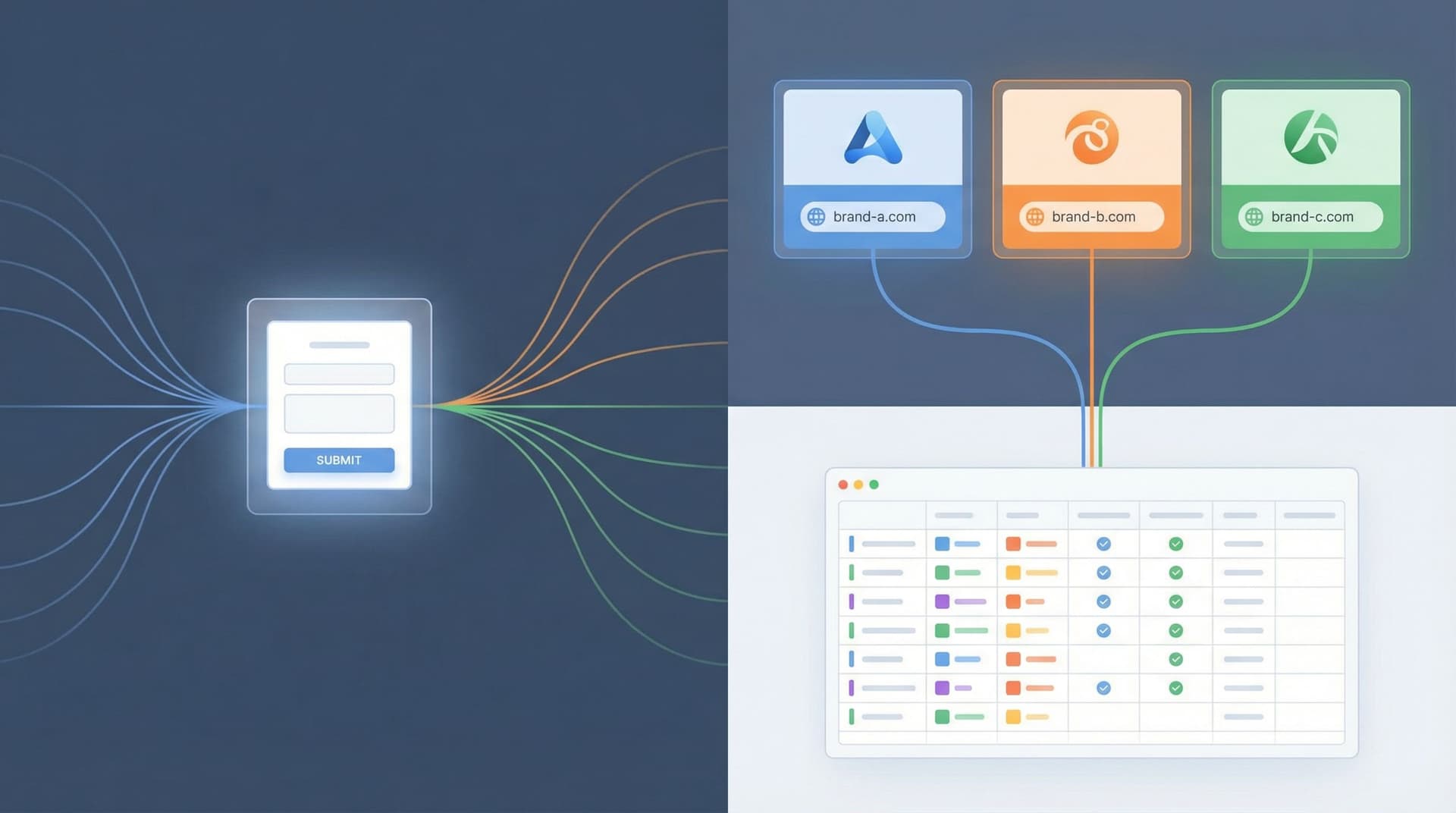
When you’re running a partner program, agency network, or multi-brand portfolio, forms can quietly become your biggest scaling problem.
Each partner wants:
- Their logo.
- Their colors.
- Their URL.
- Their copy tweaks.
You want:
- One source of truth.
- Clean data.
- Maintainable workflows.
- The ability to change a field once—not 27 times.
White‑labeling your forms with themes and custom URLs is how you get both. You keep a single operational backbone while giving every brand, partner, or segment an experience that feels fully their own.
This post is about how to do that deliberately using a "one form, many brands" pattern—especially with tools like Ezpa.ge, where themes, custom URLs, and Google Sheets syncing are first‑class features.
Why White‑Label Forms Matter More Than You Think
If you run programs across multiple brands or partners, you’ve probably felt at least one of these pains:
- Form sprawl – Slightly different copies of the same form for each partner, all wired to different sheets or tools.
- Reporting headaches – No consistent way to see performance by brand, partner, or channel because the data structure is different every time.
- Slow launches – New co‑marketing campaign? New regional brand? You’re back in the queue waiting on yet another page + form combo.
- Brand friction – Partners feel like second‑class citizens when you send them to a generic corporate form that doesn’t look or feel like them.
A well‑designed white‑label setup solves these by separating what the form does (data structure, logic, routing) from how the form appears (theme, URL, copy). That’s the core idea:
One shared form schema → many branded wrappers.
Done right, you get:
- Operational consistency – Same fields, same validation, same Sheet, same workflows.
- Brand flexibility – Each partner or brand gets their own theme, copy, and URL.
- Faster experimentation – You can test new offers or flows for one brand without touching the underlying backbone.
- Cleaner governance – Legal, security, and ops sign off once on the core form, then you roll it out safely across dozens of contexts.
If you’ve read posts like “URL-Driven Ops: How Custom Links Turn One Form into a Dozen Targeted Workflows”, this is the same philosophy—just extended to full white‑label programs.
The Core Pattern: One Backbone, Many Skins
Before you think about colors or logos, you need a backbone: a single, well‑designed form that can serve as the master template.
Step 1: Design the master schema
Start with the data, not the brands.
-
List your universal questions
What do you need from every brand or partner interaction? For example:- Company / brand name
- Contact details
- Region / market
- Product or service interest
- Program type (reseller, affiliate, co‑marketing, etc.)
-
Add routing and segmentation fields
These fields don’t need to be visible to the end user, but they’re essential for ops:- Internal partner ID
- Program tier or cohort
- Source (which URL was used)
- Brand / label
-
Define required vs optional
Decide what’s truly mandatory. White‑label programs often break because one partner insists on adding 10 extra required fields. Keep the core schema lean and use conditional fields for brand‑specific asks. -
Plan for automation and AI
If you’re using AI summarization or routing later, structure your questions clearly. Posts like “AI-Ready Forms: Structuring Your Questions Today for Smarter Models Tomorrow” go deeper on this, but the punchline is simple: clear, discrete fields now = smarter automation later.
Step 2: Wire the backbone into Google Sheets
With Ezpa.ge, every response can land in a Google Sheet in real time. Treat that Sheet as your single source of truth:
-
One master Sheet with:
- A raw responses tab (direct sync from the form).
- A normalized tab (cleaned, validated, with derived columns like partner tier, region, etc.).
- A reporting tab (pivot tables, charts, or Looker Studio feeds).
-
Key columns for white‑labeling:
brand_slugorpartner_codeentry_url(the exact custom URL used)theme_id(which theme or skin was active)campaign_code(if you’re running multiple offers per brand)
This is what lets you say, “Show me all entries from Brand X’s co‑marketing campaign last quarter,” without touching the form builder.
If you want to go deeper on turning that Sheet into a true operating system, the post “From Form to Playbook: Turning Google Sheets Responses into Repeatable Ops SOPs” is a good next read.
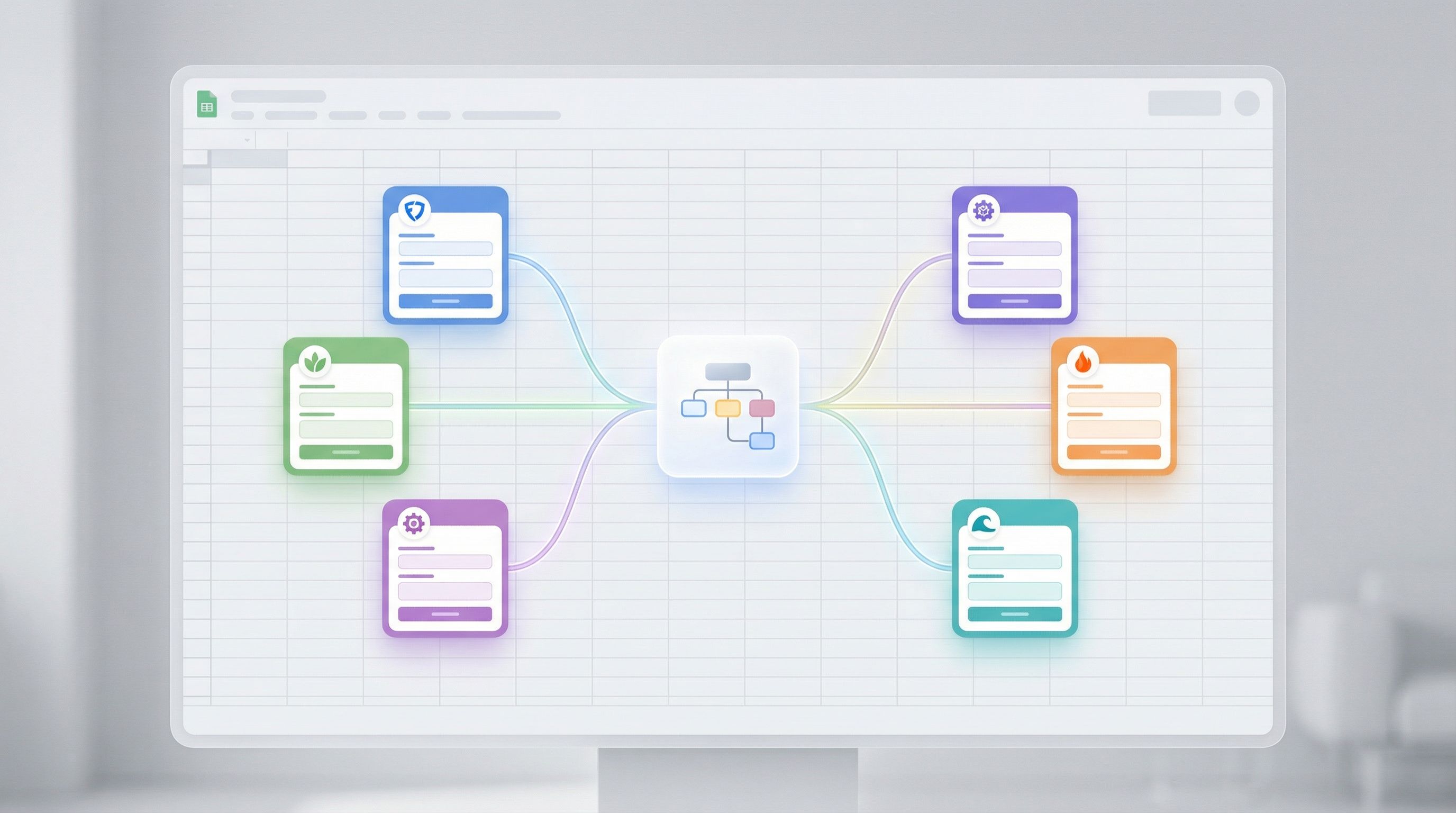
Themes as White‑Label Skins
Once the backbone is solid, themes turn into your white‑label “skins.” A theme isn’t just a color swap. It’s a bundle of visual and behavioral decisions that make one shared form feel like it belongs to a specific brand.
What a good theme should control
At minimum, define these elements per brand:
- Logo & brand mark – Clear placement, predictable sizing.
- Color system – Primary, secondary, and accent colors; button states; error states.
- Typography – Font families, sizes, and weights that feel on‑brand.
- Spacing & layout – Compact vs roomy, carded vs flat.
- Tone helpers – Microcopy patterns for help text, hints, and CTAs (e.g., "Apply now" vs "Request access").
With Ezpa.ge, you can save these as reusable themes and apply them to any form. For white‑label programs, it’s worth creating a theme library:
Theme – Brand A (Primary)Theme – Brand A (Premium segment)Theme – Brand B (Enterprise)Theme – Partner Generic (Co‑branded)
That last one—co‑branded—is especially useful for partner campaigns where you want both logos and a shared color palette.
Guardrails: staying consistent while staying flexible
The risk with themes is drifting into chaos. A few practical guardrails:
- Lock the layout – Keep the form structure and field order identical across themes. Only visuals and copy flex.
- Define allowed variations – Decide once which elements can change per brand:
- ✅ Headline text
- ✅ Button label
- ✅ Accent color
- ❌ Field labels
- ❌ Validation rules
- Document your tokens – Even in a no‑code tool, think in design tokens:
primary_color,danger_color,radius_sm, etc. That makes it easier to keep themes coherent.
If you want to go deeper into theming strategy, “Beyond Dark Mode: Theming Strategies That Adapt to Brand, Context, and User Preferences” is a great companion read.
Custom URLs: The Secret Routing Layer
Themes control how a form looks. Custom URLs control how a form is used.
For white‑label programs, URLs are more than vanity links—they’re a routing and analytics layer.
How to structure your URL strategy
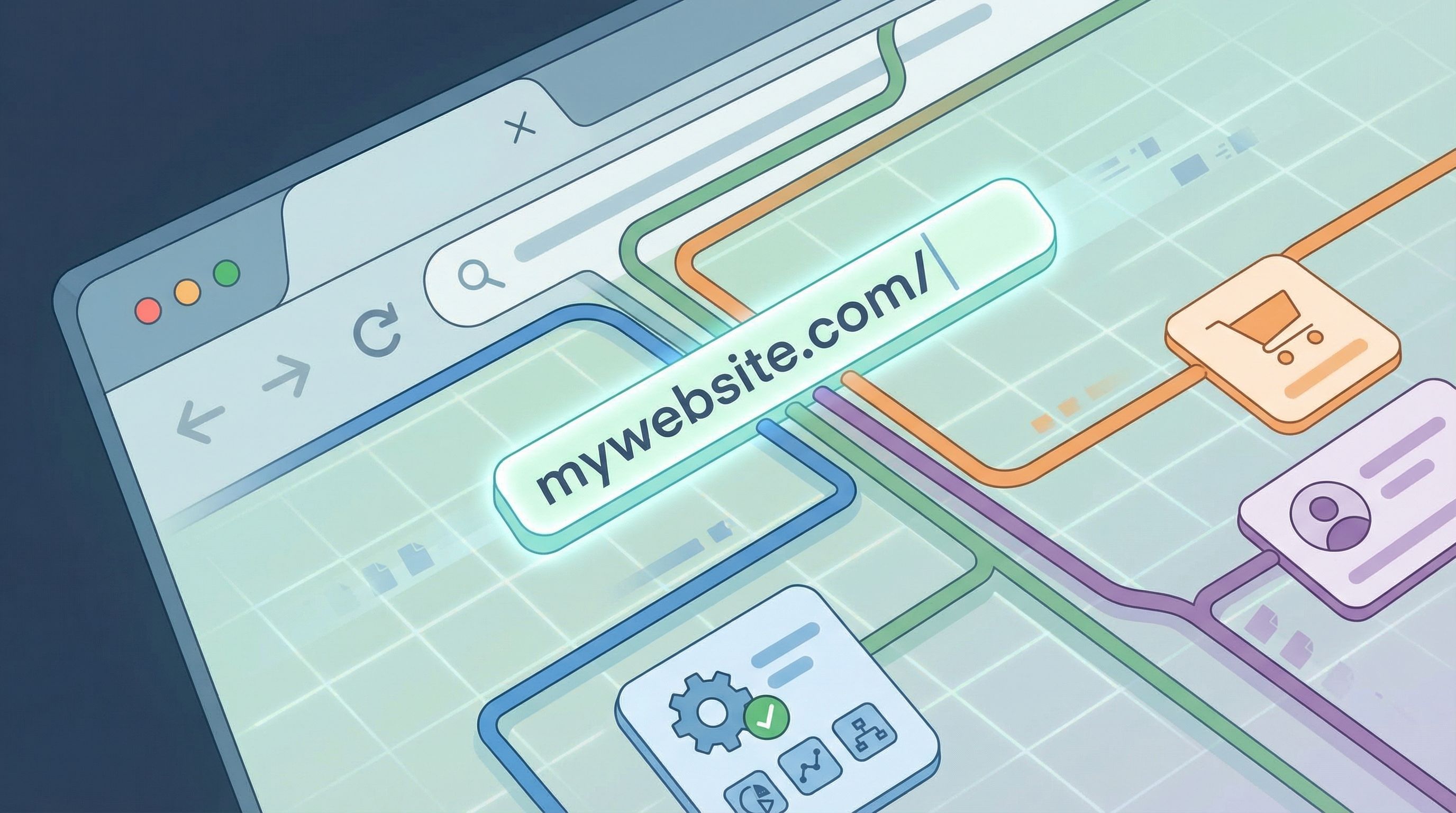
Think of each URL as a “view” into the same form. A simple pattern:
- Base pattern:
https://forms.yourcompany.com/{program}/{brand}/{variant}
Examples:
https://forms.yourcompany.com/partners/brand-a/applyhttps://forms.yourcompany.com/partners/brand-a/viphttps://forms.yourcompany.com/partners/brand-b/applyhttps://forms.yourcompany.com/partners/generic/referral
Behind the scenes, these can all point to the same Ezpa.ge form, with:
- A different theme applied.
- A different pre‑filled brand field (e.g.,
brand_slug = brand-a). - A different campaign or source tag.
What to encode in your URLs
Decide what belongs in the URL vs in hidden fields:
-
Good candidates for the URL path:
- Program type (
partners,affiliates,resellers) - Brand or region (
brand-a,emea,latam) - Experience variant (
vip,beta,early-access)
- Program type (
-
Good candidates for query params:
- Campaign codes (
?campaign=summer-2026) - Sales owner or partner manager (
?owner=alex) - Experiment flags (
?variant=b)
- Campaign codes (
In Ezpa.ge, you can map these query params into hidden fields, so every submission knows exactly which URL generated it.
This is the essence of the approach described in “URL-Driven Ops: How Custom Links Turn One Form into a Dozen Targeted Workflows”: one schema, many entry points, each with its own operational meaning.
Putting It Together: A Practical Implementation Checklist
Let’s make this concrete. Here’s how you’d roll out a white‑label form program in practice.
1. Define your use cases
Start with 2–3 clear scenarios, not every possibility under the sun:
- Partner applications across three flagship brands.
- Co‑marketing request intake for your top 10 partners.
- Lead sharing between you and a select group of resellers.
For each, answer:
- Who is filling this out?
- What decisions do we make based on their answers?
- What data do we absolutely need every time?
2. Build the master form in Ezpa.ge
- Create a single form that covers the unified schema.
- Add hidden fields for:
brand_slugprogram_typecampaign_codeentry_url
- Configure validation and conditional logic once.
- Connect the form to a single Google Sheet.
3. Create themes for each brand or partner tier
For each brand:
- Create a new theme in Ezpa.ge.
- Set logo, colors, typography.
- Define button and error styles.
- Preview on mobile and desktop.
- Save as
Theme – {Brand} – Default.
If you work with partners who don’t have strong design systems, this is where you can really shine—similar to the approach in “Form Themes for Non-Design Brands: Looking Premium Even When Your Site Is Still V1”.
4. Map custom URLs to themes and defaults
For each brand:
- Decide on a clean URL structure.
Example:/partners/{brand}/applyand/partners/{brand}/vip. - In your routing or link management layer, map that URL to:
- The shared form.
- The correct theme.
- Pre‑filled hidden fields (e.g.,
brand_slug = brand-a,program_type = partners).
- Test:
- Does the right logo and color scheme appear?
- Do hidden fields capture the correct values in the Sheet?
- Do confirmation emails or redirects mention the right brand?
5. Add light brand‑specific copy
Without changing the core schema, you can adapt the experience per brand:
- Headlines & subheads – “Apply to become a Brand A partner” vs “Join Brand B’s reseller network.”
- Intro paragraphs – A short note about what to expect after submission.
- CTA labels – “Submit application” vs “Request partnership review.”
Keep these variations in a simple content doc or CMS so you can update them without touching the form logic.
6. Build your operational views
In Google Sheets (or your BI tool of choice), create views that make the white‑label nature explicit:
- By brand: filter or pivot by
brand_slug. - By program type:
program_typegrouped with status. - By URL: breakdown of submissions by
entry_url.
From there, you can:
- Route submissions to different Slack channels or CRMs based on brand.
- Trigger different onboarding sequences.
- Share partner‑specific dashboards without exposing other brands’ data.
7. Pilot with a small group, then scale
Don’t launch to 50 brands on day one. Instead:
- Pick 2–3 brands or partners who are excited to experiment.
- Roll out their themes and URLs.
- Collect feedback:
- Do they feel the experience is truly on‑brand?
- Are there any fields they’re consistently confused by?
- Are your internal teams getting the data they need?
- Refine the backbone once based on what you learn.
- Then roll out to the rest.
Common Pitfalls (and How to Avoid Them)
Even with a solid pattern, a few traps show up again and again.
Pitfall 1: Letting brands rewrite the schema
If every brand gets to add their own required fields, you’ve lost the plot. Your “one form” is now 12 different forms wearing similar clothes.
Fix:
- Keep the core schema sacred.
- Allow brand‑specific questions only as optional, conditional fields.
- Store those brand‑specific answers in clearly named columns (
brand_a_custom_1).
Pitfall 2: Ignoring accessibility
When you’re juggling logos and colors, it’s easy to forget that contrast, focus states, and label clarity matter. But they matter a lot—especially when you’re rolling out across regions and audiences.
Fix:
- Bake accessibility standards into your base theme.
- Only allow themes that inherit those foundations.
- Reuse patterns from “Inclusive by Default: Accessible Form Patterns That Don’t Sacrifice Conversion”.
Pitfall 3: Losing track of which link is which
White‑label programs can generate a lot of URLs. Without a system, people start guessing or reusing old links.
Fix:
- Maintain a link registry: a simple Sheet listing URL, brand, program, owner, and status.
- Use consistent naming and slugs.
- Deprecate old URLs explicitly with redirects or clear messaging.
Pitfall 4: Treating every partner as a special snowflake
The whole point of this pattern is leverage. If you’re building bespoke themes, URLs, and flows for every single partner, you’re not white‑labeling—you’re custom‑developing.
Fix:
- Define 2–3 standard packages:
- “Basic co‑brand” (logo + color, shared copy).
- “Premium co‑brand” (logo, color, custom intro copy, custom confirmation).
- “Strategic partner” (everything above plus a dedicated URL structure).
- Map partners into packages instead of inventing a new setup each time.
Where to Go Next
If you’re already using Ezpa.ge, you have most of the building blocks for a white‑label form program:
- Themes that can be saved, reused, and tweaked per brand.
- Custom URLs that map to a single form with different defaults.
- Real‑time Google Sheets syncing to keep everything in one operational view.
To recap the pattern:
- Design a strong master schema that serves all brands.
- Wire it to a single Sheet with the right hidden fields.
- Create themes as white‑label skins—one per brand or tier.
- Use custom URLs as routing keys, encoding brand, program, and variant.
- Pilot with a few brands, refine, then scale.
Done well, you’ll have a system where:
- Marketing can launch new co‑branded campaigns in an afternoon.
- Partner managers can promise a “fully branded experience” without calling dev.
- Ops can rely on consistent data and reporting.
- Legal and security only have to sign off once on the core experience.
Take the First Step
You don’t need a massive replatform or a full partner portal to start running white‑label programs. You just need one solid form and a plan.
Here’s a simple way to start this week:
- Pick a single use case where multiple brands or partners share the same flow (e.g., partner applications or co‑marketing requests).
- Build (or refactor) one Ezpa.ge form that can serve all of them.
- Create themes and URLs for just two brands.
- Connect everything to a single Google Sheet and watch the first 20–30 submissions roll in.
Once you see how much leverage you get from that small experiment, scaling to ten or fifty brands stops feeling impossible—and starts feeling like a design decision you’ve already made.
Your partners don’t need a portal. They need a form that feels like theirs, running on a backbone that works for you.
Start with one form. Let the brands multiply.