Security by Structure: Question Patterns That Reduce Risk Before Encryption Even Starts


When people talk about secure forms, they usually jump straight to tooling:
- Is data encrypted in transit and at rest?
- Where are submissions stored?
- Which compliance badges can we put in the footer?
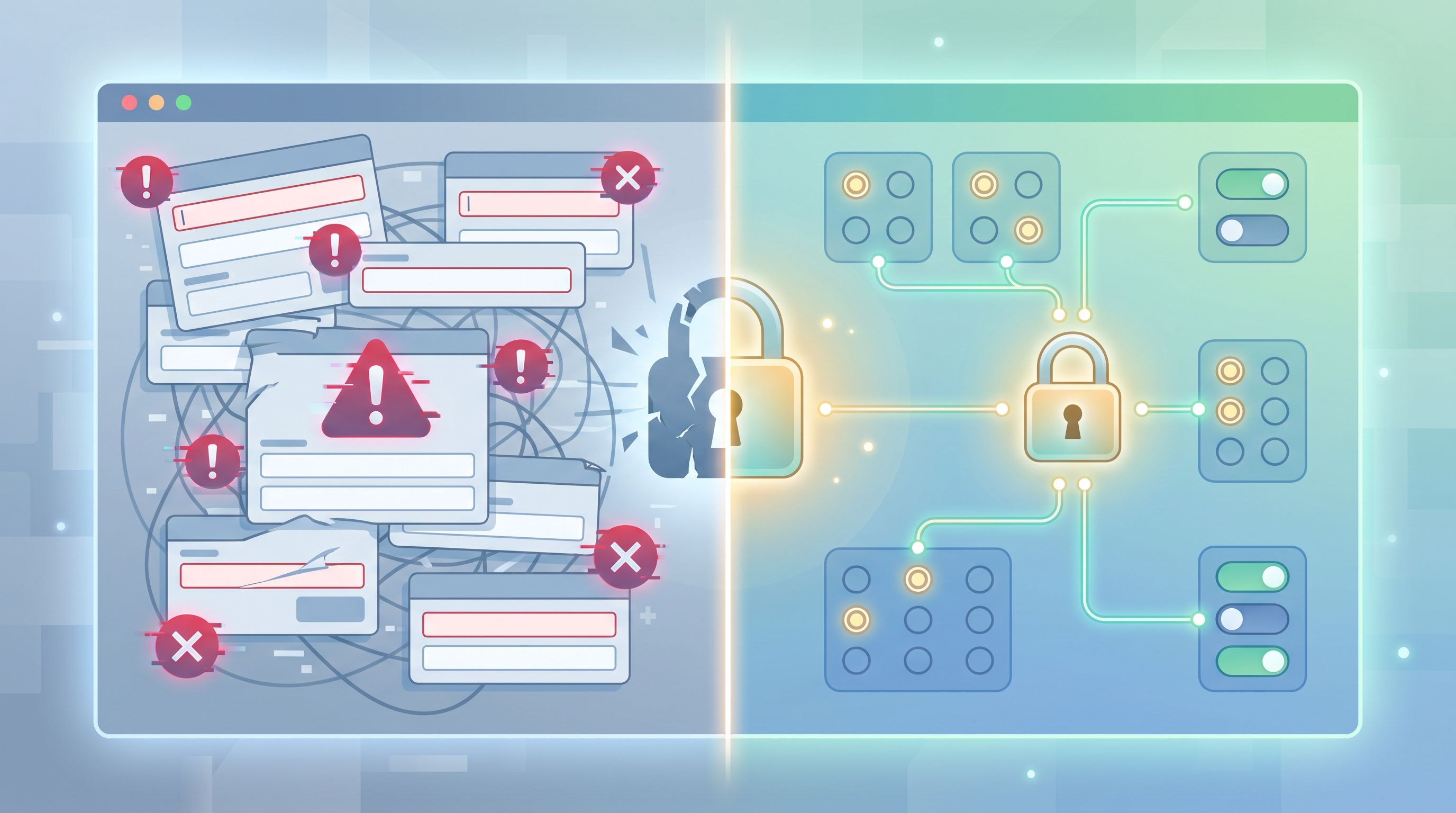
All of that matters. But there’s a quieter layer of security that starts before TLS handshakes and database permissions: the structure of the questions you ask.
If your form doesn’t collect a risky piece of data, that data can’t be leaked, misrouted, or misused. If you shape answers into safe, structured patterns, you’re reducing exposure long before encryption even has a chance to help.
This is security by structure: designing question patterns that minimize what you collect, constrain how it’s expressed, and still give your team everything it needs to act.
Why security by structure matters
Most teams over-collect information for two reasons:
- Habit: “We’ve always asked for this.”
- Fear of missing out: “We might need it later.”
That’s how you end up with forms that quietly stockpile risk:
- Full birthdates when you only need age range
- Free‑text fields for “Anything else we should know?” that attract medical histories and passwords
- Legal names and IDs when a first name and email would do
The problem isn’t just theoretical. Data breaches have become routine, and regulators are catching up:
- The principle of data minimization is core to frameworks like GDPR and many emerging privacy laws: only collect what you truly need, and only for specific purposes.
- Attackers often target the “long tail” of systems—exports in spreadsheets, misconfigured integrations, or old form responses that never should have contained sensitive data in the first place.
When you design your forms to:
- Avoid unnecessary sensitive fields
- Replace free text with constrained choices
- Separate identity from sensitive context
…you shrink your attack surface dramatically. Encryption still matters, but it becomes your second line of defense, not your only one.
And there’s a bonus: structured, minimal data is easier to route, analyze, and automate. If you’ve read posts like From Sheet to System: Turning Ad-Hoc Google Sheets Trackers Into Durable Form Ops, you’ve already seen how structure unlocks better operations. Here, we’re using that same structure as a security tool.
The four big risk drivers in form questions
Before we talk patterns, it helps to name the main ways questions create risk.
-
Sensitivity of the data
Anything in these buckets deserves extra scrutiny:- Government IDs, social security numbers, tax IDs
- Full birthdates + full names + addresses (identity theft cocktail)
- Health information, diagnoses, medications
- Financial details (card numbers, bank accounts, income breakdowns)
- Credentials (passwords, recovery answers, API keys)
-
Identifiability
Data is lower risk when it can’t be tied to a specific person. Identifiable combos include:- Name + email + company + detailed free text
- Small cohorts (e.g., “VP of HR at a 12‑person company in X town”)
-
Free‑text sprawl
Any open text box can turn into a catch‑all for secrets:- Users paste logs that include tokens
- Employees share internal details they shouldn’t
- People overshare about health, finances, or colleagues
-
Retention and reuse
The longer you keep data—and the more places it flows—the more chances something goes wrong.
Security by structure doesn’t magically erase these risks, but it turns the knobs down on all four.
Core design principles: safer questions by default
Think of these as guardrails you can apply to almost any form.
1. Collect the minimum useful version
For every field, ask: What is the least sensitive version of this data that still lets us do our job?
Examples:
-
Birthdate → Age band
- Instead of:
What is your date of birth?(free text or date picker) - Use:
Which age range best describes you?with options likeUnder 18,18–24,25–34, etc.
- Instead of:
-
Exact salary → Range
- Instead of:
What is your current salary? - Use:
Which compensation band best fits your current role?with pre‑defined ranges.
- Instead of:
-
Full address → Region or country
- Instead of:
Mailing address - Use:
Countryand (if needed)State/Region.
- Instead of:
If you’re not sure whether you truly need a field, try running a micro‑experiment without it. Posts like Signals in Single Clicks: Using Button-Only Micro-Forms to Power Experiments and Personalization show how to validate what really matters with very lightweight forms.
2. Replace free text with structured choices
Free text is where sensitive data hides. You can’t easily:
- Enforce what people don’t type
- Classify it safely at scale
- Redact it automatically without risk
Whenever possible, prefer:
- Radio buttons / select menus over open questions
- Multi‑select chips over “Describe everything” prompts
- Rating scales (1–5, NPS, etc.) over narrative feedback
You can always offer an optional, clearly scoped text field with strong guidance, like:
Optional: Briefly describe your use case (please don’t include passwords, health details, or financial account numbers).
3. Separate identity from sensitive context
Sometimes you really do need to collect sensitive context—incident reports, product feedback about bugs, or research input from specific user segments.
You can still reduce risk by decoupling who someone is from what they say.
Patterns:
-
Two-step flows
Step 1: collect contact info and basic metadata.
Step 2: collect sensitive or detailed context, stored in a separate system or sheet with limited access. -
Pseudonymous IDs
- Store personal identifiers (name, email, etc.) in one table
- Store sensitive responses in another, linked via a random ID
- Limit who can join those tables
Tools like Ezpa.ge make this easier because you can sync different forms or steps into different Google Sheets, each with its own access model, rather than dumping everything into a single all‑access spreadsheet.
4. Design for redaction and deletion
Even with careful questions, you’ll still get more than you wanted. Plan for that.
Good patterns:
- Avoid mixing highly sensitive answers in the same field as operational data.
- Use separate fields for “public” vs. “internal” notes.
- Tag fields in your schema so it’s easy to:
- Auto‑redact specific columns in exports
- Purge sensitive fields on a schedule
If you’ve ever tried to clean a messy research tracker, you’ll recognize the value here. The same discipline that turns Sheets into systems in From Sheet to System: Turning Ad-Hoc Google Sheets Trackers Into Durable Form Ops also makes your redaction and deletion workflows far safer.

Question patterns that quietly reduce risk
Let’s get concrete. Here are specific patterns you can use across common form types.
Pattern 1: Intent first, details later
Goal: Capture why someone is here before you ask for anything sensitive.
Instead of starting with identity fields (Name, Email, Company), start with a small, structured question about intent.
Examples:
-
Support intake
- Q1:
What do you need help with today?(radio buttons:Billing,Account access,Bug,Feature request,Other) - Q2–3: Follow‑up questions tailored to that choice (e.g.,
Which product area?,How severe is the issue?) - Only then ask for contact details.
- Q1:
-
Sales/demo request
- Q1:
What are you hoping to accomplish with our product?(multi‑select) - Q2:
What best describes your role?(radio) - Identity fields come last.
- Q1:
Why this helps security:
- Many low‑intent visitors will drop after the first question or two. You’ve collected useful, low‑risk signals without tying them to identity.
- You can route and triage based on intent alone, which means fewer people need access to the identity‑linked data.
This pattern pairs nicely with ideas from Forms as Signal Hubs: Connecting Google Sheets, CRMs, and Webhooks Without Engineering Help, where early signals drive routing before deeper context is even needed.
Pattern 2: Single‑question flows for sensitive topics
The more sensitive the topic, the more you should consider single‑question flows—tiny forms that ask one focused question at a time.
Examples:
- A post‑purchase
How confident do you feel about setting this up on your own?(5‑point scale) - A
Would you like to share more details with our team?yes/no gate before any free text
Benefits:
- You can keep the first step non‑sensitive and optional.
- Any follow‑up that is sensitive (like a free‑text explanation) can be split into a different form with stricter access.
- You get high‑signal data without forcing everyone through a long, intrusive survey.
If you want a deeper dive into this style, Forms for Product Discovery: Using Single-Question Flows to Prioritize Roadmaps and Kill Bad Ideas Early is effectively security by structure applied to product decisions.
Pattern 3: Guardrailed free text
Sometimes you truly need narrative answers: design research, incident reports, complex feedback.
You can still structure the risk down.
Tactics:
-
Pre‑structure the story
Instead of one giant text box, use 3–4 smaller, focused prompts:What happened? (facts only, no names or IDs)Where did this occur? (e.g., "billing page", "mobile app")What impact did this have on your work?
-
Inline safety reminders
Add helper text right under the field:Please don’t include passwords, personal health details, or financial account numbers.
-
Length limits
Set reasonable character limits to discourage pasting logs, entire email threads, or database dumps. -
Separate attachment flows
If people need to share screenshots or documents, consider a separate, more locked‑down intake or secure file‑upload solution, rather than letting attachments land in the same general inbox as everything else.
Pattern 4: Role‑based views by design
You can’t always control who might see a spreadsheet once it exists, but you can design your form so that different roles naturally see different slices.
Patterns:
-
Split forms by function
- One form for end users (minimal, structured, low‑risk fields)
- Another internal form for staff to add internal notes, classifications, or follow‑up details
-
Use computed fields instead of raw ones
- Ask for
Company sizeas a band, then compute aSegmentfield (SMB,Mid‑market,Enterprise) that’s what most teams actually need. - Share only the segment downstream, not the more specific band.
- Ask for
-
Tag fields for access tiers
In your schema or Sheets, tag columns asPublic,Restricted, orSensitiveand build workflows so only the necessary slices are synced into each tool.
Pattern 5: Default‑safe AI usage
If you’re using AI to classify responses, score leads, or generate follow‑up questions (for example, with approaches similar to those in AI-Generated Follow-Up Questions: Using Response-Aware Prompts to Go Deeper Without Longer Forms), structure becomes even more important.
Guidelines:
- Keep AI away from raw identifiers when possible. Send it structured, anonymized fields instead of full transcripts.
- Constrain prompts so AI is working with:
- Multiple‑choice answers
- Short, guided text fields
- Clear instructions not to infer or fabricate sensitive details
- Use AI for shape, not secrets: classification, routing, or summarization of already‑structured data, rather than mining for more personal information.
A practical checklist for your next form
Here’s a simple pass you can run on any form—whether it’s built in Ezpa.ge, a custom app, or something homegrown.
Step 1: Map the risk
For each question, jot down:
- Purpose: Why are we asking this?
- Risk level:
Low(preferences, broad segments),Medium(work info, general context),High(health, finances, IDs). - Identifiability: Does this, combined with other fields, clearly identify a person?
If you can’t clearly state the purpose, that field is a candidate for removal.
Step 2: Downgrade the sensitivity
For every Medium or High field, ask:
- Can we delete this question entirely?
- Can we replace it with a less sensitive version (range, band, category)?
- Can we delay it to a later step, after we’ve captured non‑sensitive intent?
Step 3: Restructure free text
- Replace broad prompts (
Tell us anything else) with targeted, smaller questions. - Add helper text that explicitly says what not to include.
- Add character limits and consider multiple fields instead of one big one.
Step 4: Separate identity from context
- Move name/email/company fields to the end of the flow where possible.
- For sensitive topics, consider a two‑form flow: one for contact, one for sensitive detail.
- Plan where each form’s data lands (separate Sheets, different access levels).
Step 5: Plan retention and redaction
- Decide how long each field needs to be kept.
- Tag high‑risk fields so they can be:
- Excluded from exports by default
- Purged on a schedule (e.g., delete detailed incident descriptions after 90 days once summarized)
Even if you’re not ready to automate deletion, simply knowing which columns are “burn after reading” is a huge step forward.
How Ezpa.ge helps you implement security by structure
Ezpa.ge is opinionated about structure in ways that support this approach:
- Customizable themes and layouts make it easy to guide users through multi‑step flows where sensitive questions come later—or not at all.
- Real‑time Google Sheets syncing encourages you to think in terms of columns and schemas, not just “a blob of responses,” which naturally aligns with tagging and access tiers.
- Custom URLs and micro‑forms let you spin up focused, single‑question or intent‑first forms without spinning up a whole new site.
Combine that with the patterns above, and you get forms that are not only beautiful and high‑converting, but also designed to collect less risk from the start.
Wrapping up: security starts with the questions
Security isn’t just about what happens to data after someone hits submit. It’s about what you decide to collect in the first place, and how you shape those answers.
When you:
- Collect the minimum useful version of each data point
- Replace free text with structured choices wherever possible
- Separate identity from sensitive context
- Design for redaction and deletion from day one
…you’re doing more than hardening your stack. You’re building trust with the people on the other side of your forms.
They may never see the schema decisions you made. But they will feel the difference between a form that seems to hoover up everything about them and one that asks only what’s needed, in a clear, respectful way.
Your next move: run a 30‑minute risk pass
Pick one high‑traffic form—your demo request, support intake, research signup, or onboarding flow.
In the next 30 minutes:
- Print or screenshot the current form.
- Highlight every field that’s Medium or High risk.
- For each highlight, decide: Delete, Downgrade, or Delay.
- Identify one free‑text field you can replace with structured choices this week.
Then, rebuild a safer version in your form tool of choice. If you’re using Ezpa.ge, try:
- Splitting the flow into two steps (intent first, identity later)
- Syncing sensitive and non‑sensitive fields into separate Sheets with different access
You don’t need a full security overhaul to start. One form, one pass, one set of safer questions—that’s enough to begin practicing security by structure.
And once you’ve felt how much cleaner, clearer, and easier‑to‑work‑with that data is, you’ll never look at “just a form” the same way again.